Related attribute import
Overview
Upload attribute tables related to an event log and specify foreign key columns to enrich existing data with additional business dimensions. For example, add department, region, or person-in-charge attributes to cases or activities. These attributes expand your process mining perspectives and support more detailed insights and improvements.
Features
File upload and attribute table list
File upload
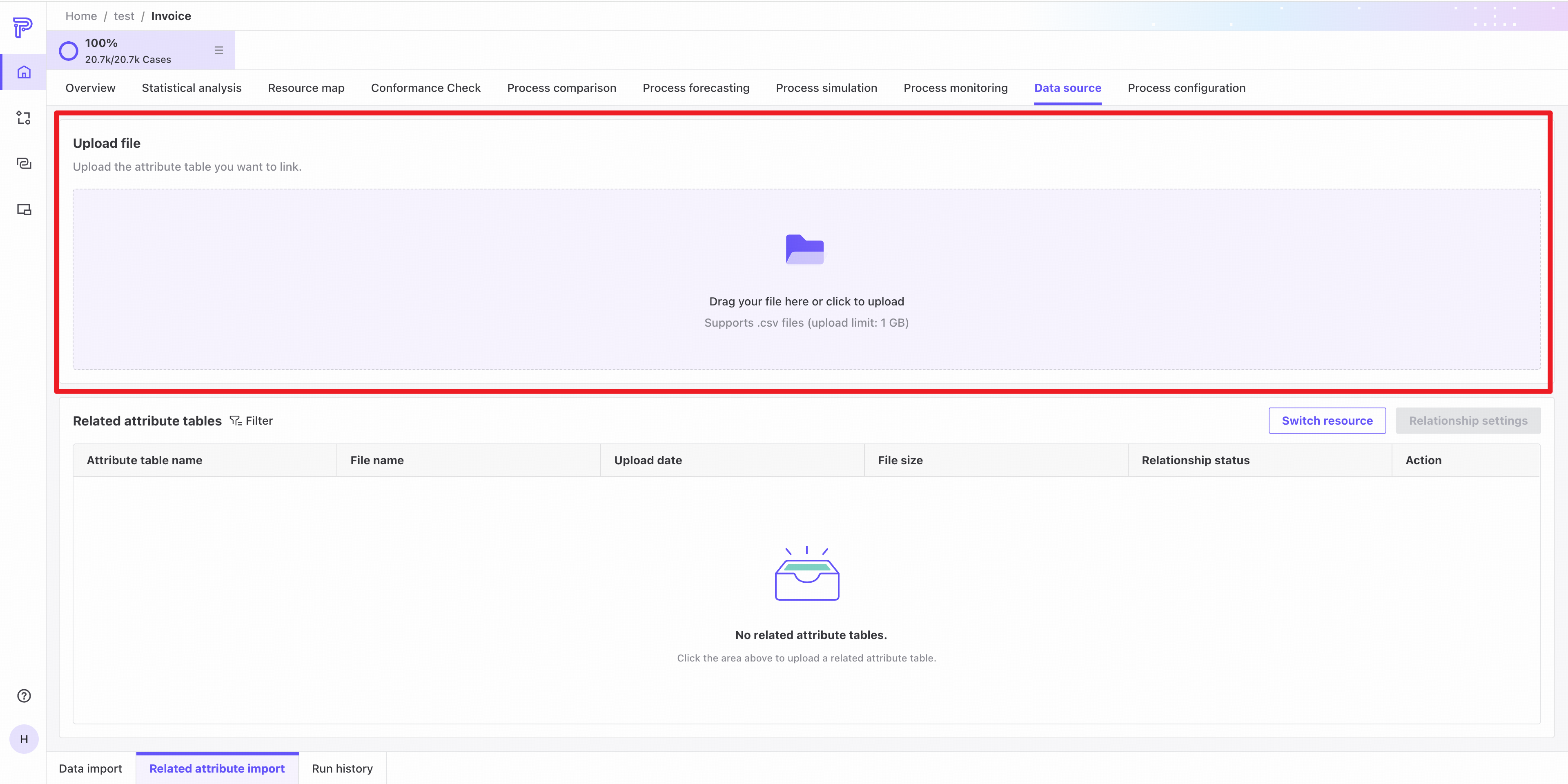
Upload an attribute table by dragging and dropping a CSV file or clicking to select one.
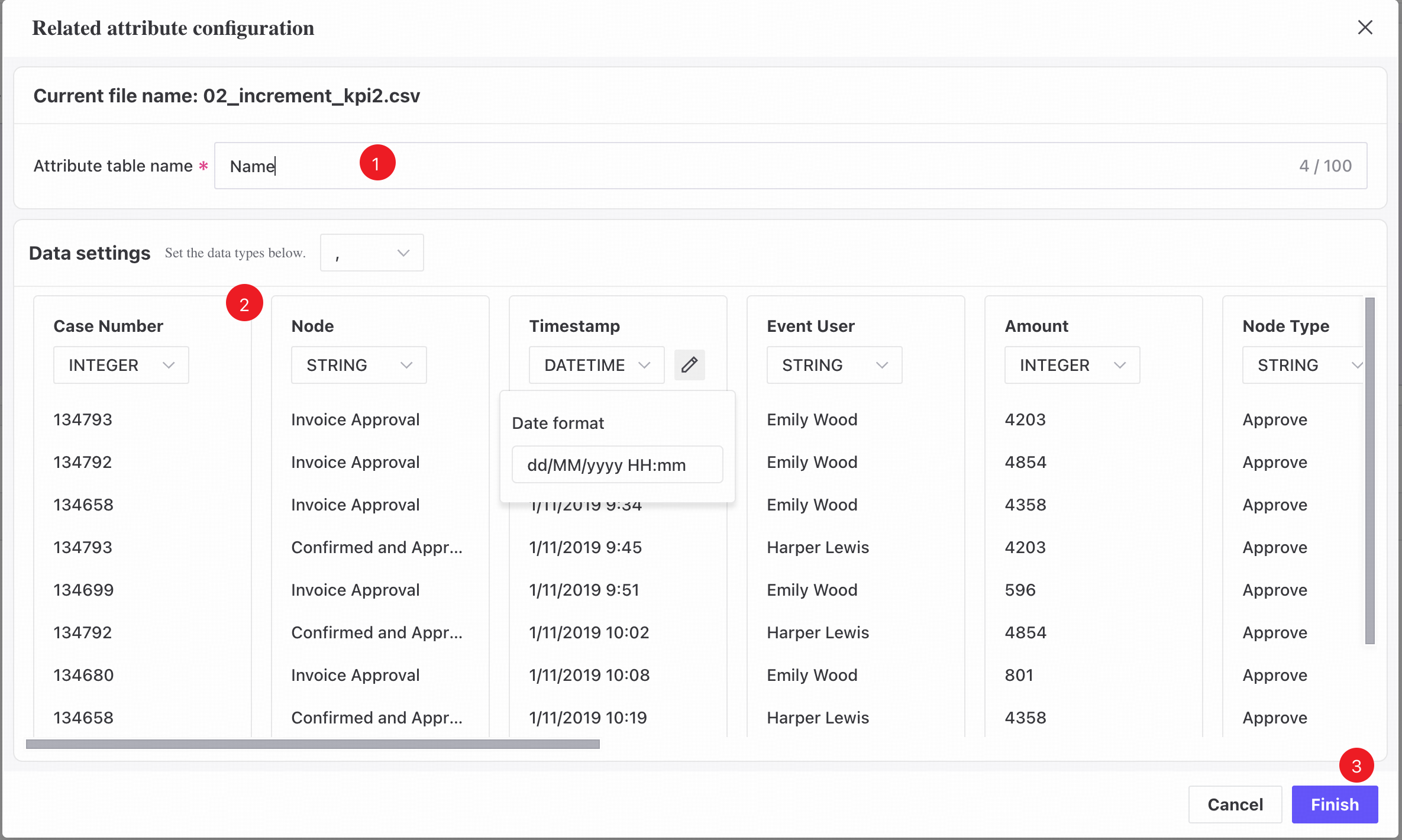
❶ After selecting a file, enter a name for the uploaded attribute table.
❷ Configure the data type of each attribute column.
❸ Click Finish to upload the attribute table to the system.
Related attribute table list
Uploaded attribute tables appear in the list.
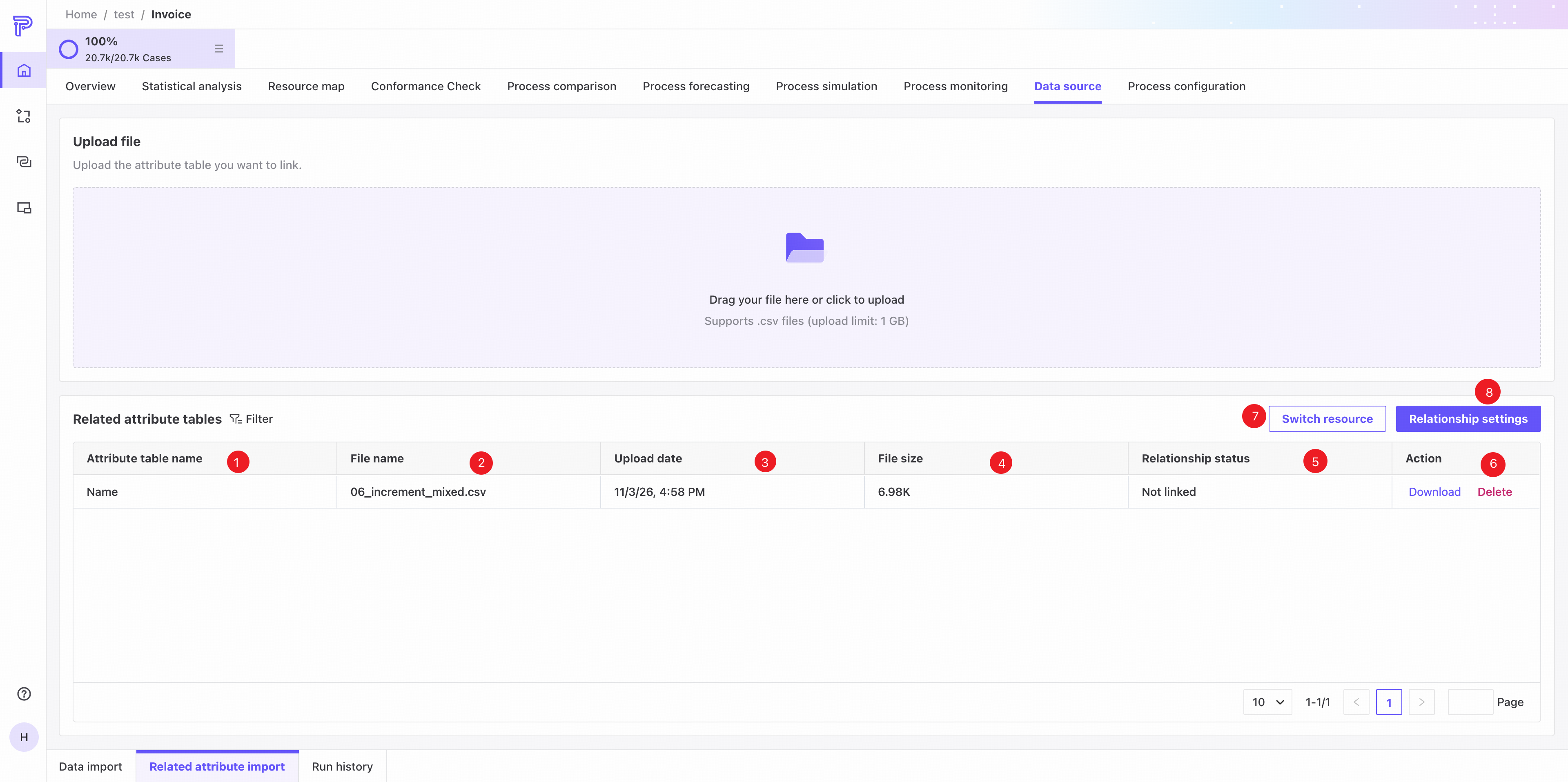
❶ The user-defined attribute table name.
❷ The original file name of the attribute table.
❸ Upload time.
❹ File size.
❺ Relationship status: check whether the attribute table has been linked to the event log.
❻ Actions: download the CSV file or delete the attribute table from the system.
❼ Click to change the Resource column for the current process.
❽ Click to open Relationship settings.
Relationship settings
Relationship settings page
Select attribute tables to link and view existing relationships between the event log and attribute tables.
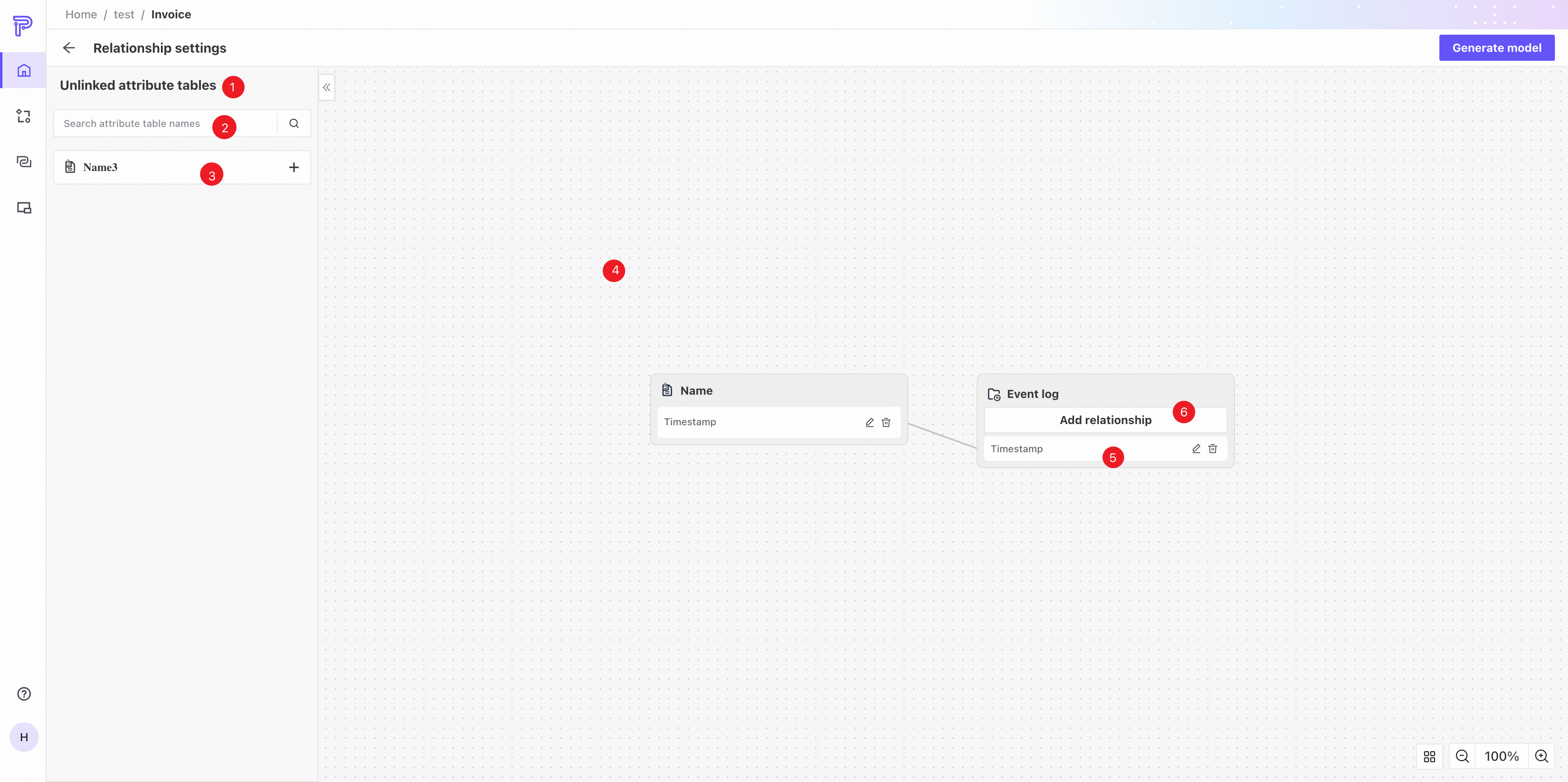
❶ Unlinked attribute tables: all tables without a configured relationship to the event log.
❷ Search attribute table names.
❸ Attribute table name: click the plus button on the right or drag the table into the E-R diagram to add a relationship.
❹ E-R diagram: displays relationships between all linked tables. Related tables are connected through their foreign keys.
❺ Actions: edit or delete the relationship.
❻ Click to open Add relationship and configure a relationship between an attribute table and the event log.
❼ Click Generate model to apply the attribute table's attributes to process analysis using the configured relationships.
Add relationship page
The Add relationship dialog opens when you drag a table from the unlinked tables area, click its plus button, or click Add relationship in the E-R diagram.
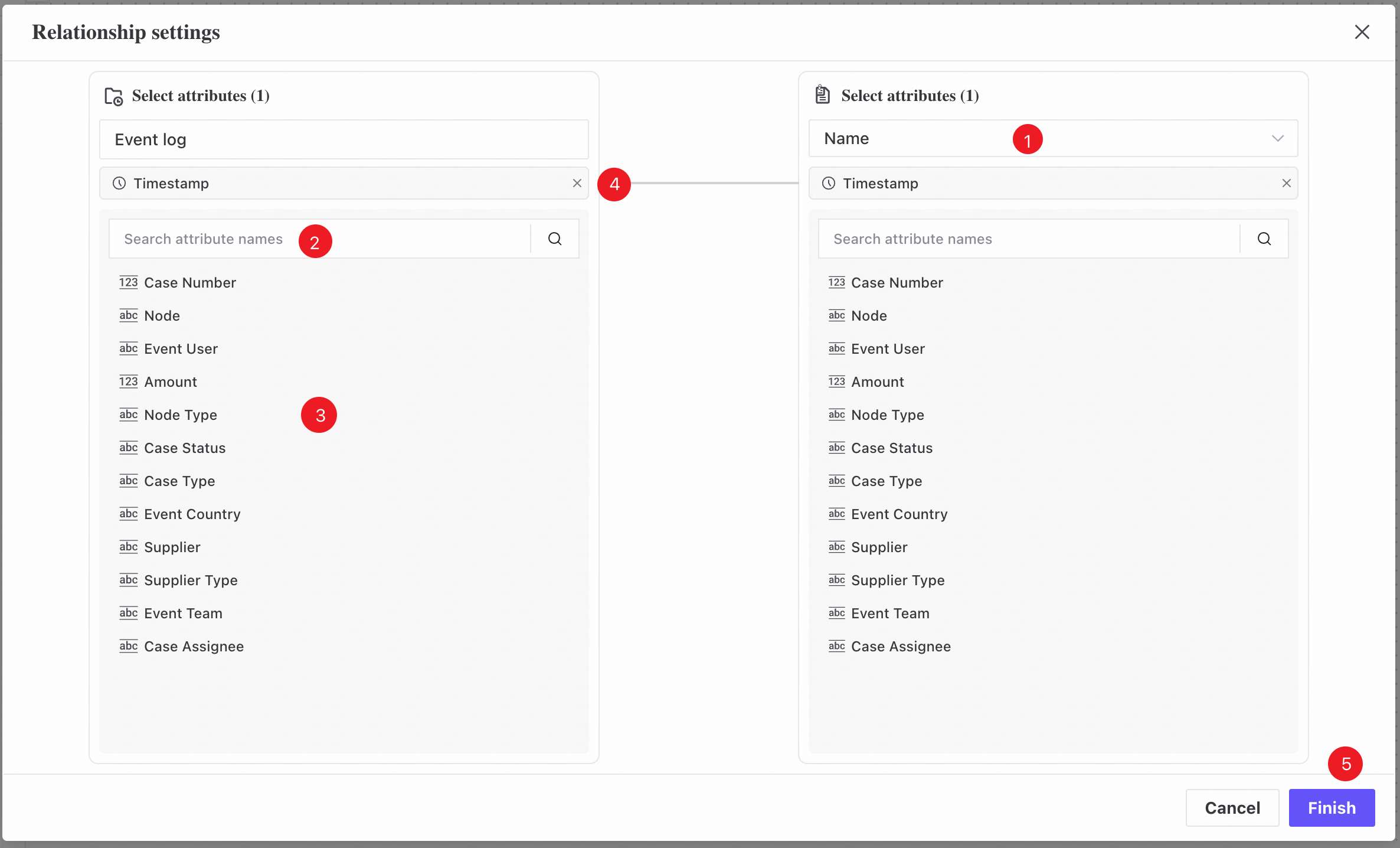
❶ Select an attribute table to link to the event log. When you open this dialog using the plus button or by dragging a table, that table is selected by default.
❷ Search attribute names.
❸ Select foreign key columns from the two tables to configure their mapping. You can specify multiple pairs of keys that must all match.
❹ Click to remove this attribute pair from the foreign key list.
❺ Click Finish to display the linked attribute table in the E-R diagram using your configured relationship.
After adding a relationship and generating the data model, all columns in the attribute table, including foreign keys, become new attributes available for process analysis.
Use related attributes
Related attributes supplement event logs and can be used in filters, Resource analysis, Root cause analysis, Statistical analysis, Insights, and other features. Like original attributes, these derived attributes provide new dimensions for process analysis.
Different attribute tables may contain columns with the same name. Each related attribute therefore identifies its source table. Name your attribute tables carefully to avoid confusion and misleading analysis caused by duplicate names.