Process simulation
Overview
Using an uploaded event log, configure simulation parameters to model replacing human work with RPA bots for some or all activities, then compare manual and automated processing.
RPA (Robotic Process Automation) uses intelligent automation to simulate human back-office tasks, automating repetitive work across otherwise separate enterprise and productivity applications.
Features
Create a process simulation
Enter a name to create the process simulation.

A simulation cannot be created if no Resource column was selected when uploading the event log. Configure a resource on the Data source page first.
Set simulation parameters
Add one or more simulation parameter sets.
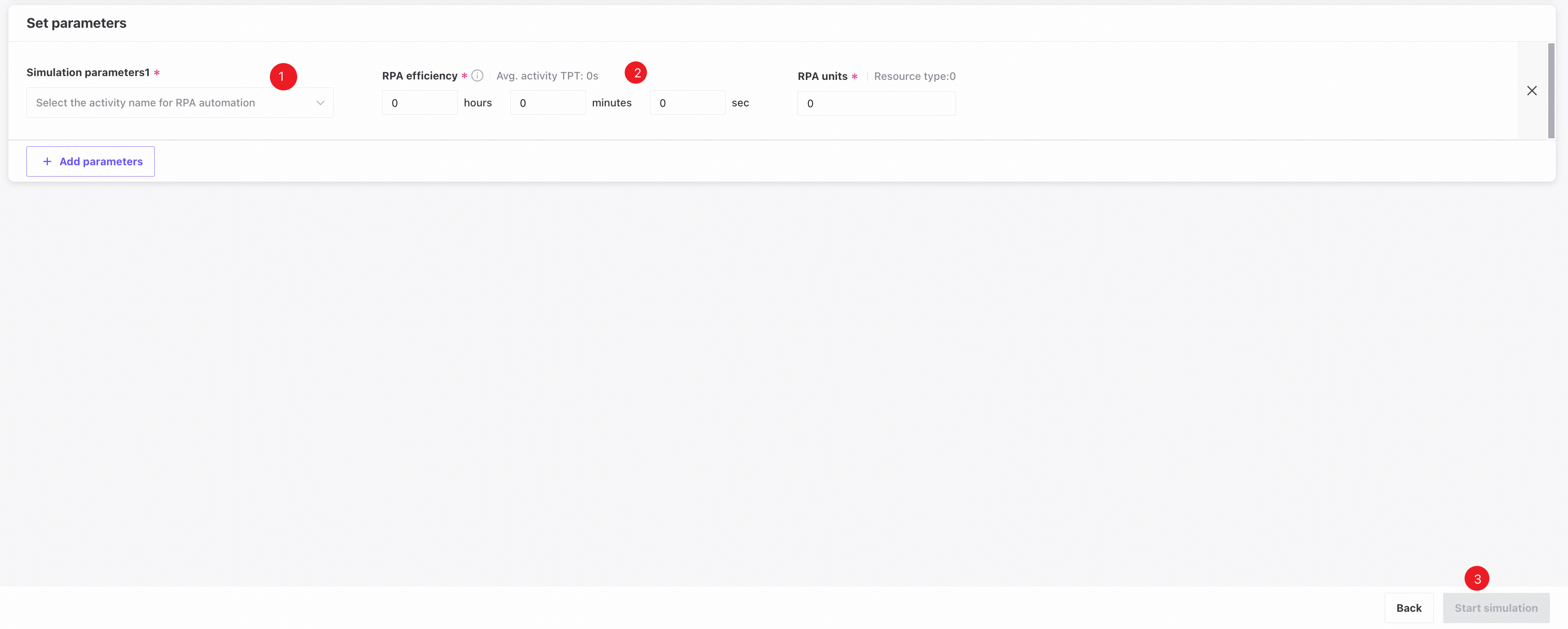
❶ Select the activities to simulate with RPA bots.
❷ Enter the number and efficiency of the RPA bots.
❸ Click Start simulation to view the comparison results.
View simulation results
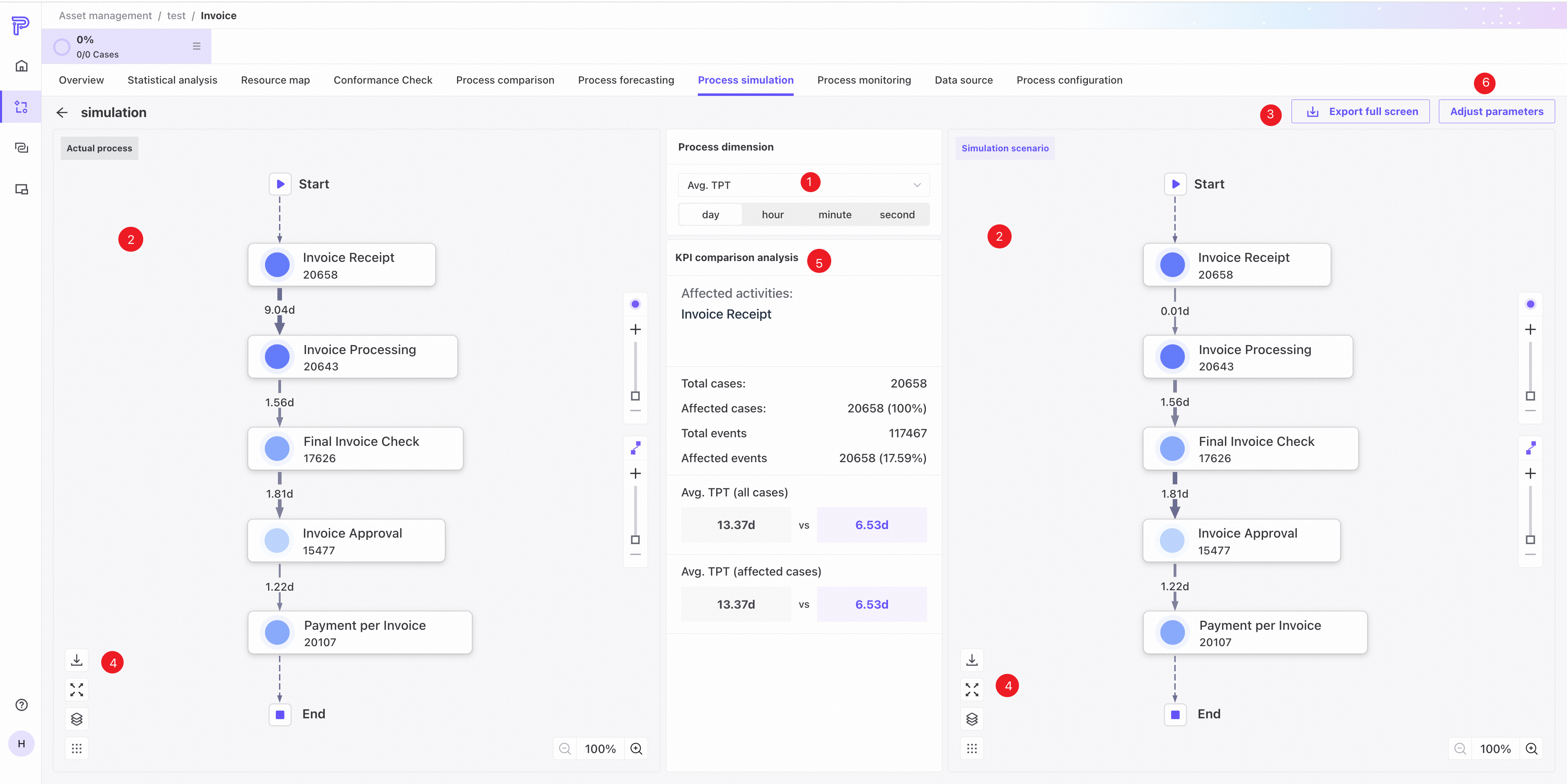
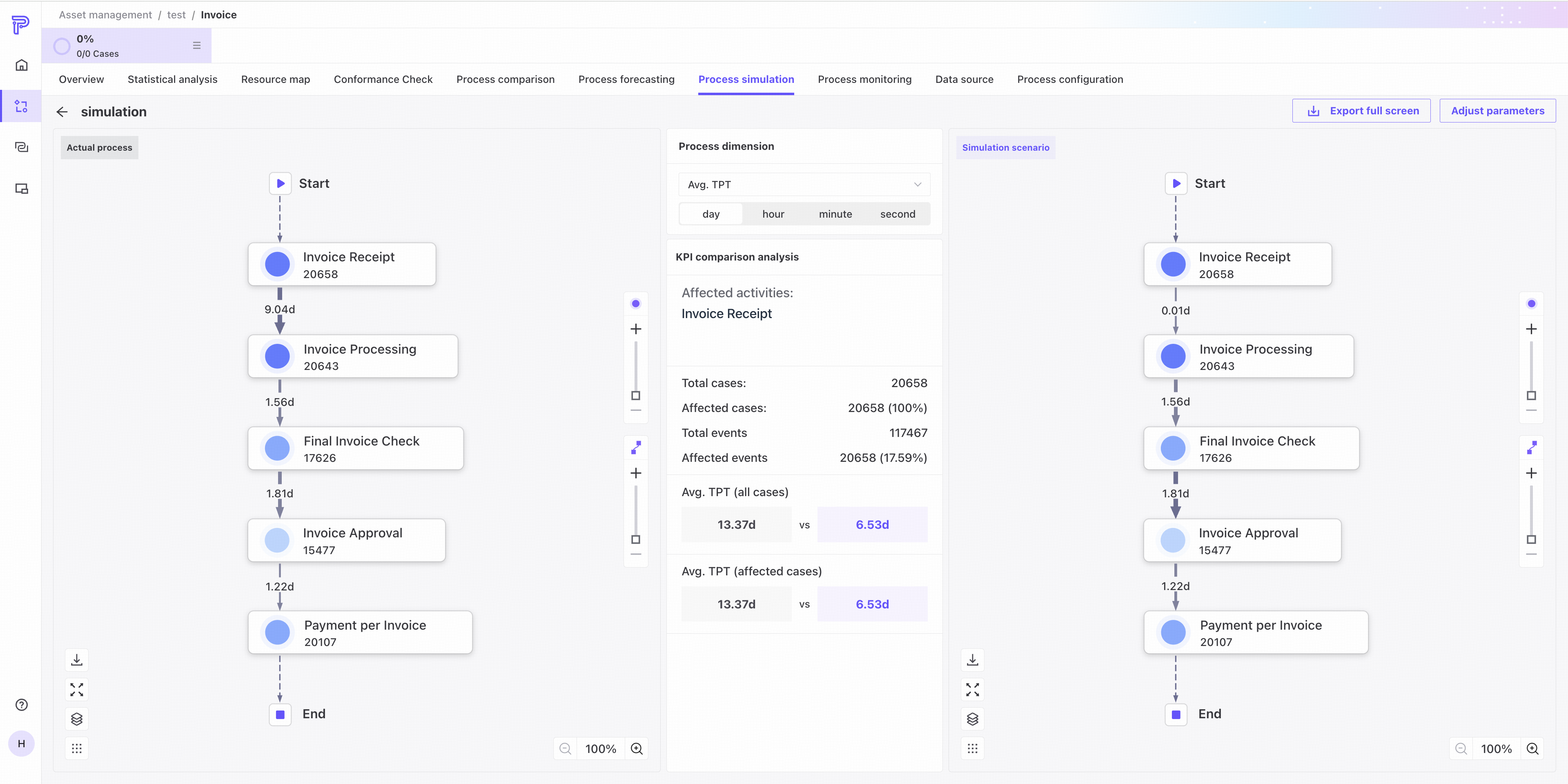
❶ View results by mean, median, or trimmed mean throughput time in days, hours, or minutes.
❷ The left map shows the original process; the right map shows the simulated process with RPA bots performing activities.
❸ Export and download the full comparison results.
❹ Export the actual and simulated process maps separately.
❺ Compare KPIs for the original and simulated processes, including average throughput time for all cases and for cases involving bot-performed activities.
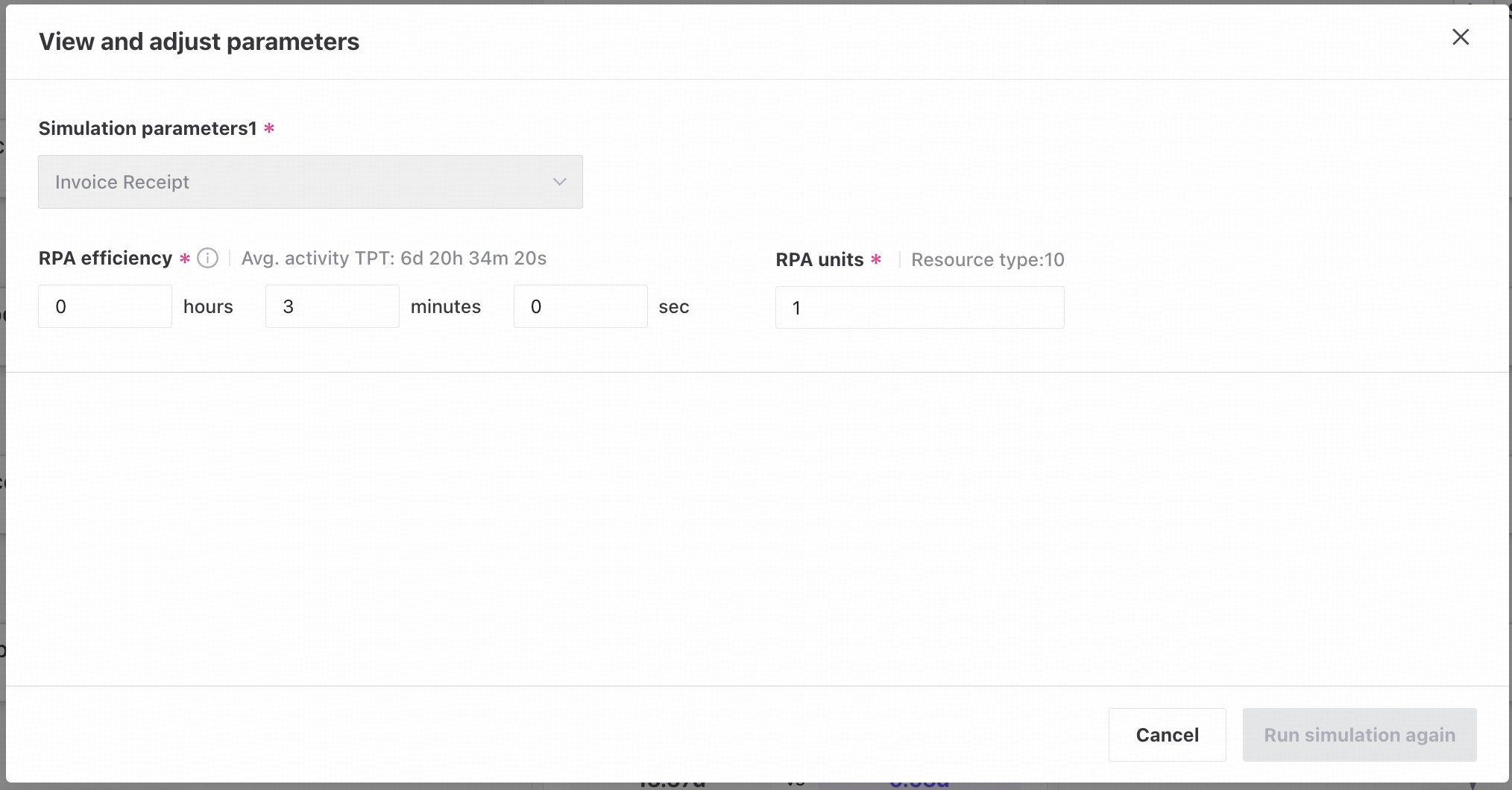
❻ If results do not meet expectations, adjust the RPA parameters and run a new simulation, as shown below.
Display limits
For display behavior when node and edge counts exceed the limit, see Display limits.