Object relationship filtering
Select related objects and specify which relationships to include or exclude to filter matching sets of object instances.
Chart view
Chart view shows relationships between object types in the current model. Click objects in the chart to specify the relationships to filter.
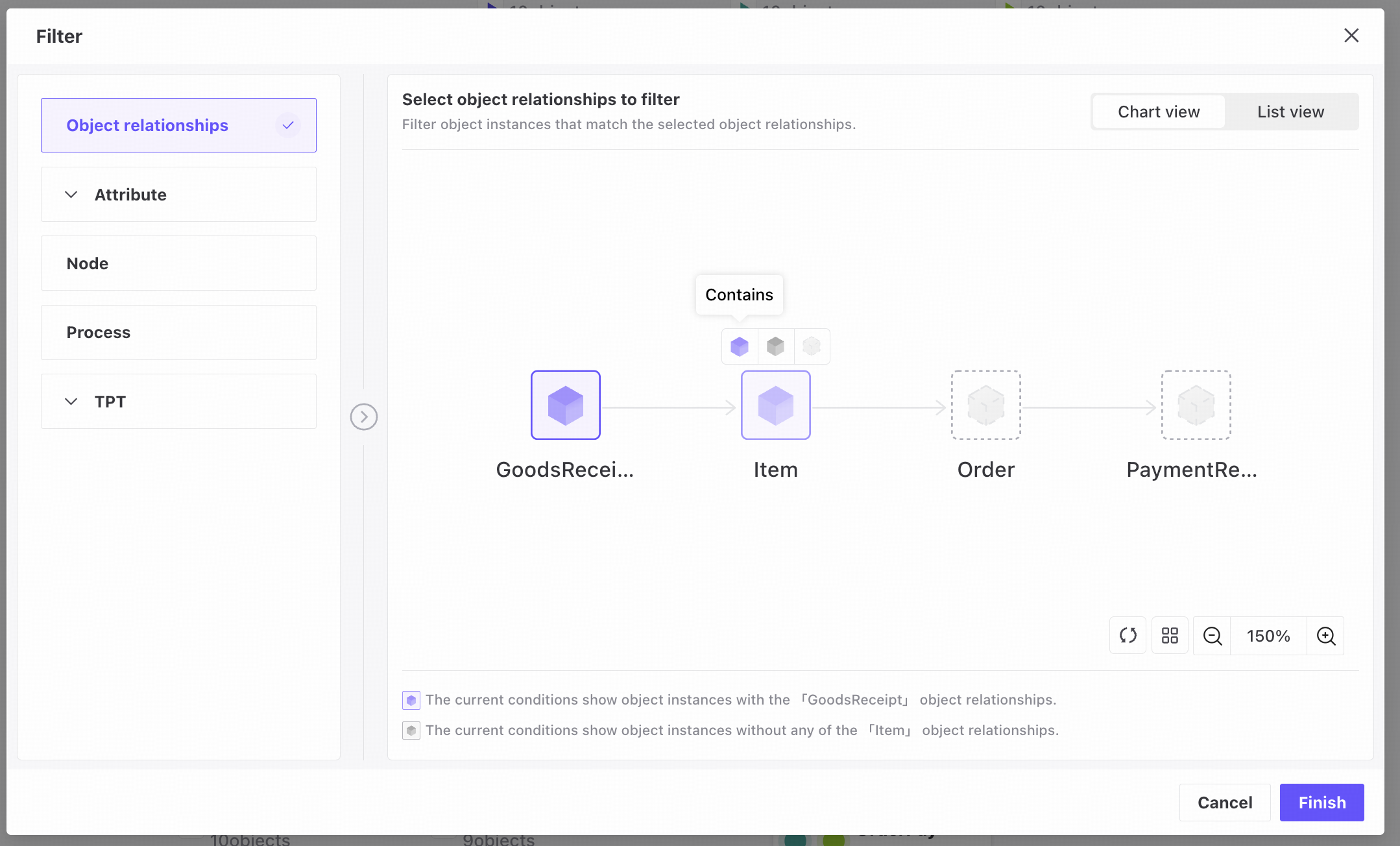
Use the following controls:
- Click an object or use its hover controls to choose Include, Exclude, or Clear. Clear places no restriction on that object's relationships for this filter.
Important
- Select at least two objects.
- If A is linked to B and B to C, you cannot include A and C while excluding B.
- If A is linked to B and B to C, including A and C while leaving B cleared returns instance sets with the A–B–C relationships.
- Use the controls to reset, fit, or zoom the relationship diagram.
- Click Finish to add the filter.
Important
Results generally include matching instances and objects related to them. For example, if A1, B1, and C1 match and D1 is related to C1, D1 is also included.
Example:
Suppose the instances are A1, B1, C1, D1, and D2. A1 is linked to B1, B1 to C1, and C1 to D1; D2 has no relationships.
- Include A and B, with C and D cleared: results are A1, B1, C1, and D1.
- Exclude A: the result is D2.
- Exclude C and D: there are no results.
List view
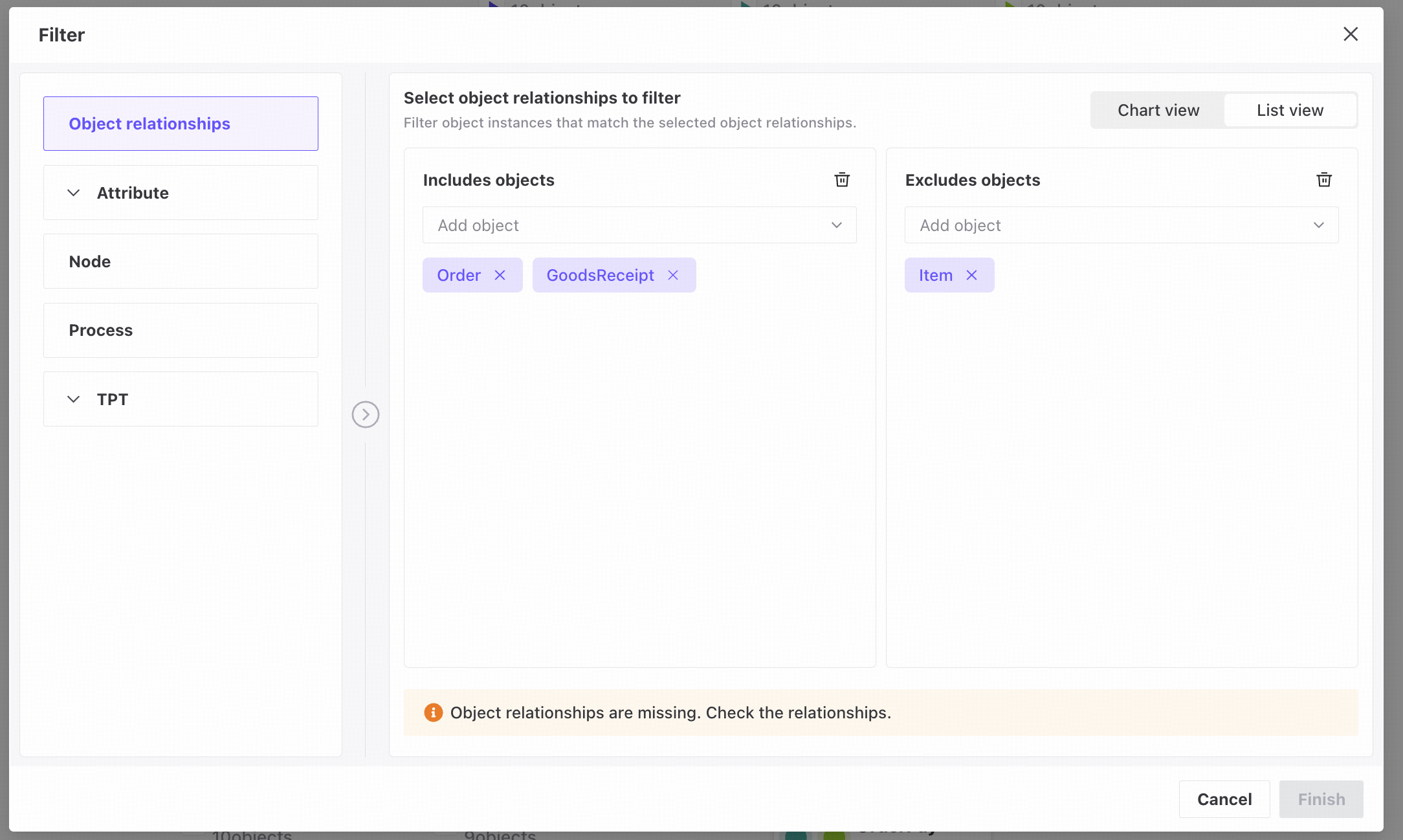
In list view, use dropdowns to include or exclude objects and specify the relationships to filter.
The filtering logic is the same as in chart view.