Template list
Templates define Table and chart panels in Insights. When adding a Table and chart panel to an insight for a process, select an existing template to create it quickly.
Like insights, templates belong to a process. There are two types: custom templates and system presets.
Global controls
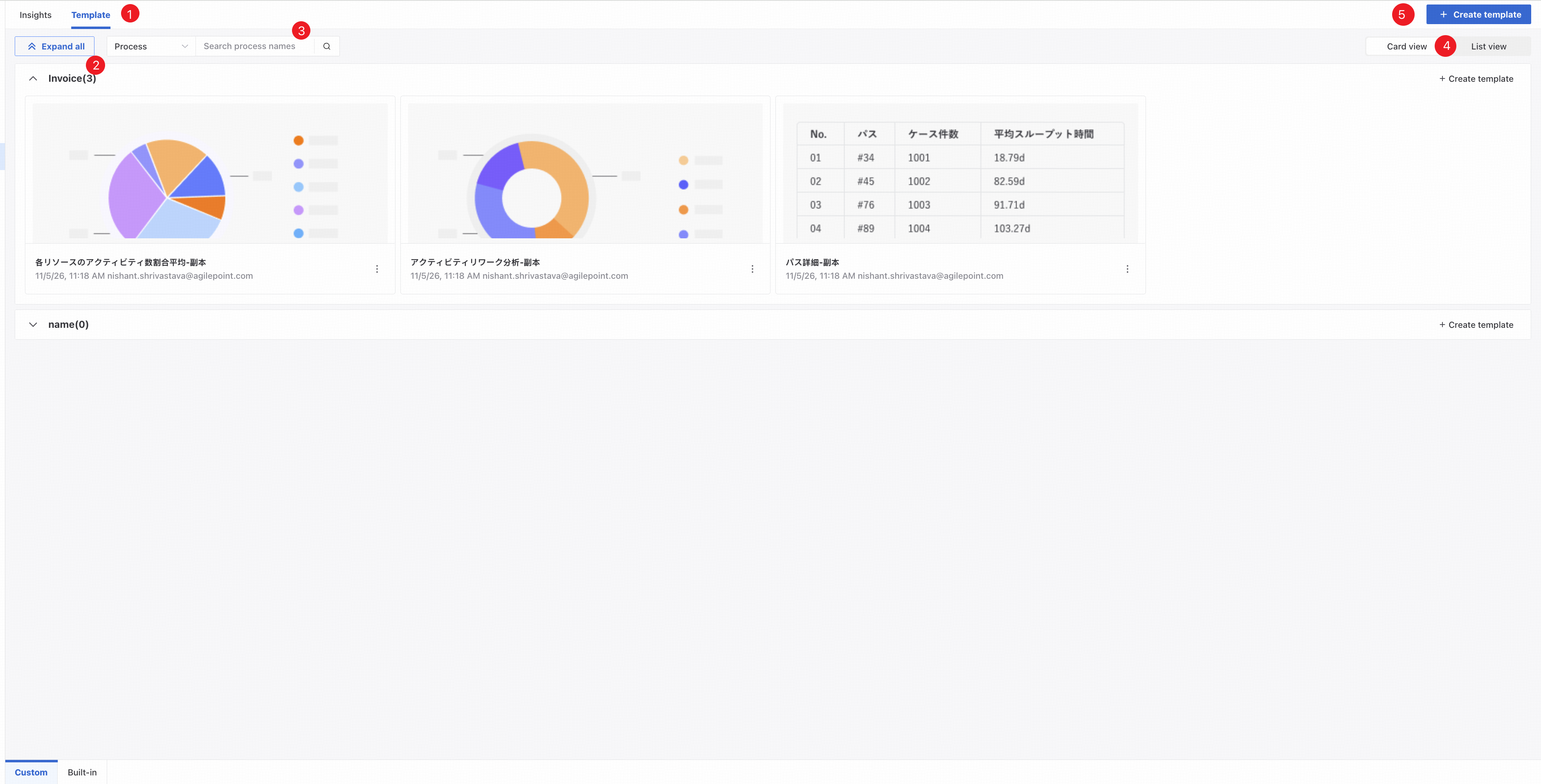
❶ Click the Templates tab to show all templates available to the current user.
❷ Expand or collapse templates for all processes.
❸ Search by process name or template name.
❹ Switch views.
❺ Select a process and enter a template name to create a template for that process.
Card view
Card view displays templates as cards grouped by process.
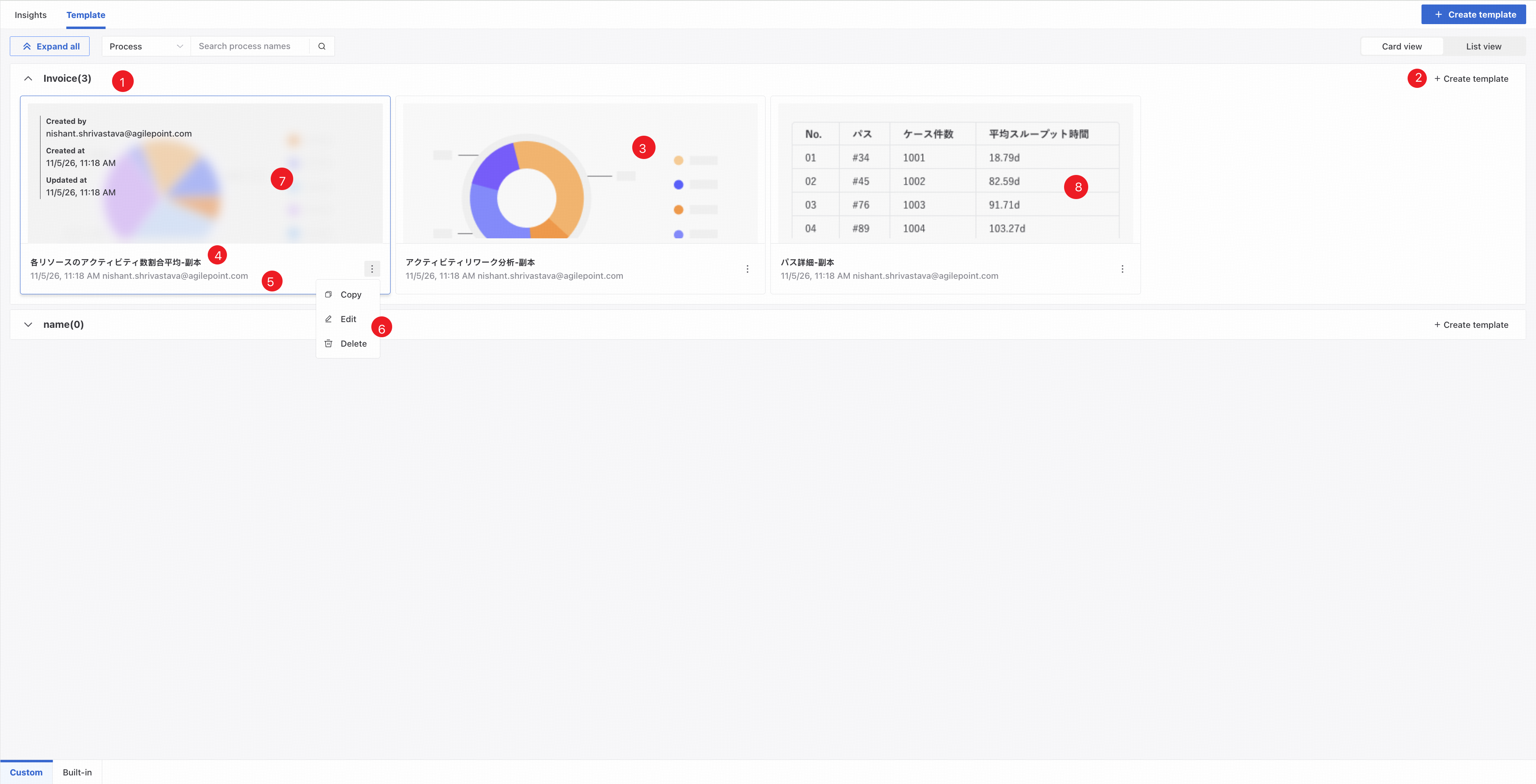
❶ Expand or collapse templates for this process.
❷ Create a template directly for the current process.
❸ The preview thumbnail shows the template's content.
❹ Template name.
❺ The template's creation time and creator.
❻ Copy, edit, or delete the current template.
Copy a template
- For a custom template, click Copy to create a copy in the same process.
- For a system preset, click Copy and select a target process to create a copy there.
❼ Hover over a card to see its creator, creation time, and latest update time.
❽ Click a template card to preview it. From there, copy or delete the template, or click Edit to open its editor.
List view
List view displays templates in lists grouped by process.
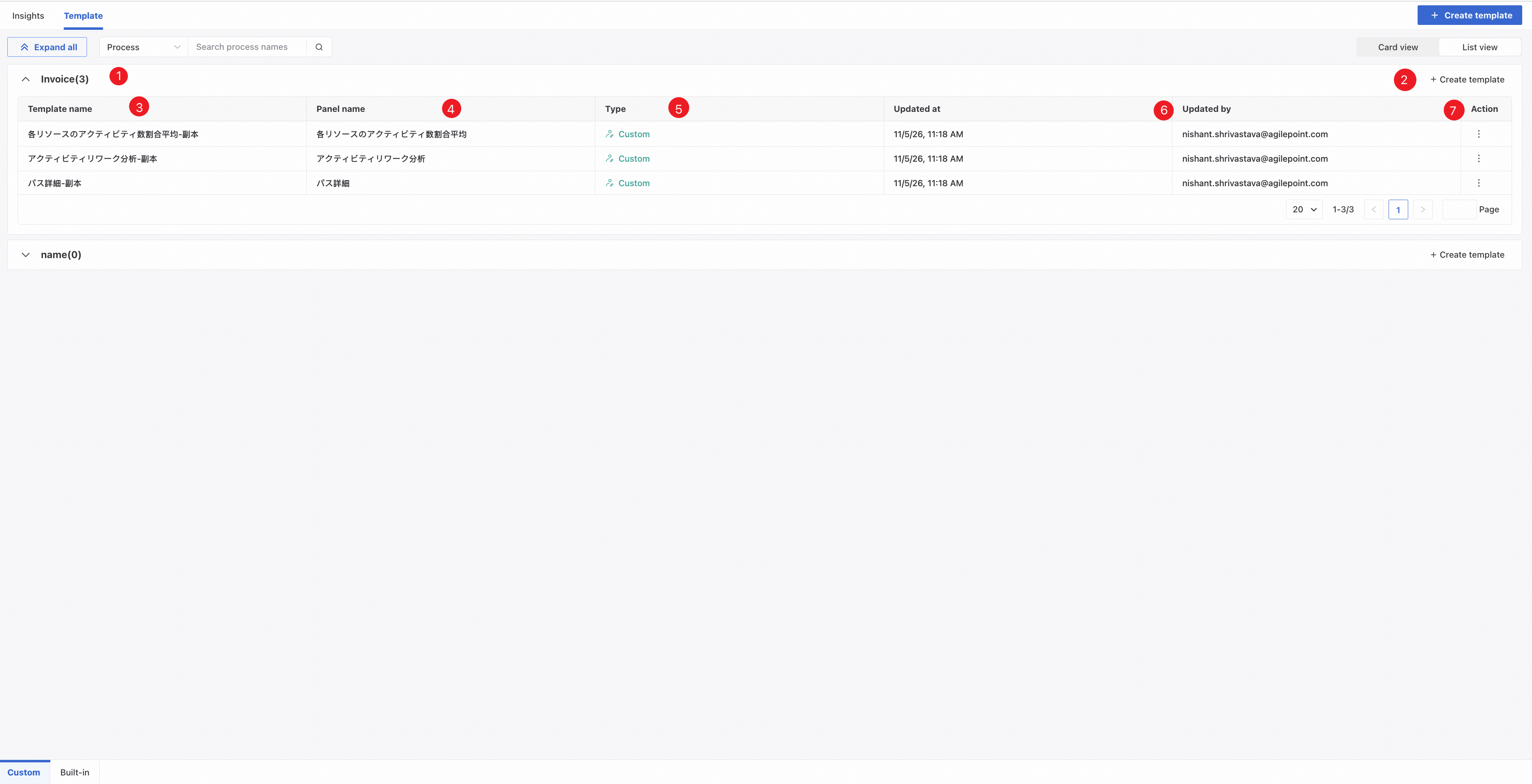
❶ Expand or collapse templates for this process.
❷ Create a template directly for the current process.
❸ Template name.
❹ Panel name: displayed when the chart is added to an insight.
❺ Type: Custom or System preset.
❻ Updater and update time.
❼ Copy, edit, or delete the current template.
System presets can only be copied.