Filter conditions
Filter matching records by attribute, task, task transition, or throughput time.
Active filters
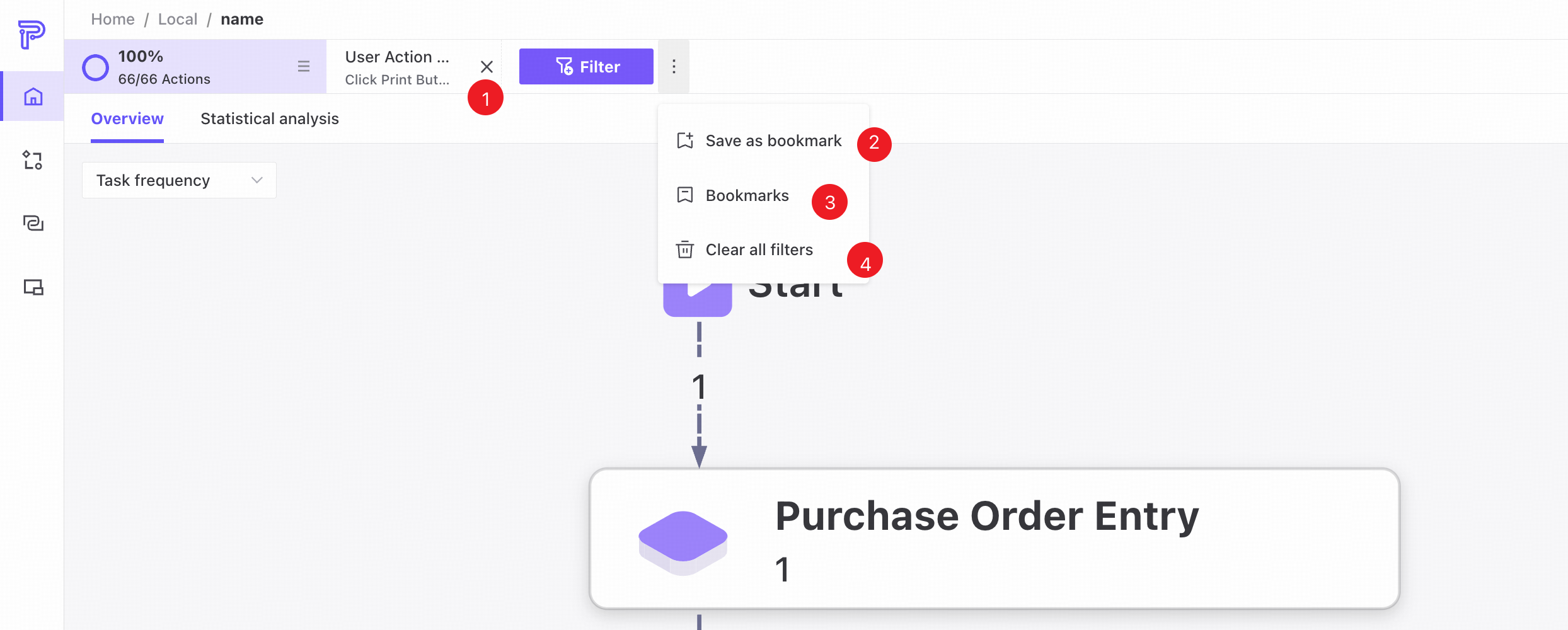
❶ Selected filters appear here. Click to edit a filter quickly, or click Delete to remove it.
❷ Save the current filters as a bookmark.
❸ Bookmark list.
❹ Clear all filter conditions.
Filter conditions
Filters help you focus on relevant task data for more precise analysis and decisions. Click Filter conditions at the top of the screen to open the panel and create filters.
Attribute filtering
Select the Attribute tab in the Filter conditions panel to filter by individual values in data model tables.
Filter types
Attribute filters support three data types:
- Numeric
- String
- Date
Numeric
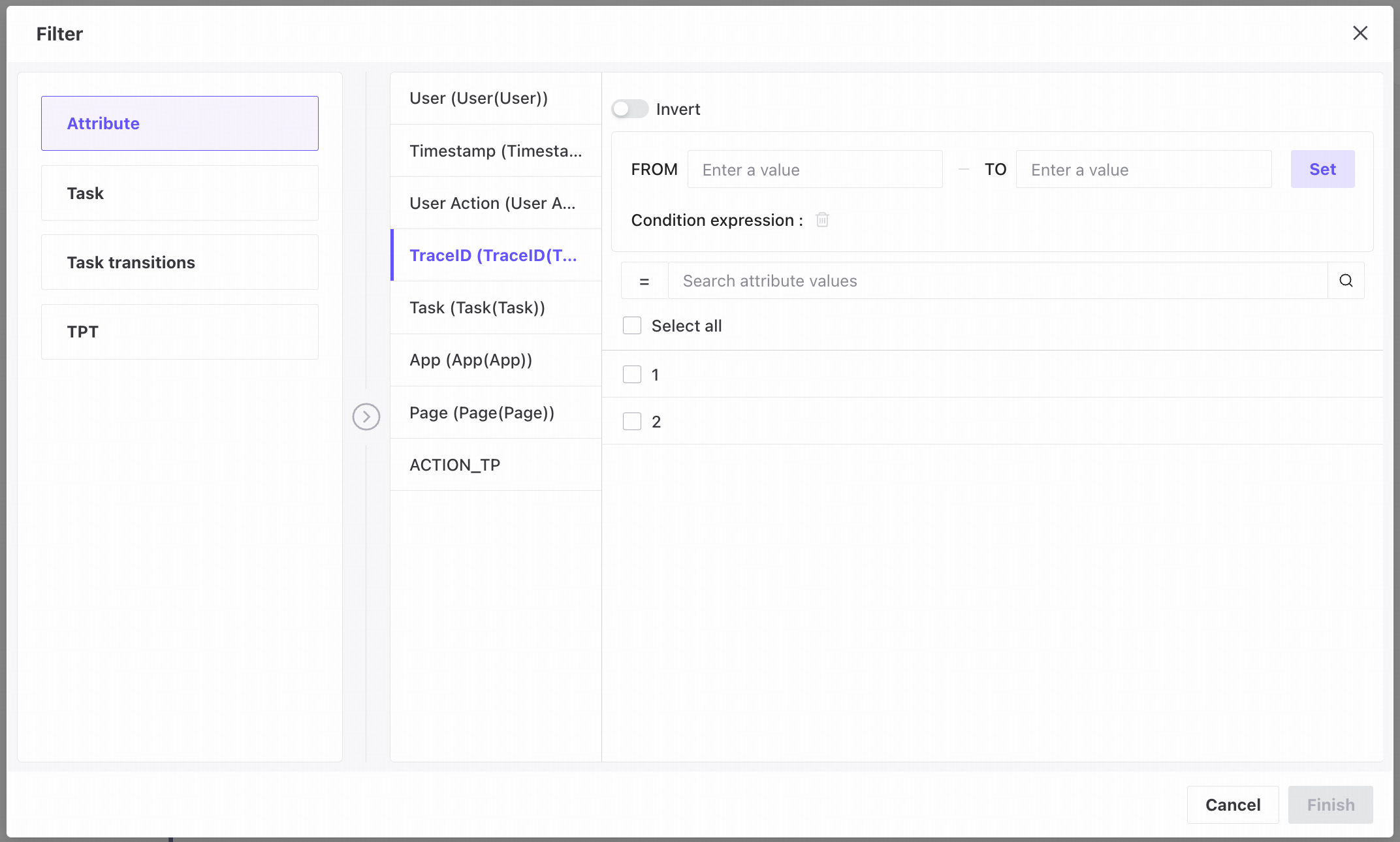
❶ Select one or more entries in the checkbox list.
❷ The numeric comparison selector defaults to =. Use it with the adjacent input to specify the numeric range to search.
The comparison selector is available only for numeric attributes.
❸ Enter a number and press Enter to display values matching the specified numeric range.
❹ Enable Invert selection to filter by all unselected values.
String
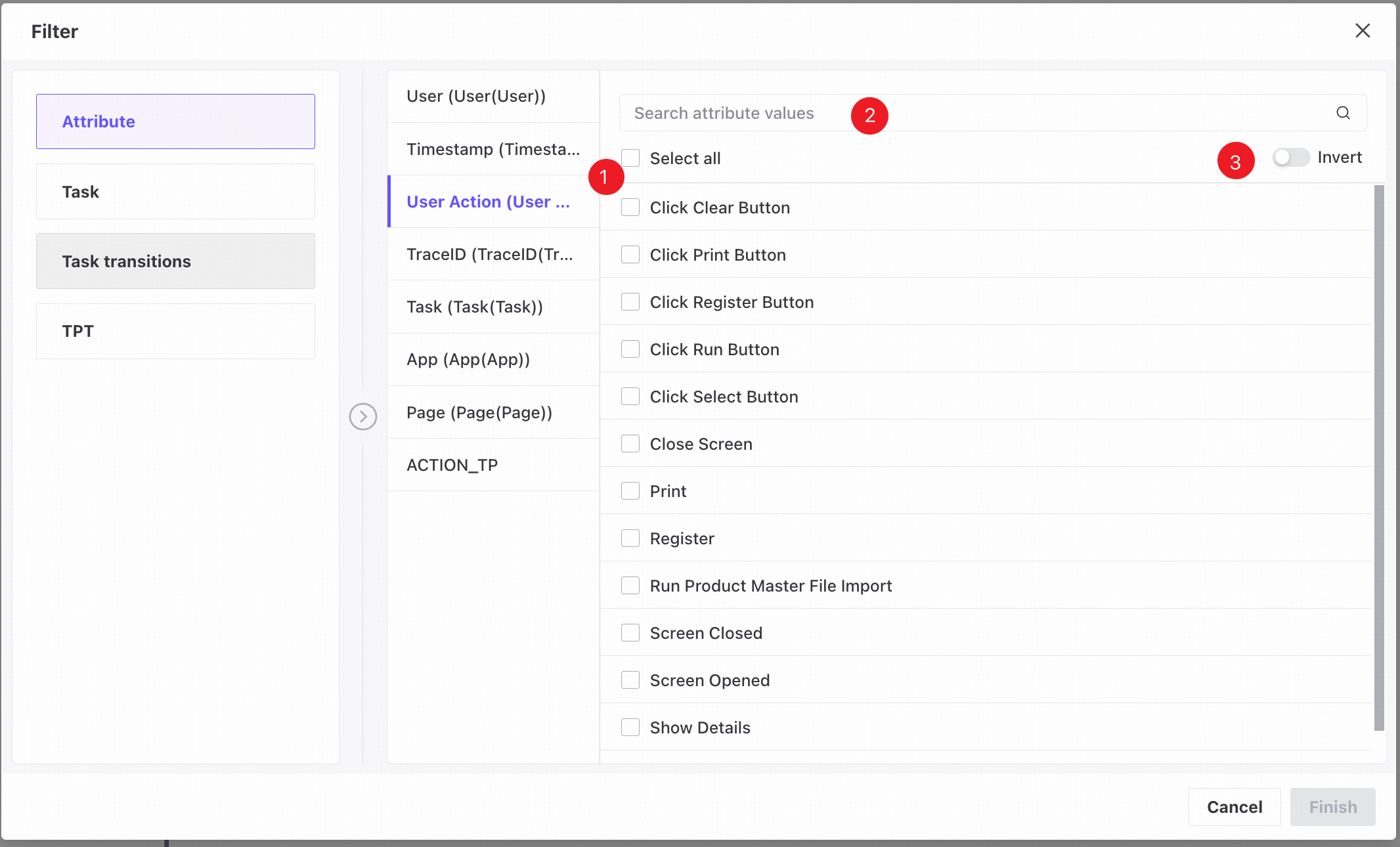
❶ Select one or more entries in the checkbox list.
❷ Enter a column value in the search box and press Enter to display values containing the search text.
❸ Enable Invert selection to use all unselected values as the filter.
Date
Date filters support range selection and attribute selection. Range selection is selected by default.
Range selection: select a date range.
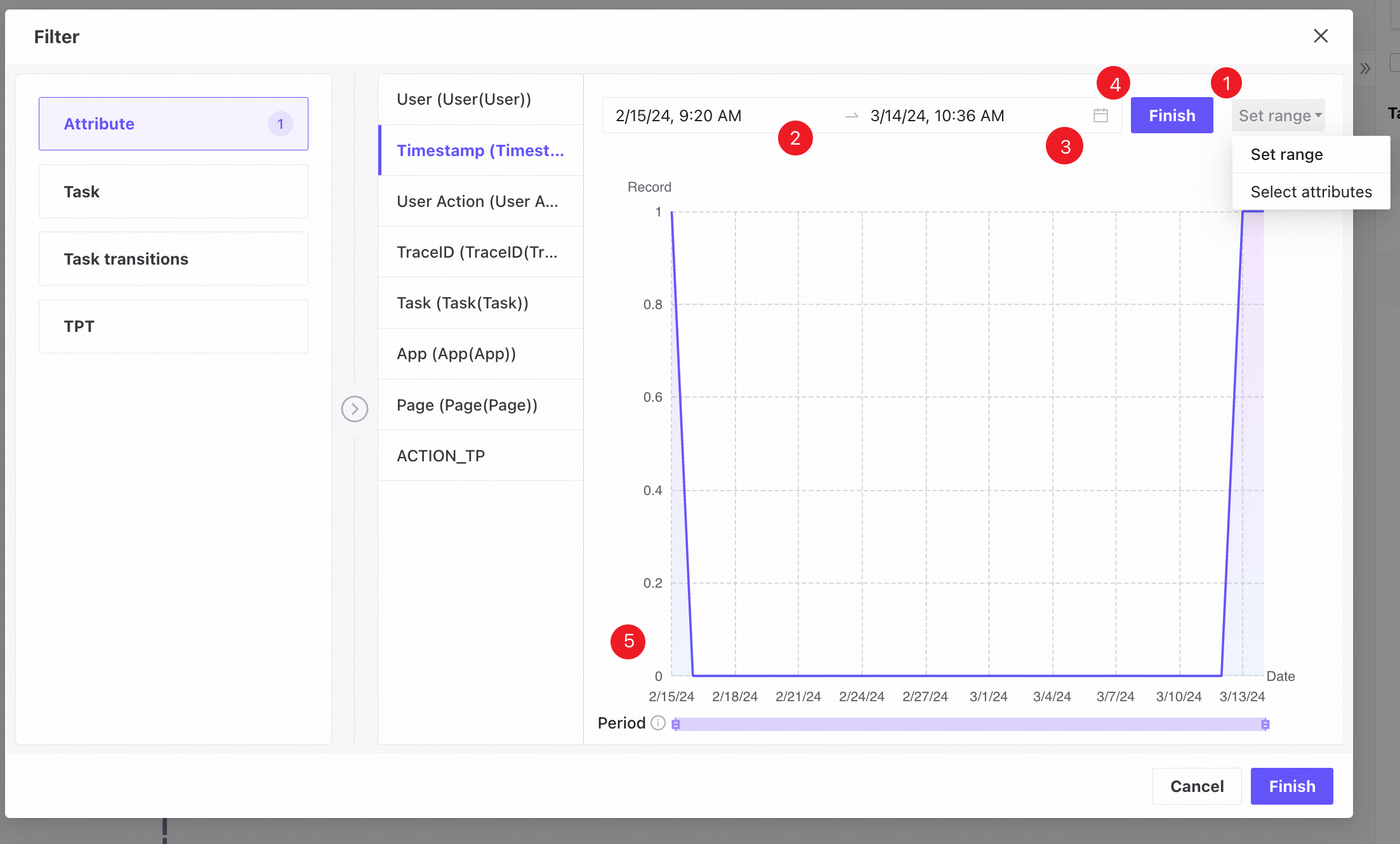
❶ Switch to range selection.
❷ Select the start date.
❸ Select the end date.
❹ After selecting a valid date range, click Finish to view the chart.
- Finish is disabled until both the start and end dates are selected.
- Choose a valid date range. The start date must not be later than the end date. Otherwise, an error appears and Finish remains disabled.
❺ The distribution chart. Drag the slider to set the time range and view detailed data.
Attribute selection: select individual dates.
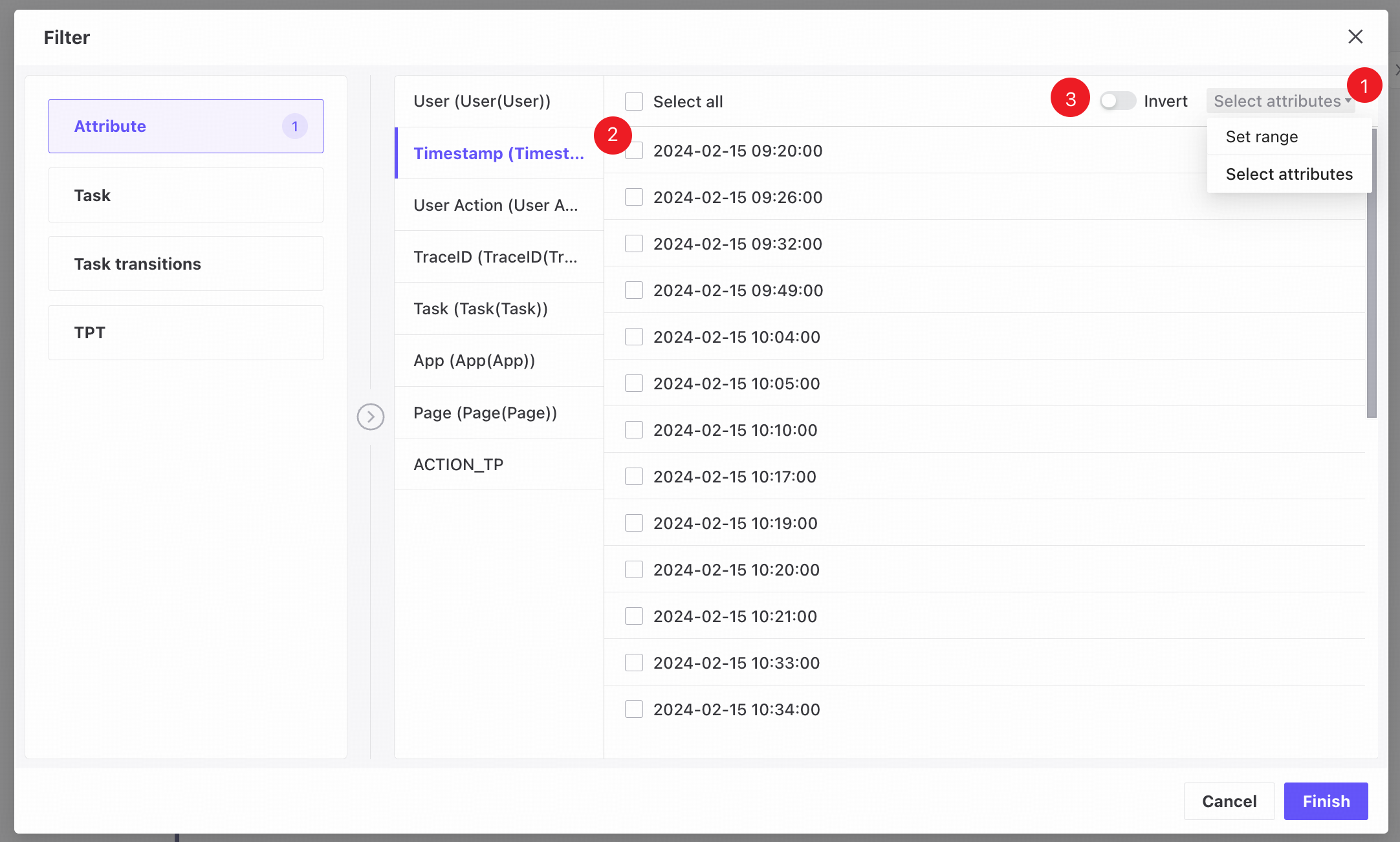
❶ Switch to attribute selection.
❷ Select one or more entries in the checkbox list.
❸ Enable Invert selection to use all unselected values as the filter.
Task filtering
Filter records based on the tasks they pass through.
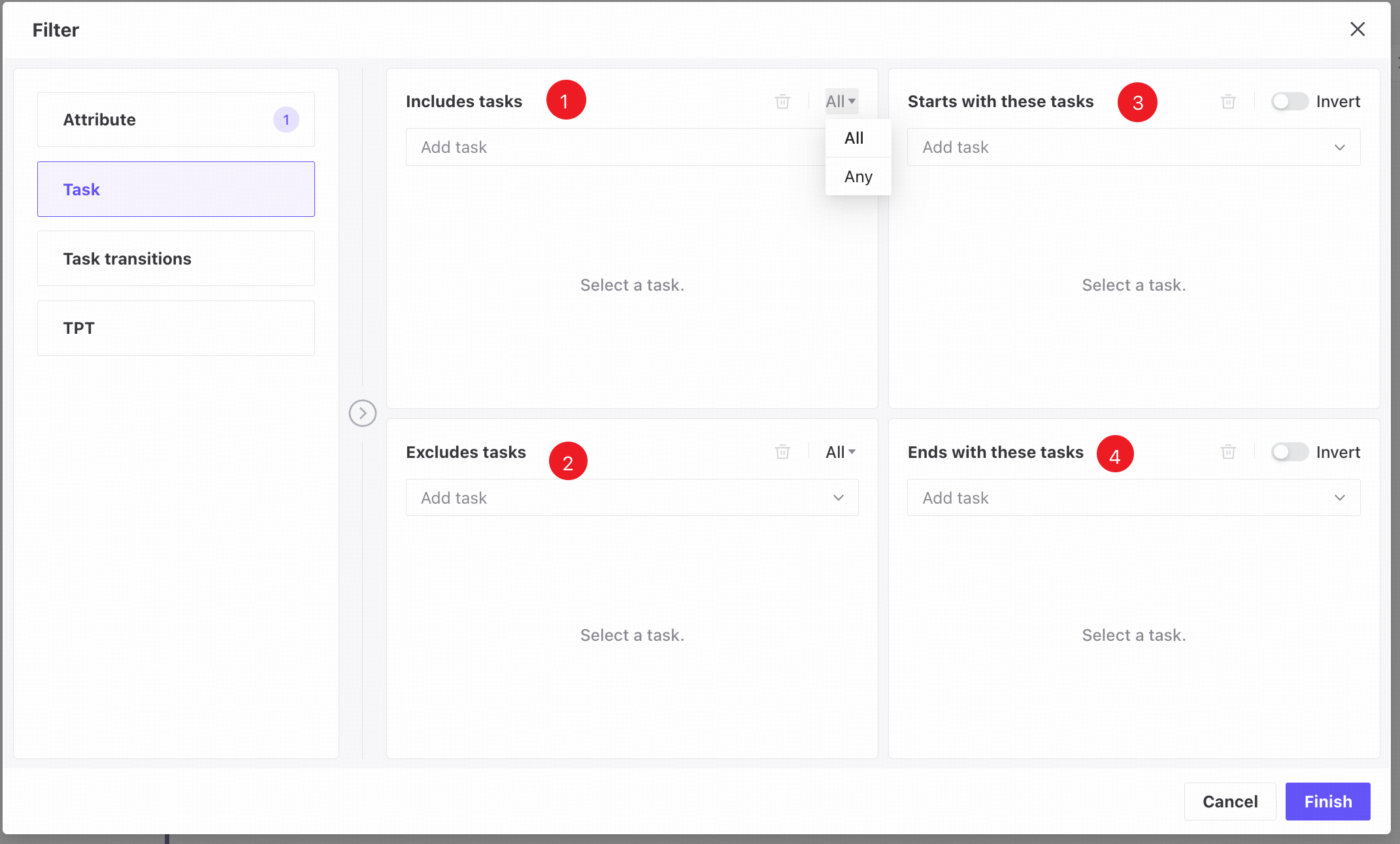
❶ Select one or more tasks to include records passing through them. Use the upper-right control to choose all or any selected tasks.
❷ Select one or more tasks to exclude records passing through them. Use the upper-right control to choose all or any selected tasks.
❸ Select a task to find records starting with it.
❹ Select a task to find records ending with it.
Task transition filtering
Select a task transition relationship to find matching records.
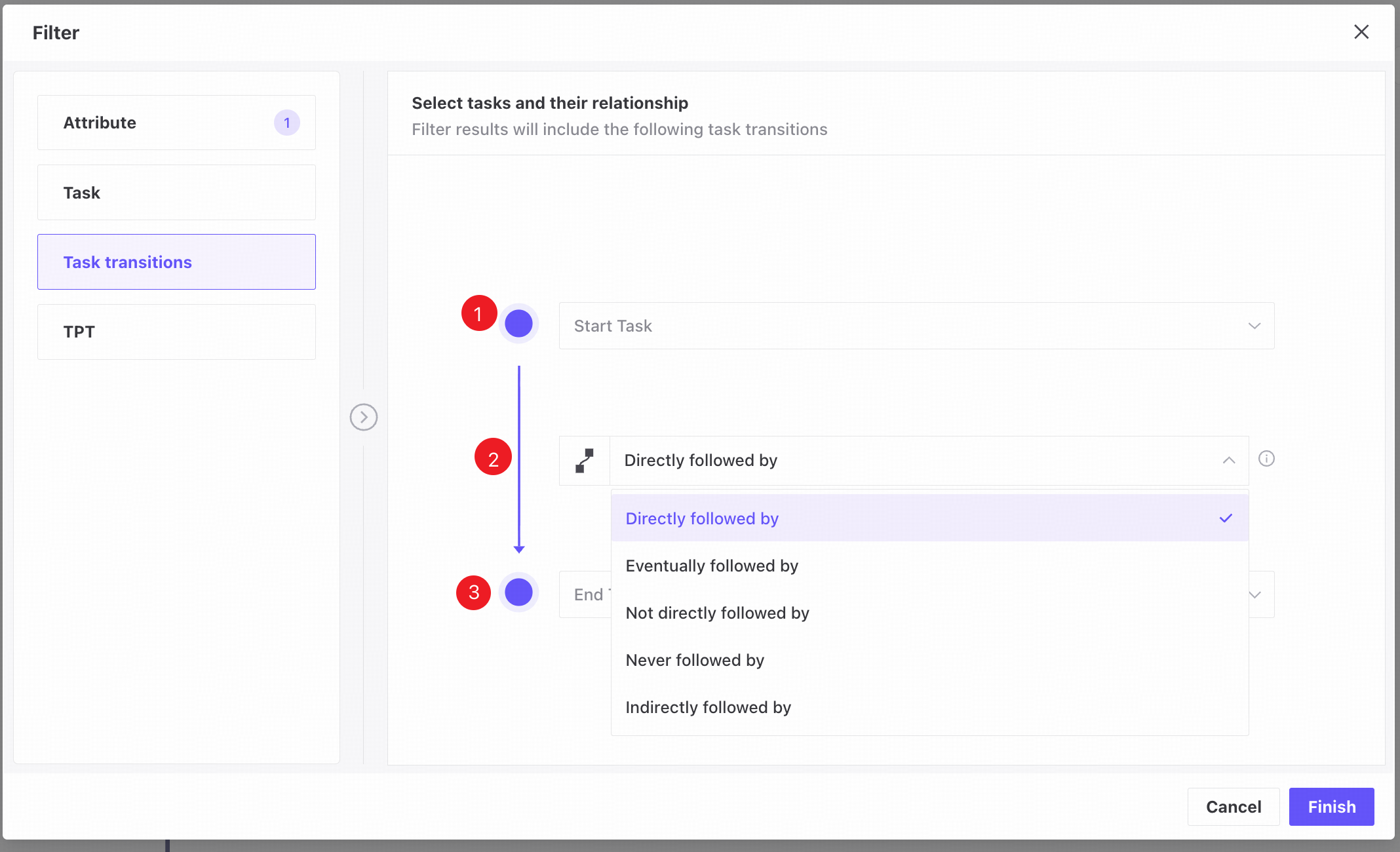
❶ Select the start node.
❷ Select the relationship: Directly followed by, Not directly followed by, Indirectly followed by, Eventually followed by, or Never followed by.
❸ Select the end node.
Throughput time filtering
Select the Throughput time tab. Here, throughput time is the time taken to transition from Task A to Task B. Since a task can occur multiple times in a record, choose whether to use its first or last occurrence.
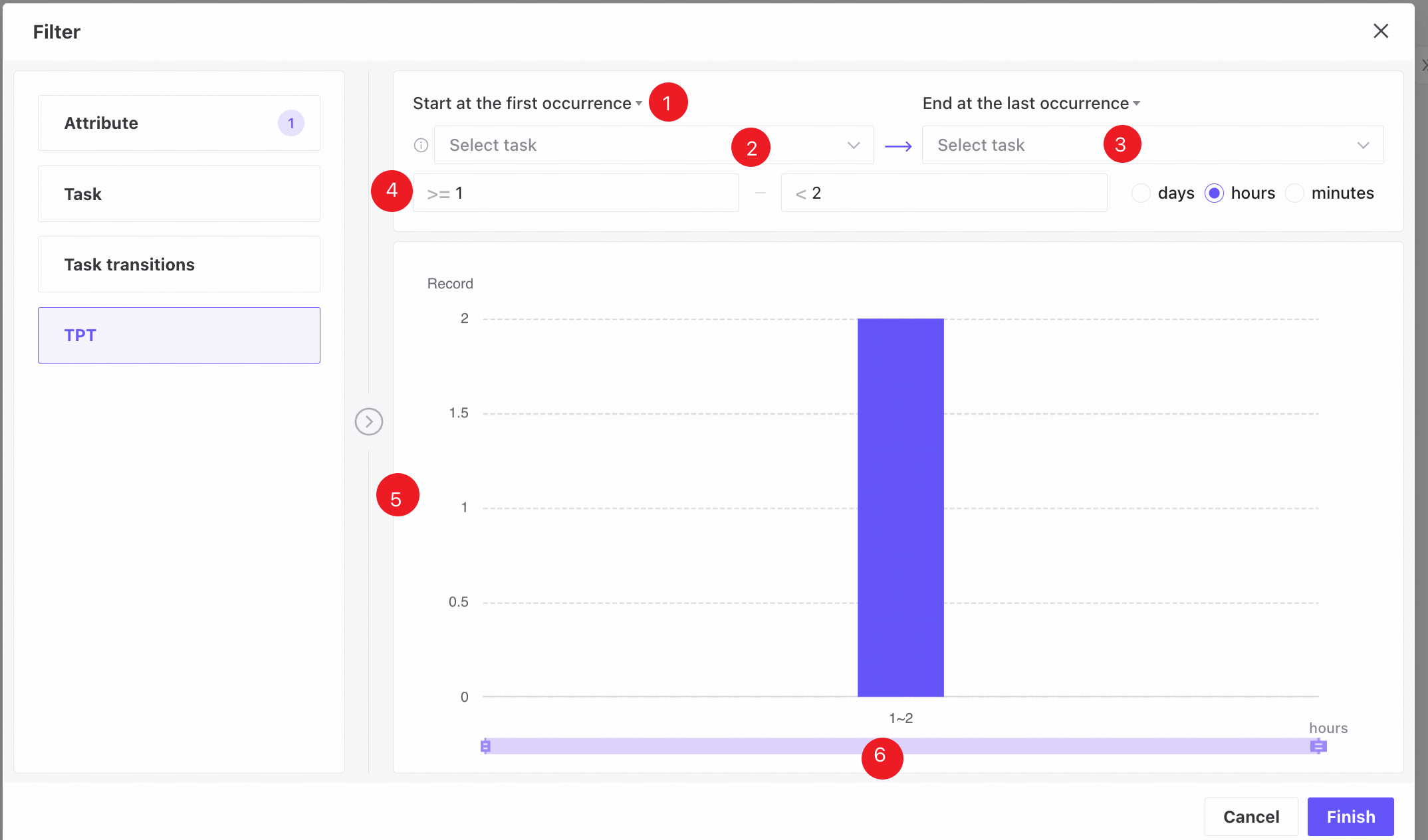
❶ Choose the first or last task occurrence for measuring throughput time.
❷ Select the start task.
❸ Select the end task.
❹ Enter a start value, end value, and time unit to filter cases by throughput time. Use the up/down arrows to adjust values in increments of 0.1. Defaults are the minimum and maximum values in the data. Available units are days, hours, and minutes; days is selected by default.
❺ The histogram shows time ranges on the X-axis and case counts on the Y-axis.
❻ Drag the time range slider to adjust the range and view the corresponding data.
Bookmarks
Bookmarks work in the same way as in Process mining. For details, see Bookmarks. Bookmarks are separate for Page view, App view, and individual task analysis pages.