Bookmarks
Overview
Save one or more filter conditions as a bookmark. Reuse these customizable sets to quickly access the process information you need and apply frequently used filters during analysis.
Features
Create a bookmark
Click the More icon at the far right of the filter tag row and select Save as bookmark, as shown below.
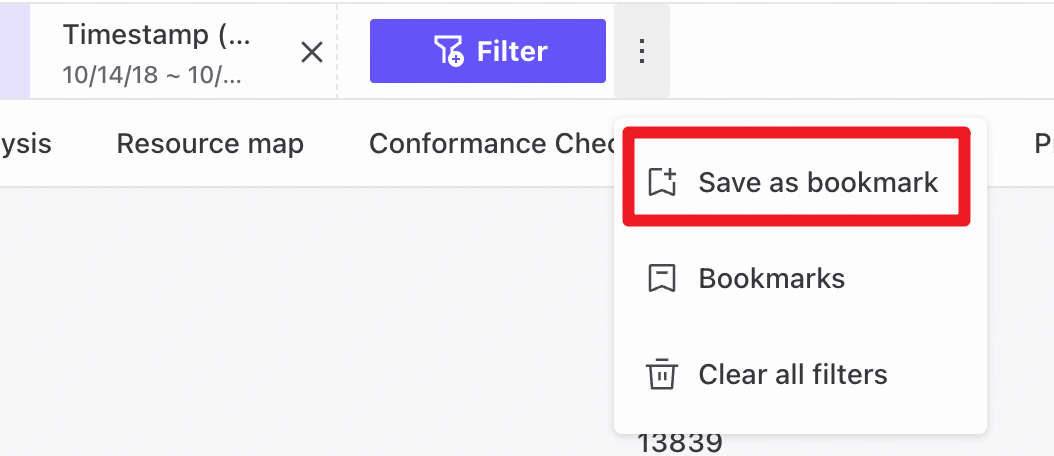
Follow these steps to create a bookmark.
- Add one or more filter conditions.
- Click the More
 icon at the far right of the filter row and select Save as bookmark.
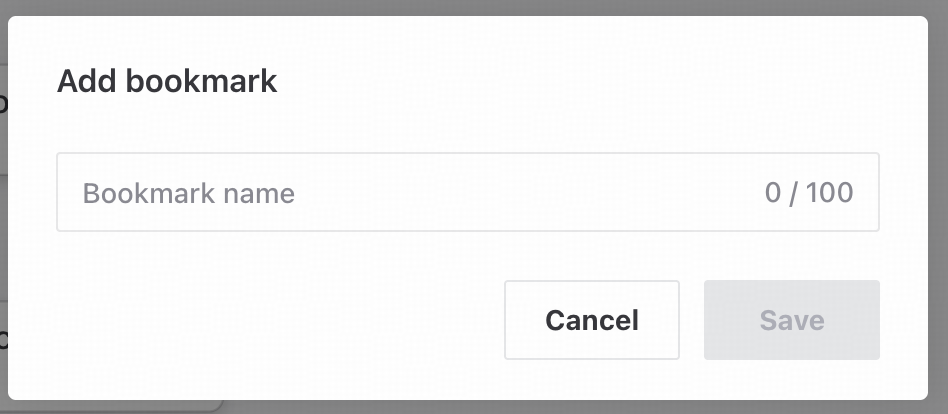
- Enter a name in the Save selection as bookmark dialog, as shown below.
- Click Save to create the bookmark.
Manage bookmarks
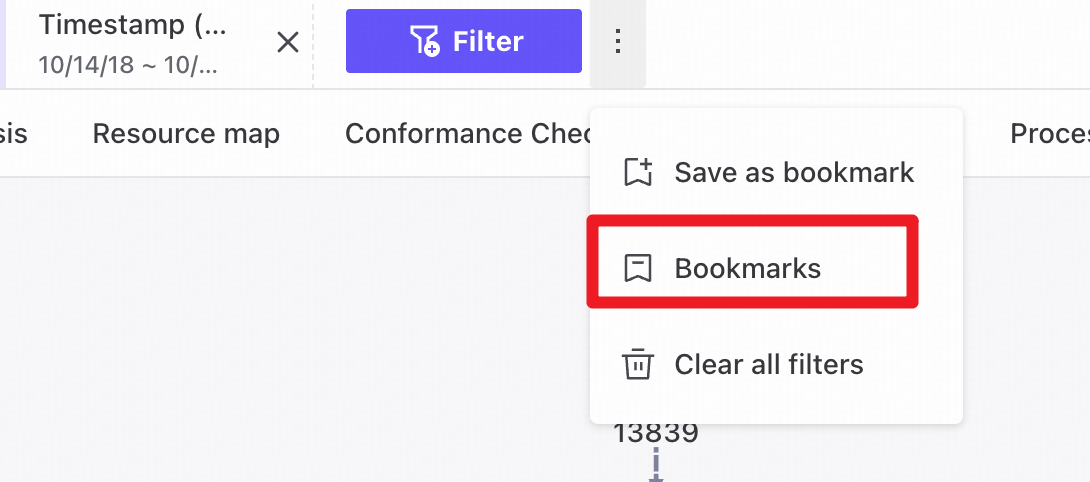
- Click the More icon at the far right of the filter row and select Bookmarks to open bookmark management.
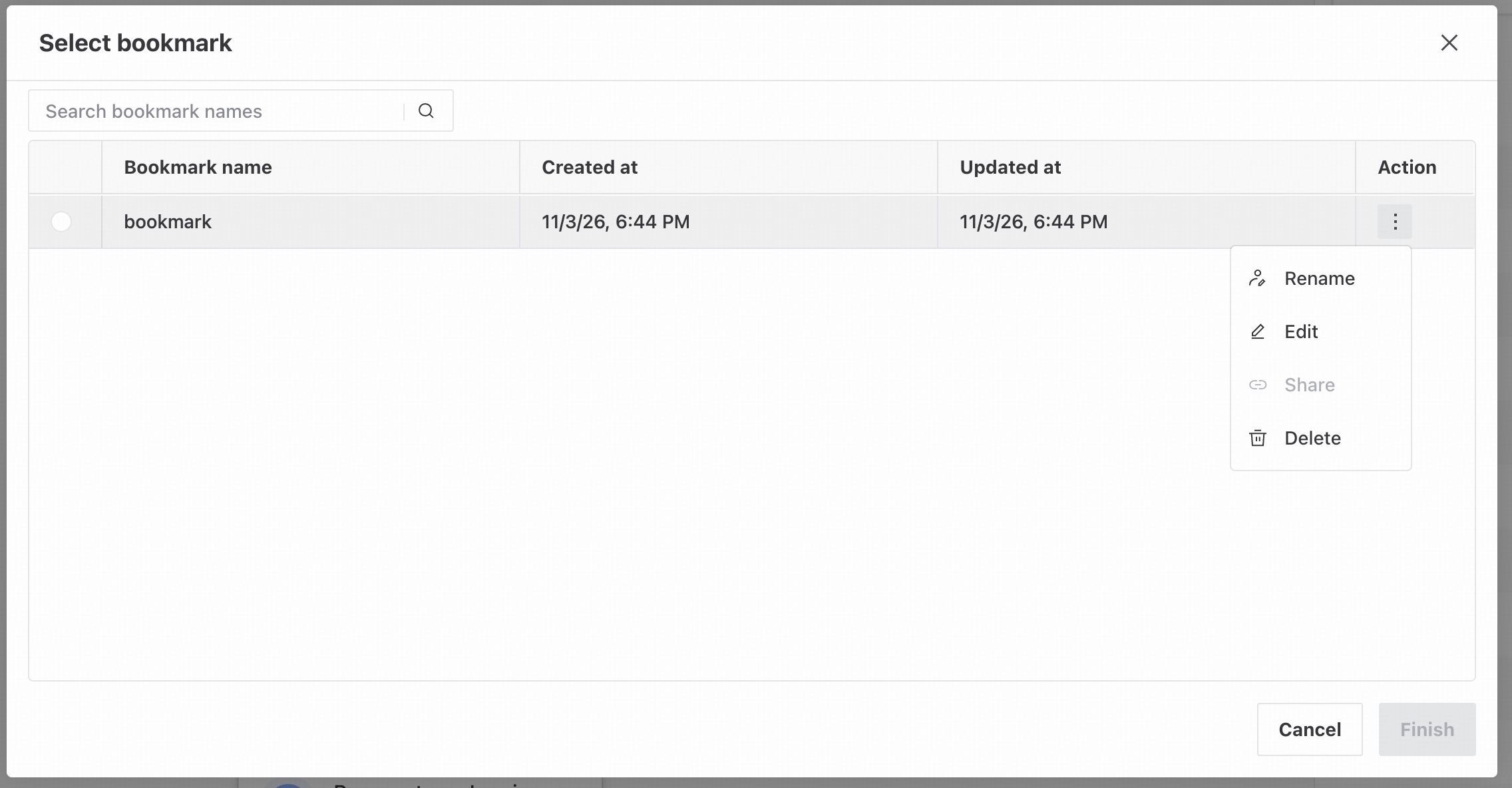
Select, rename, edit, delete, or share bookmarks, or search by bookmark name.
Select a bookmark
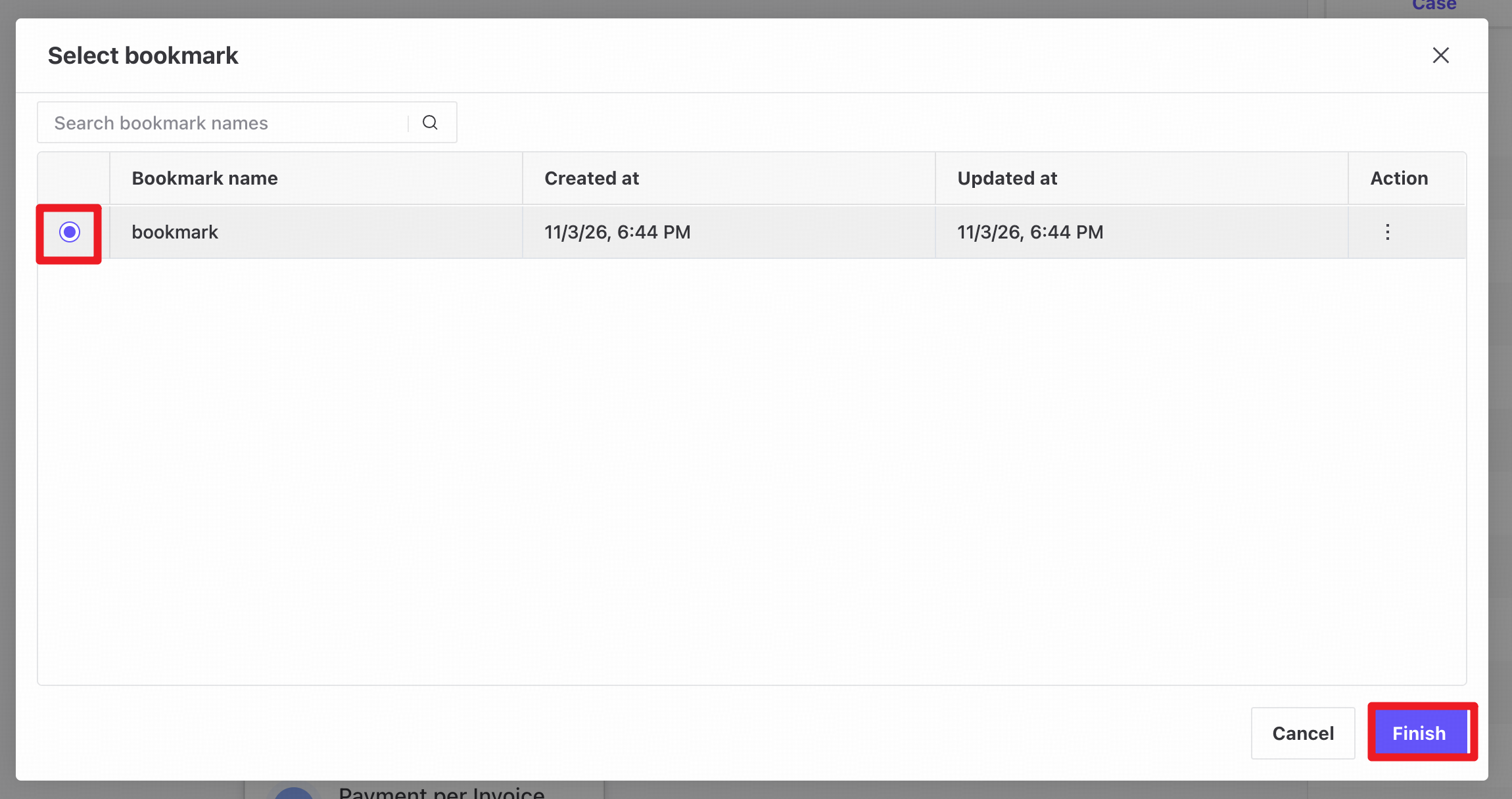
Select, rename, edit, delete, or share bookmarks, or search by bookmark name.
Select the radio button to the left of a bookmark, then click Finish to apply it.
Rename or edit a bookmark
Open the actions area on the right of a bookmark and select Rename.
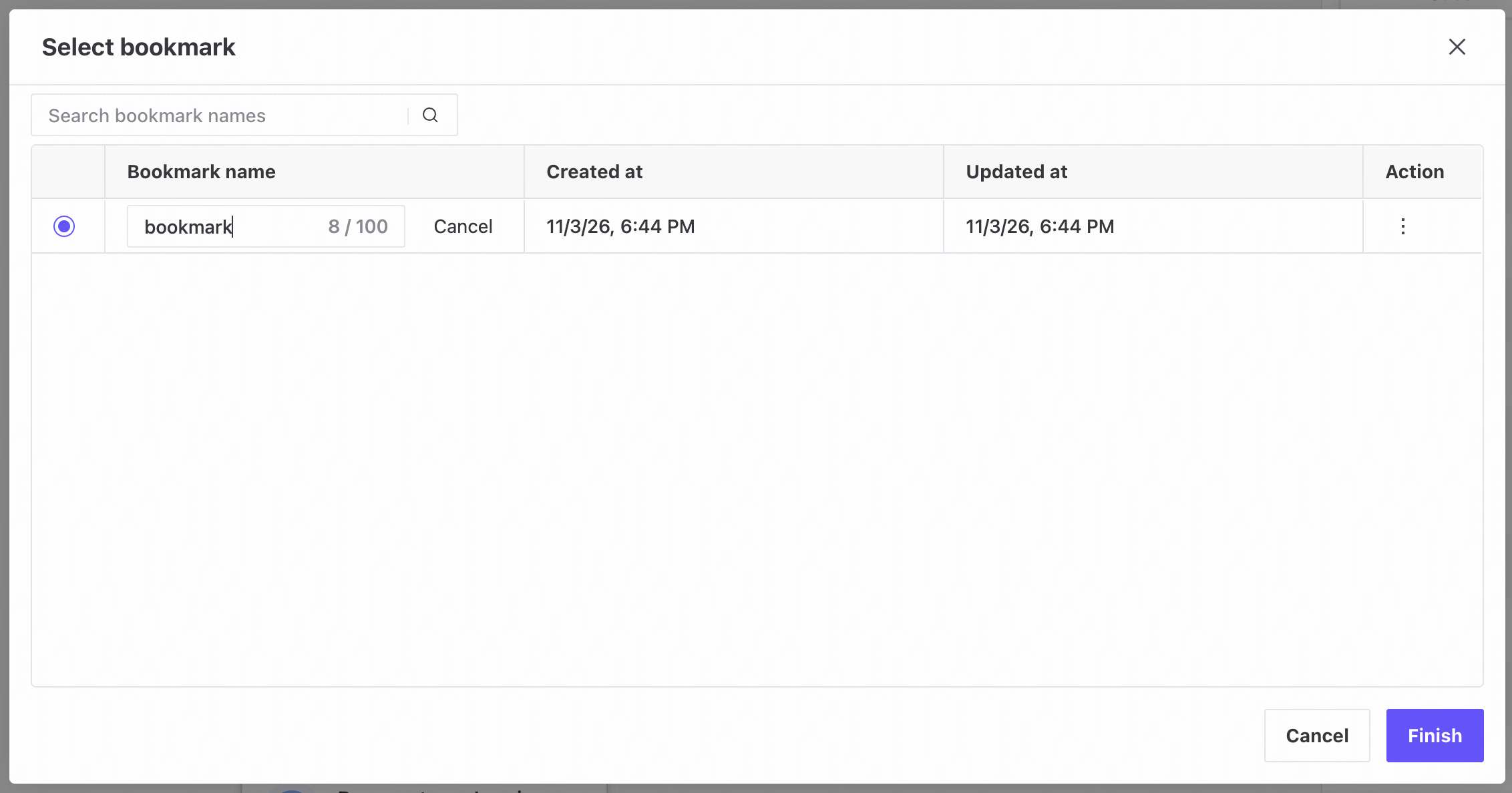
Select, rename, edit, delete, or share bookmarks, or search by bookmark name.
Click Edit to open the bookmark editor.
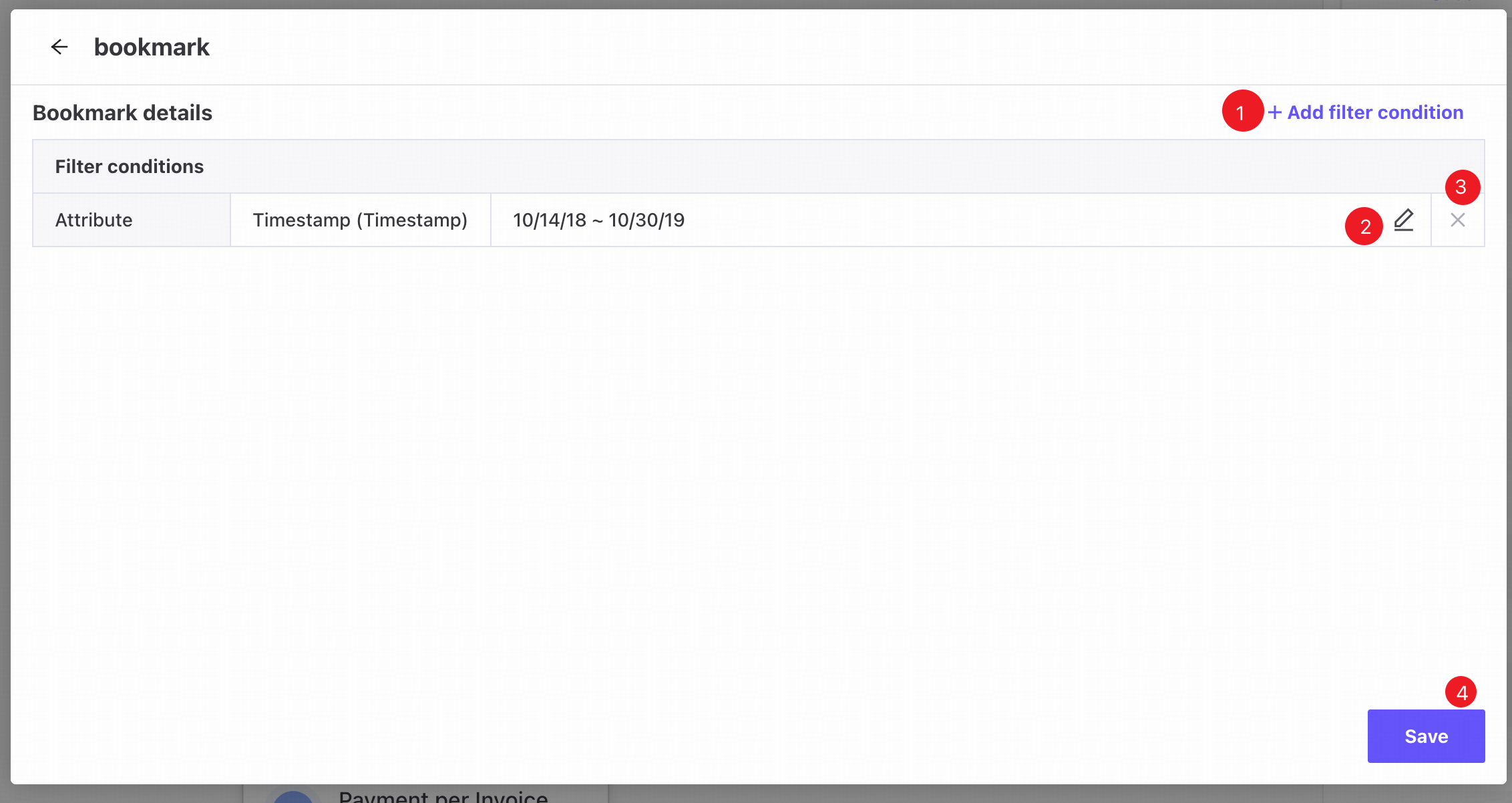
Select, rename, edit, delete, or share bookmarks, or search by bookmark name.
- Open Filter conditions to add conditions to the bookmark.
- Click Edit to change a filter condition.
- Click Delete to remove a filter condition.
- Click Save to save your changes.
Attributes or columns invalidated by data source changes, custom attribute edits or deletions, or related attribute operations appear in gray. Remove them manually.
Delete a bookmark
Open the actions area on the right of a bookmark and select Delete.
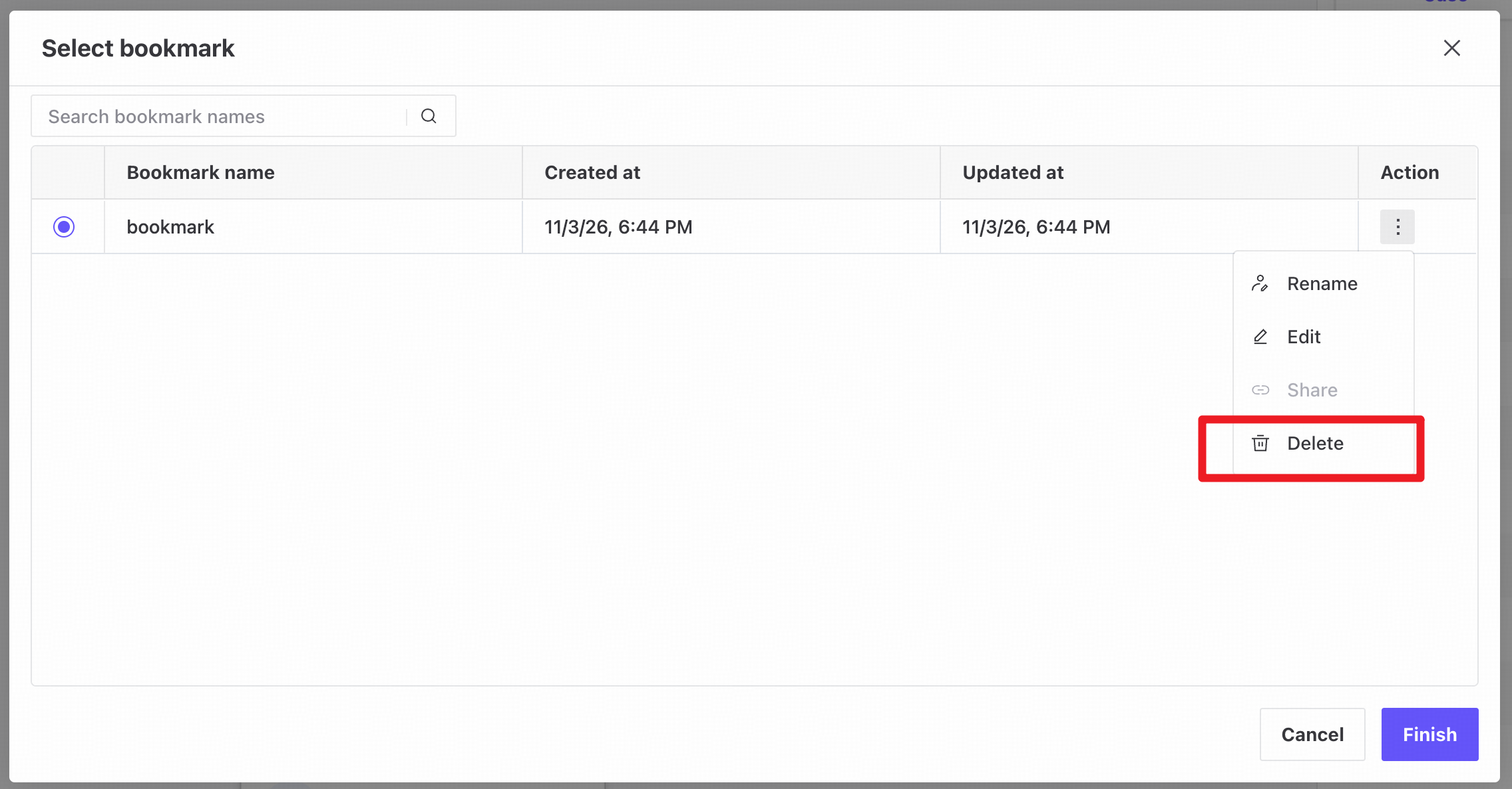
Select, rename, edit, delete, or share bookmarks, or search by bookmark name.
Share a bookmark
Open the actions area on the right of a bookmark and click Share to open the sharing dialog.
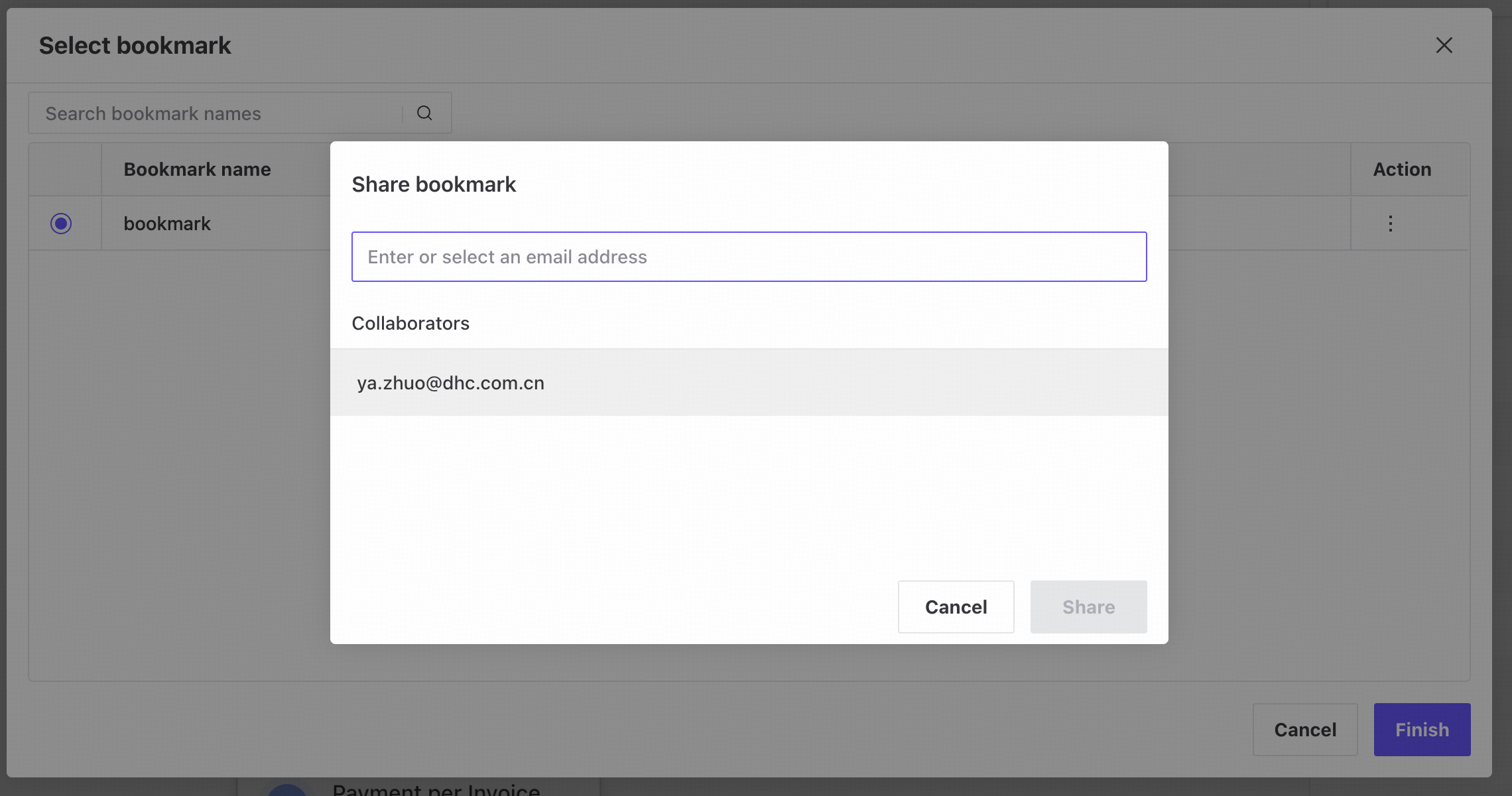
Select, rename, edit, delete, or share bookmarks, or search by bookmark name.
Select the collaborators to share the bookmark with.
Bookmarks can only be shared with collaborators on the process.
Sharing creates a copy in each recipient's bookmarks. Changes made by the original owner do not affect that copy.