Data upload
Click the Task mining card on the home page to open data upload.
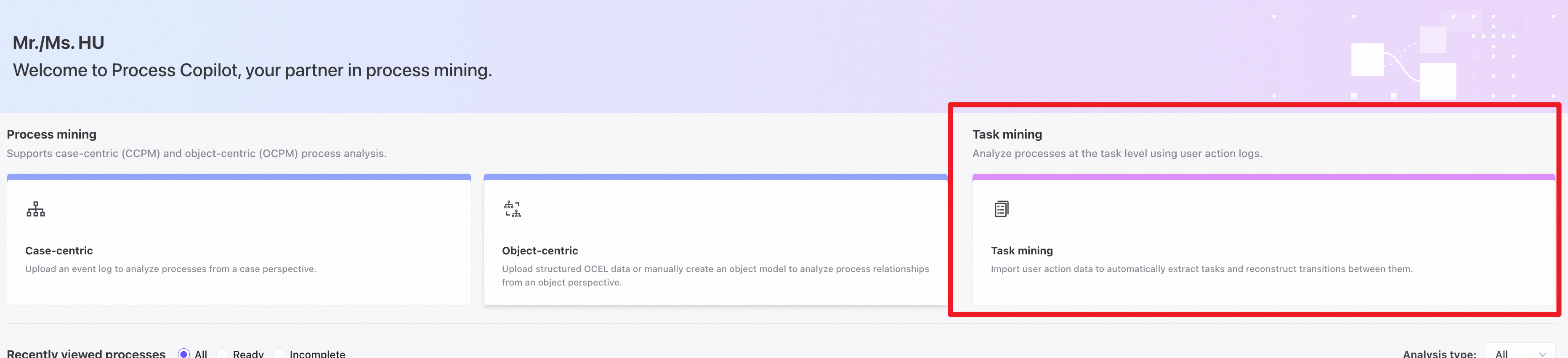
File upload
Create a task analysis
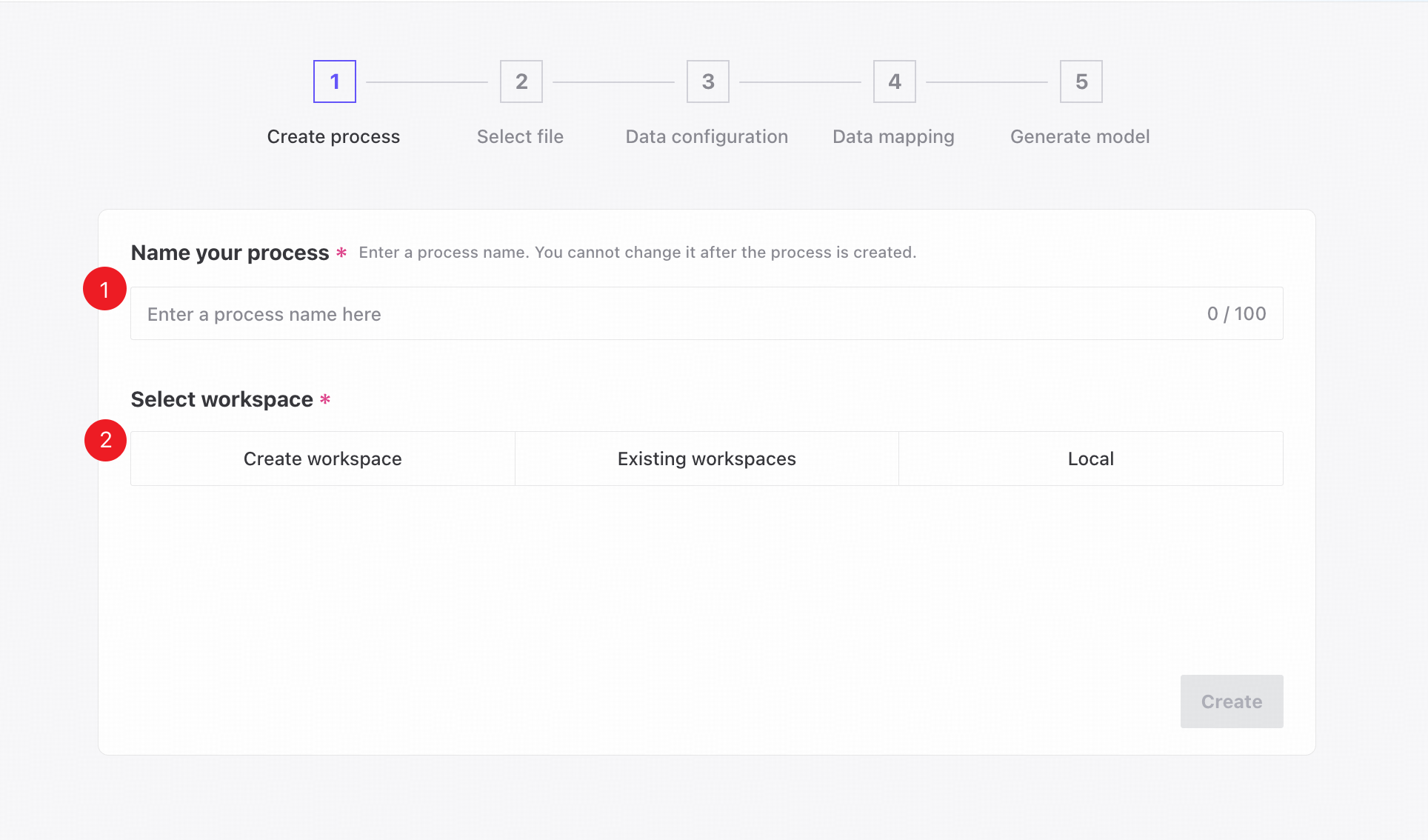
❶ Name the task mining analysis.
❷ Create a workspace, select an existing workspace, or use local storage.
Select file
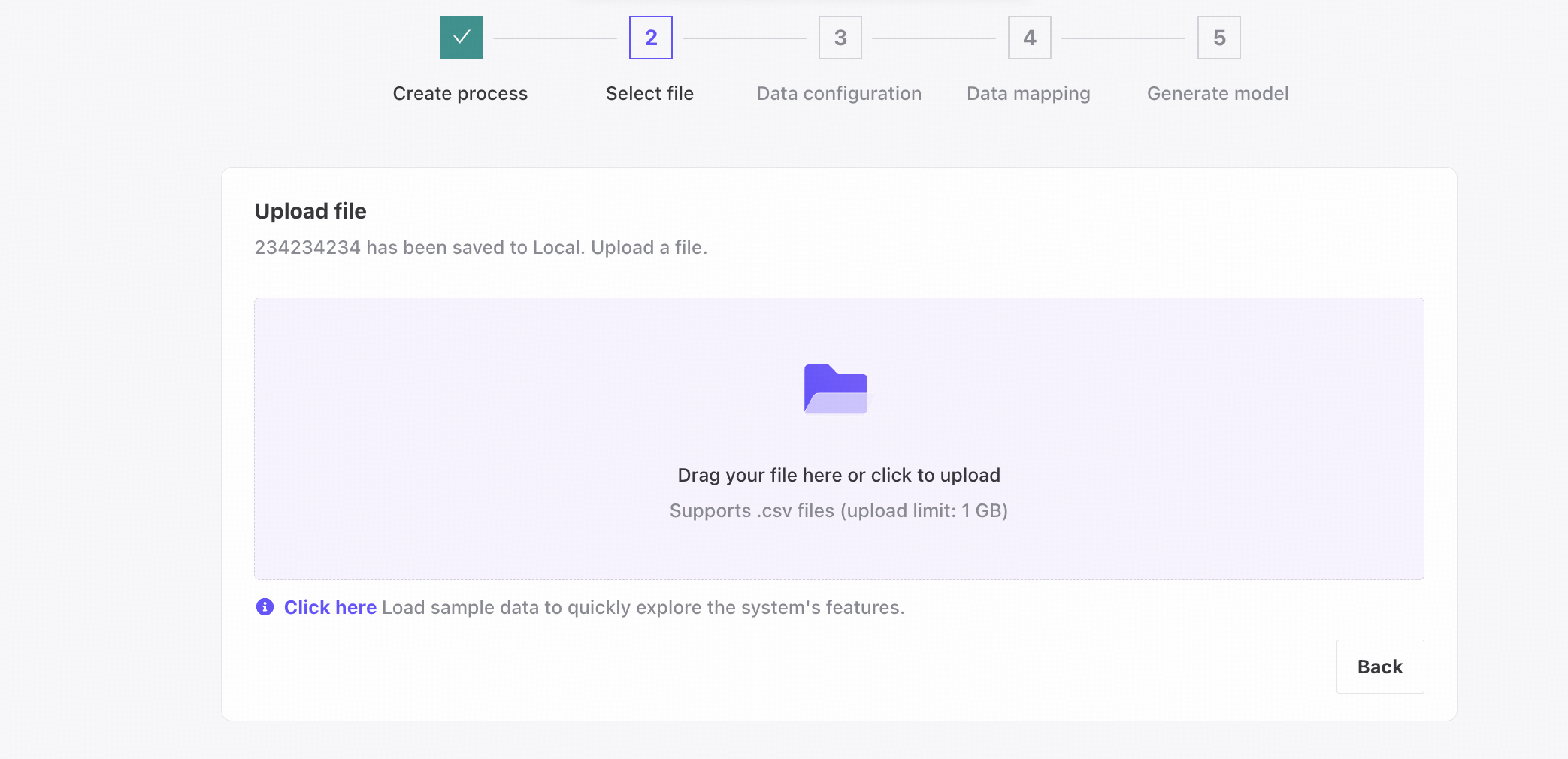
Click to select a log file, or drag and drop one to upload it.
Configure data
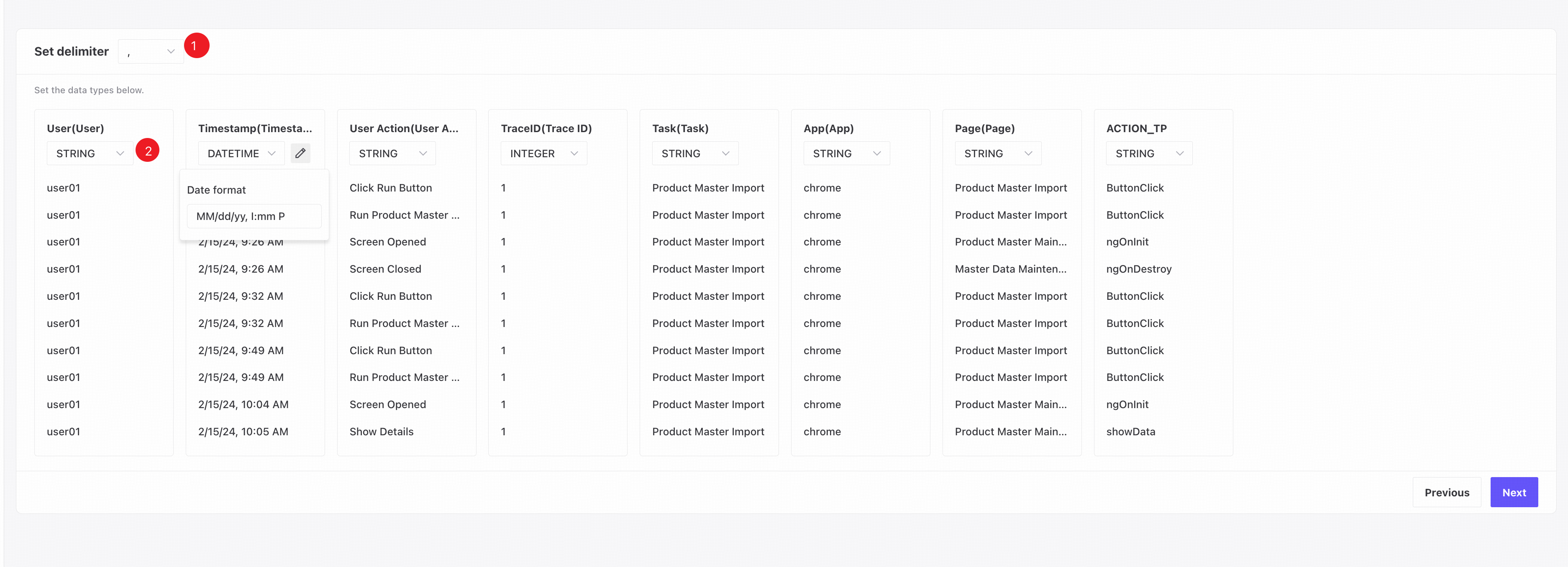
❶ Select the column delimiter.
❷ Configure the data format for each column.
Data mapping
Choose between manually selecting traces and detecting traces automatically.
A trace is the set of actions performed by one user during a single execution of a task.
Detect traces automatically
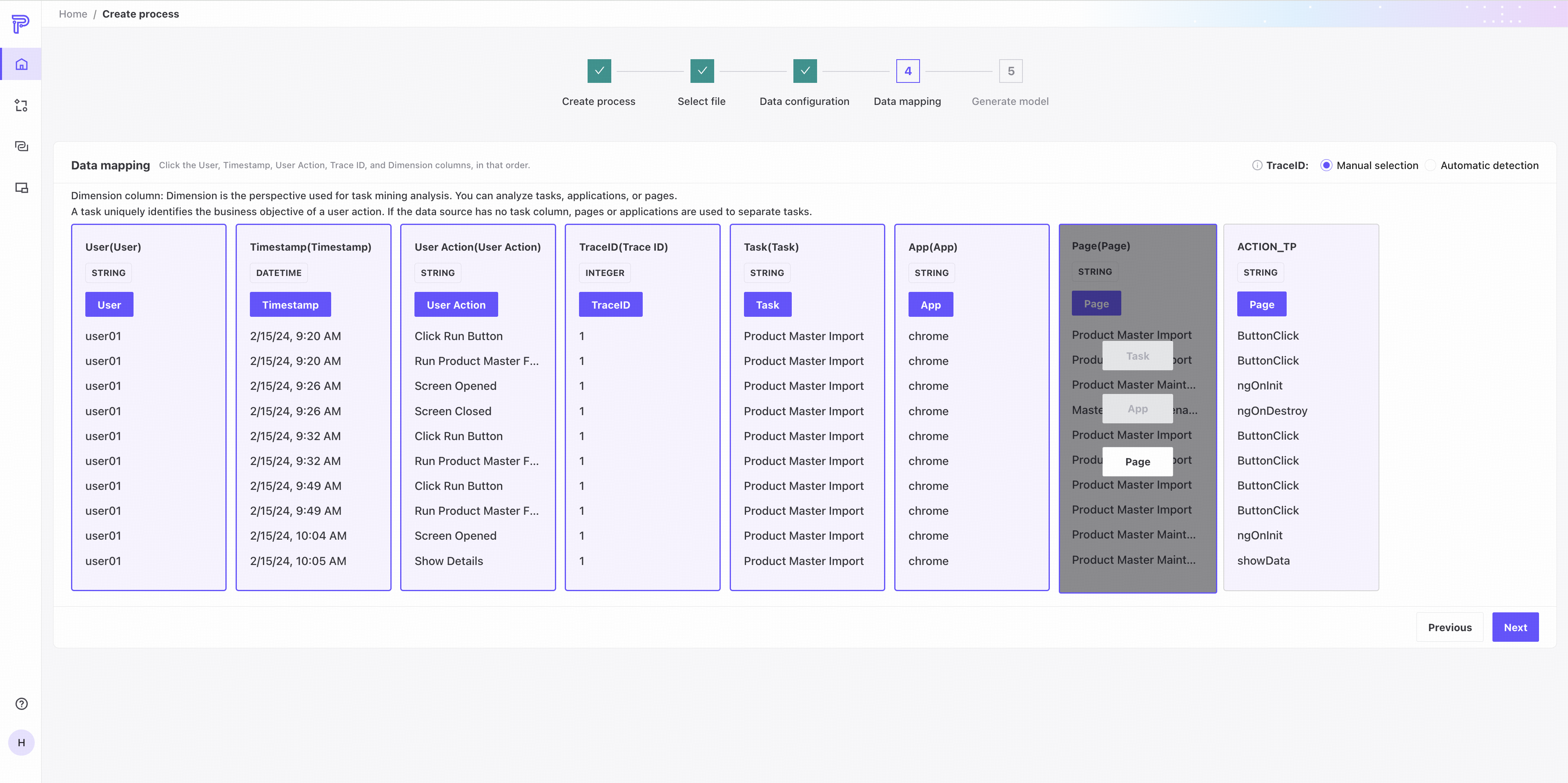
Select the User, Timestamp, User Action, and Dimension columns in order. The system splits traces using the selected dimensions. Dimension includes Task, App, and Page; select at least one for analysis.
- User: the actor performing the action, usually a person or RPA bot.
- Timestamp: when the event occurred.
- User Action: an action within an application or page, such as clicking a button or downloading data.
- Task: a unique identifier of the business objective associated with an action. If no Task column exists, tasks are separated using Page or App.
- App: the application where the action occurred.
- Page: the page where the action occurred.
Select traces manually
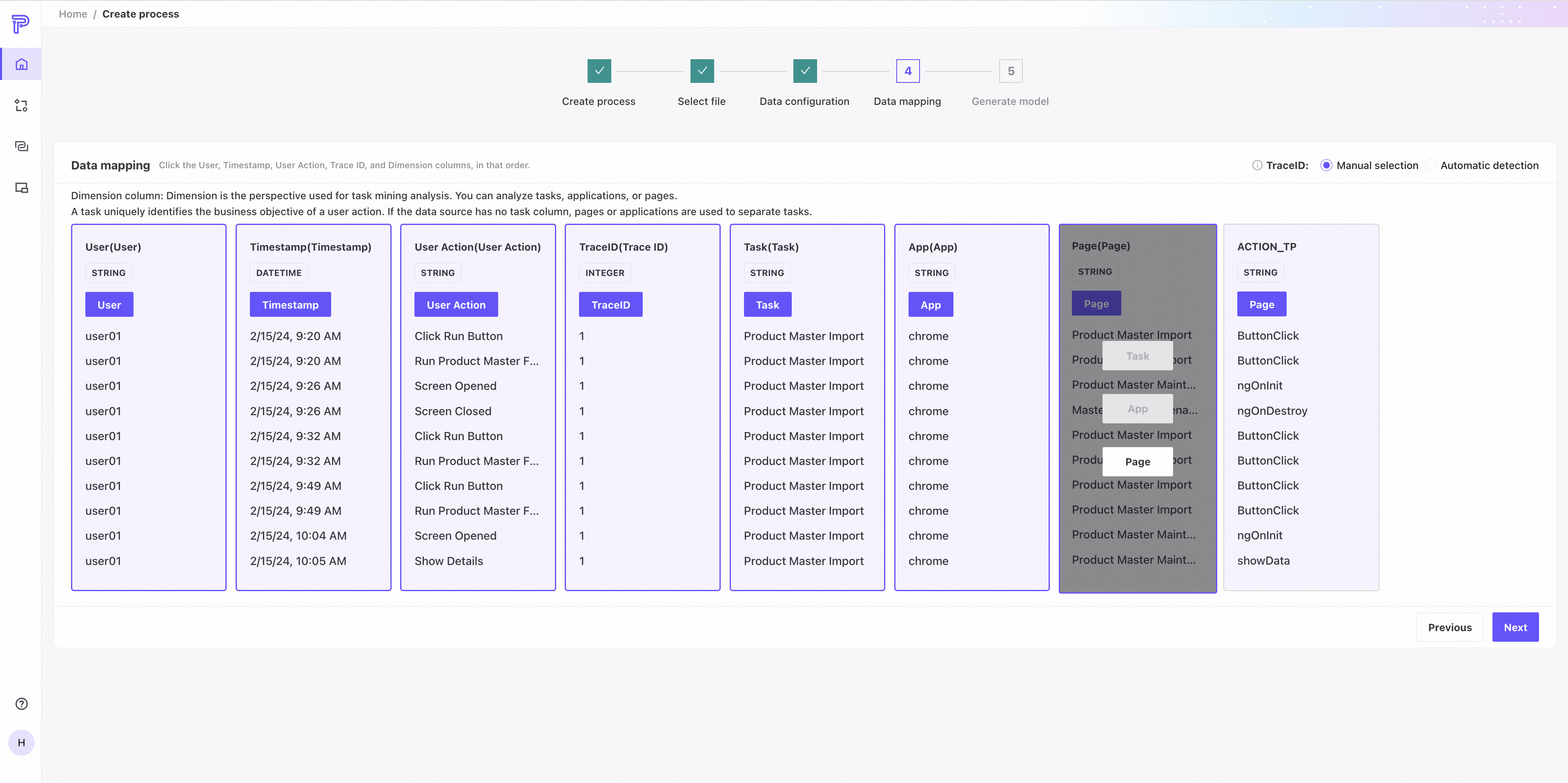
Select the User, Timestamp, User Action, Trace ID, and Dimension columns in order. The system splits traces using Trace ID. Dimension includes Task, App, and Page; select at least one for analysis.
- User: the actor performing the action, usually a person or RPA bot.
- Timestamp: when the event occurred.
- User Action: an action within an application or page, such as clicking a button or downloading data.
- Trace ID: uniquely identifies the set of actions performed by one user during a single execution of a task.
- Task: a unique identifier of the business objective associated with an action. If no Task column exists, tasks are separated using Page or App.
- App: the application where the action occurred.
- Page: the page where the action occurred.
The selected Task, Page, or App column becomes the basic unit of task analysis. After selection, the model is generated automatically and the Overview page opens.
Display limits
Upload limits: Up to 250 applications or pages, and up to 400 actions in a single task.