Root cause analysis settings
Overview
Root cause analysis appears in the Bottlenecks tab on Overview. Expand an entry to see how attributes affect the bottleneck. Irrelevant attributes can distort the results, so select the attributes you want to analyze for more accurate results.
Configure which attributes are included in Root cause analysis results. Only the process owner can change these settings.
Features
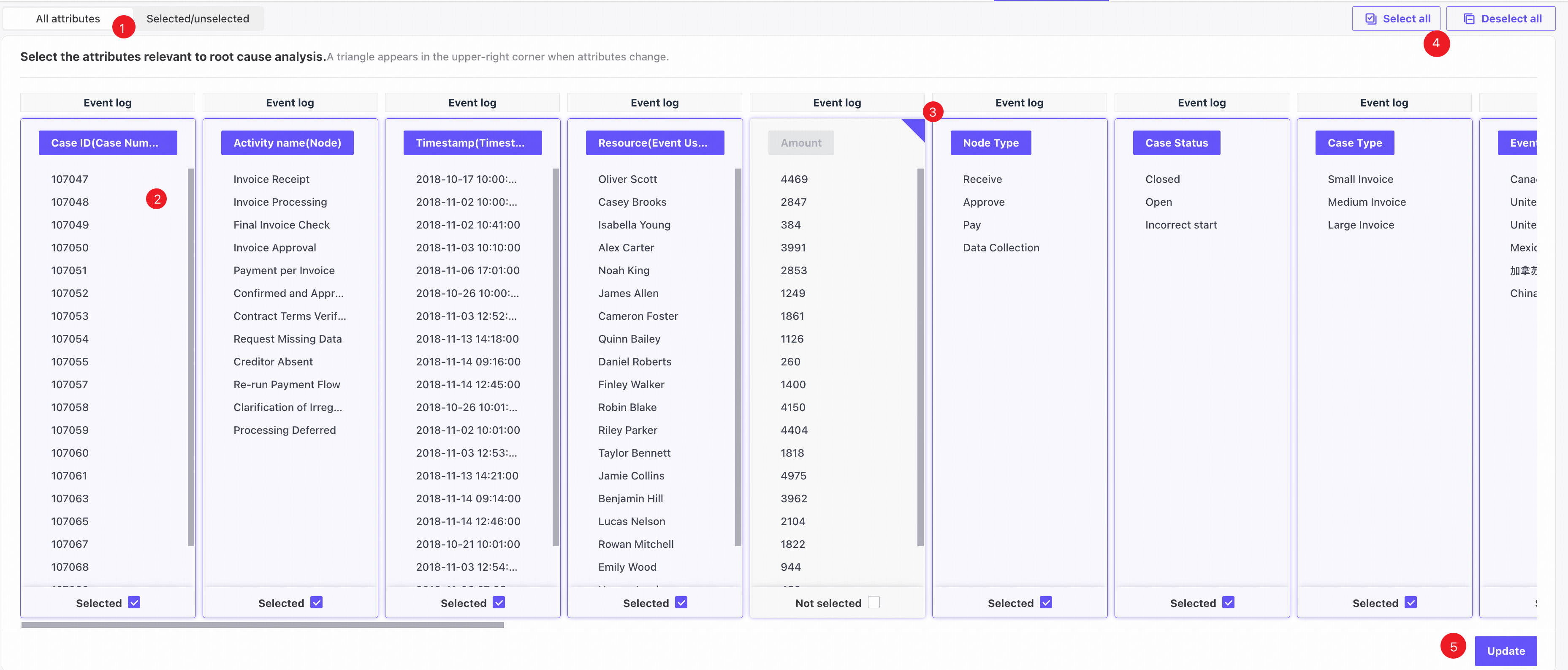
❶ The All attributes tab displays cards for all attribute columns, with up to 20 values per column.
❷ Click an attribute card to select or deselect it.
❶ A badge in the upper-right corner marks attributes whose selection differs from the previous setting.
❶ Click Select all or Deselect all to change every selection.
❶ Click Load to apply the selection to Root cause analysis.
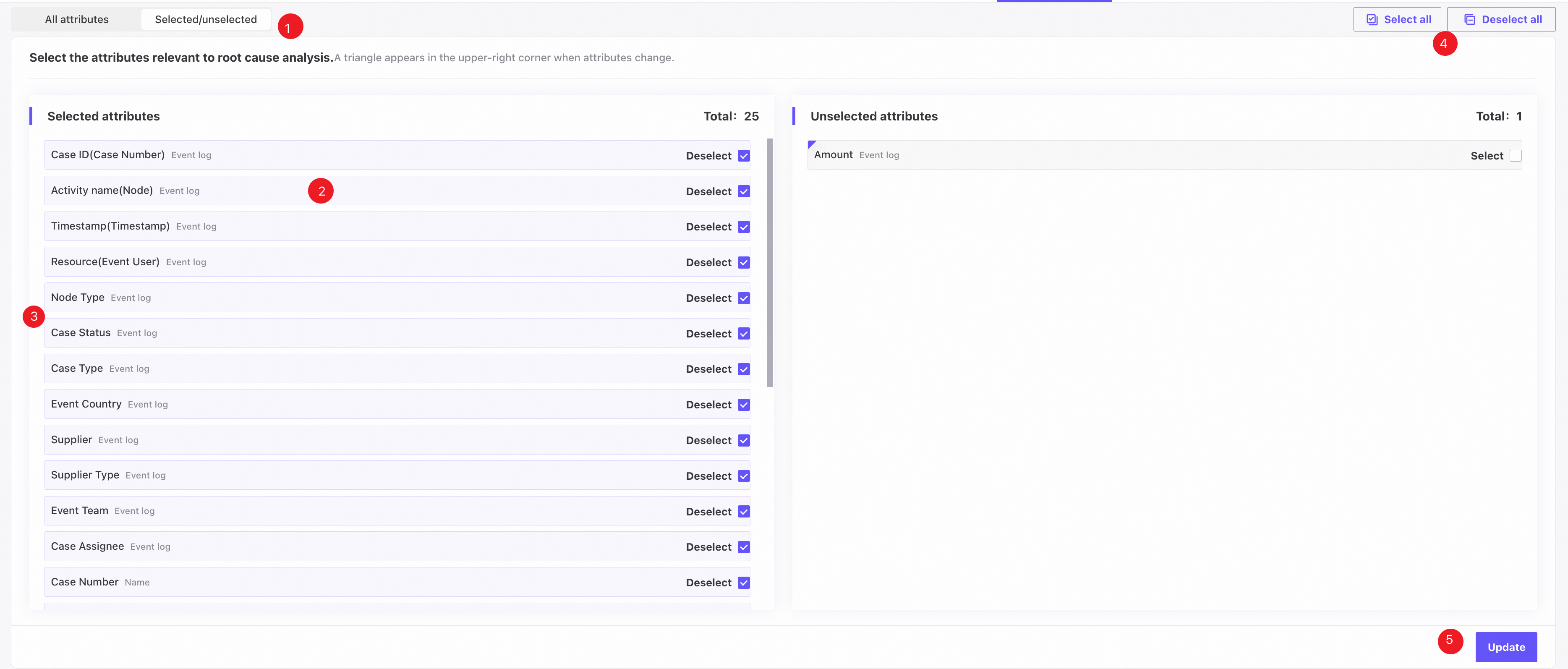
❶ The Selected/unselected attributes tab shows selected attributes on the left and unselected attributes on the right.
❷ Click an attribute card to select or deselect it.
❸ A badge in the upper-right corner marks attributes whose selection differs from the previous setting.
❹ Click Select all or Deselect all to change every selection.
❺ Click Load to apply the selection to Root cause analysis.
All attributes are selected by default.