Process model settings
Overview
Conformance Check and Process forecasting require a reference process model. Create one by discovering a target process, uploading a model, or building a new model. You can also view, edit, delete, and load models here.
Features
The overview provides three model creation options and lets you manage and load existing models. When you create an analysis by uploading a file, or regenerate it after a data source change, the system creates a preset model using the three most frequent variants by default.
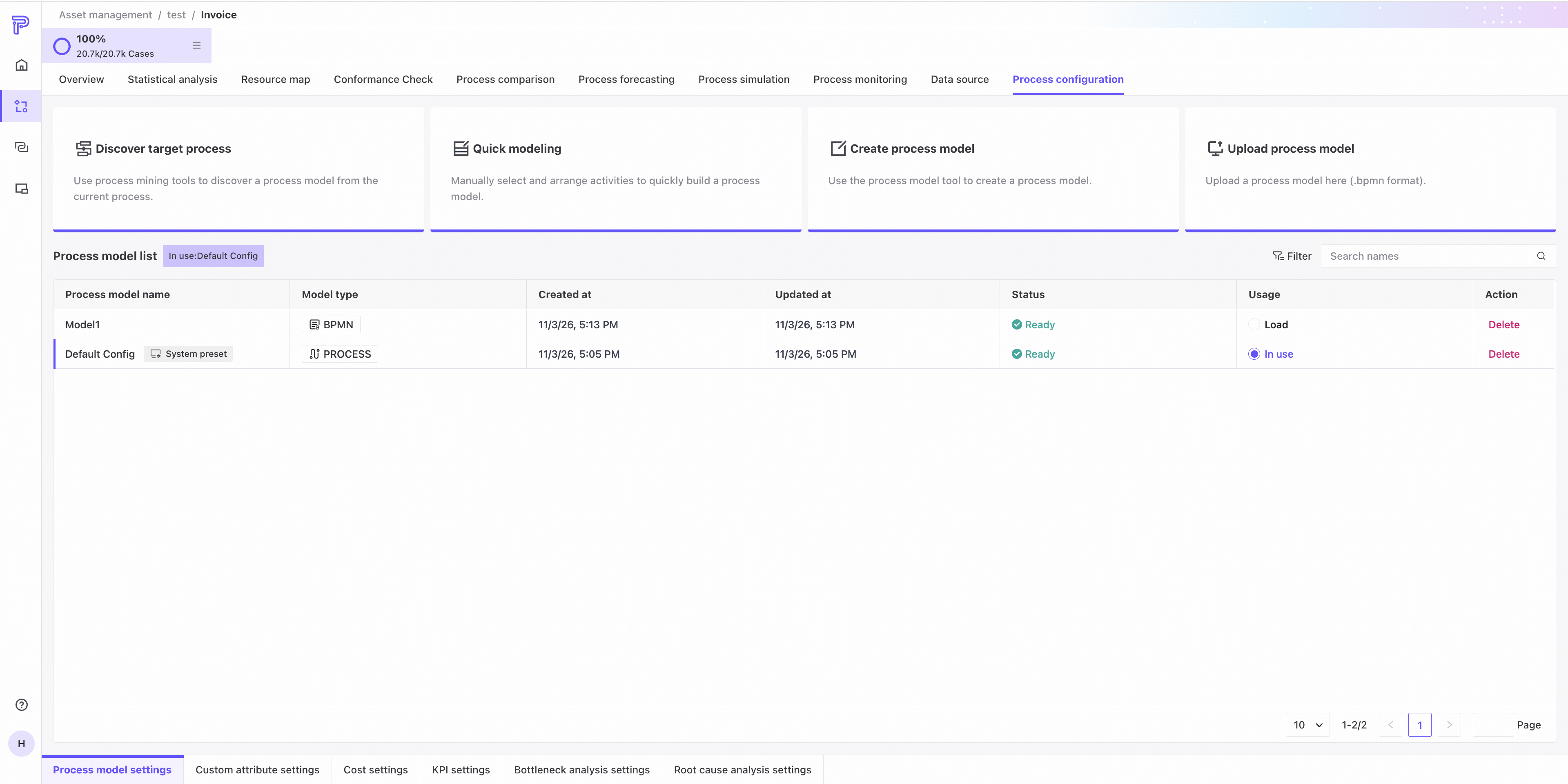
Discover target process
Click the Discover target process card, enter a model name, and open the model creation page.
Model name
Enter the process model name here.

The process model name cannot be changed after it is set.
Process map panel
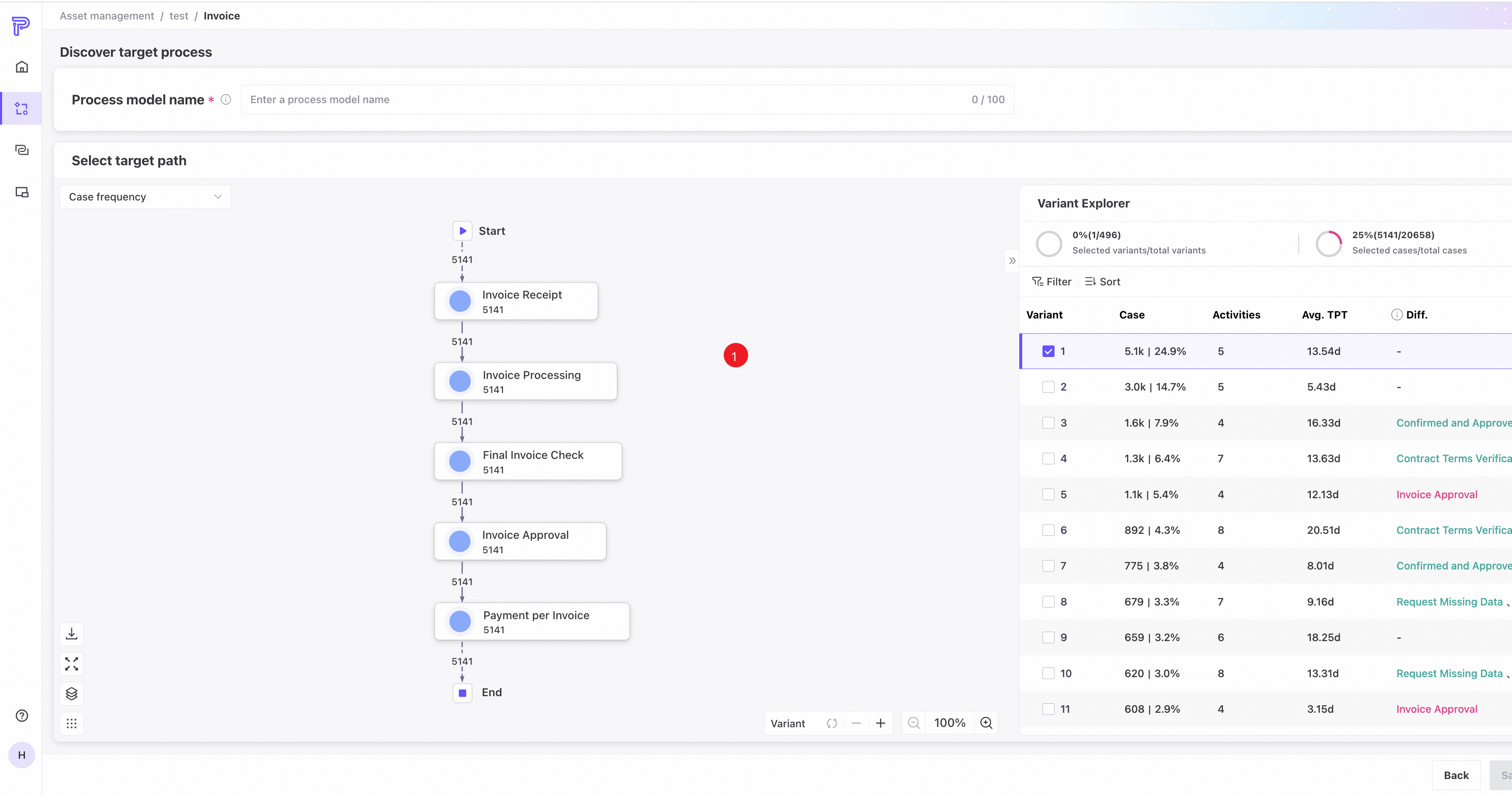
❶ View the current process map. For controls, see Process map.
Variant Explorer
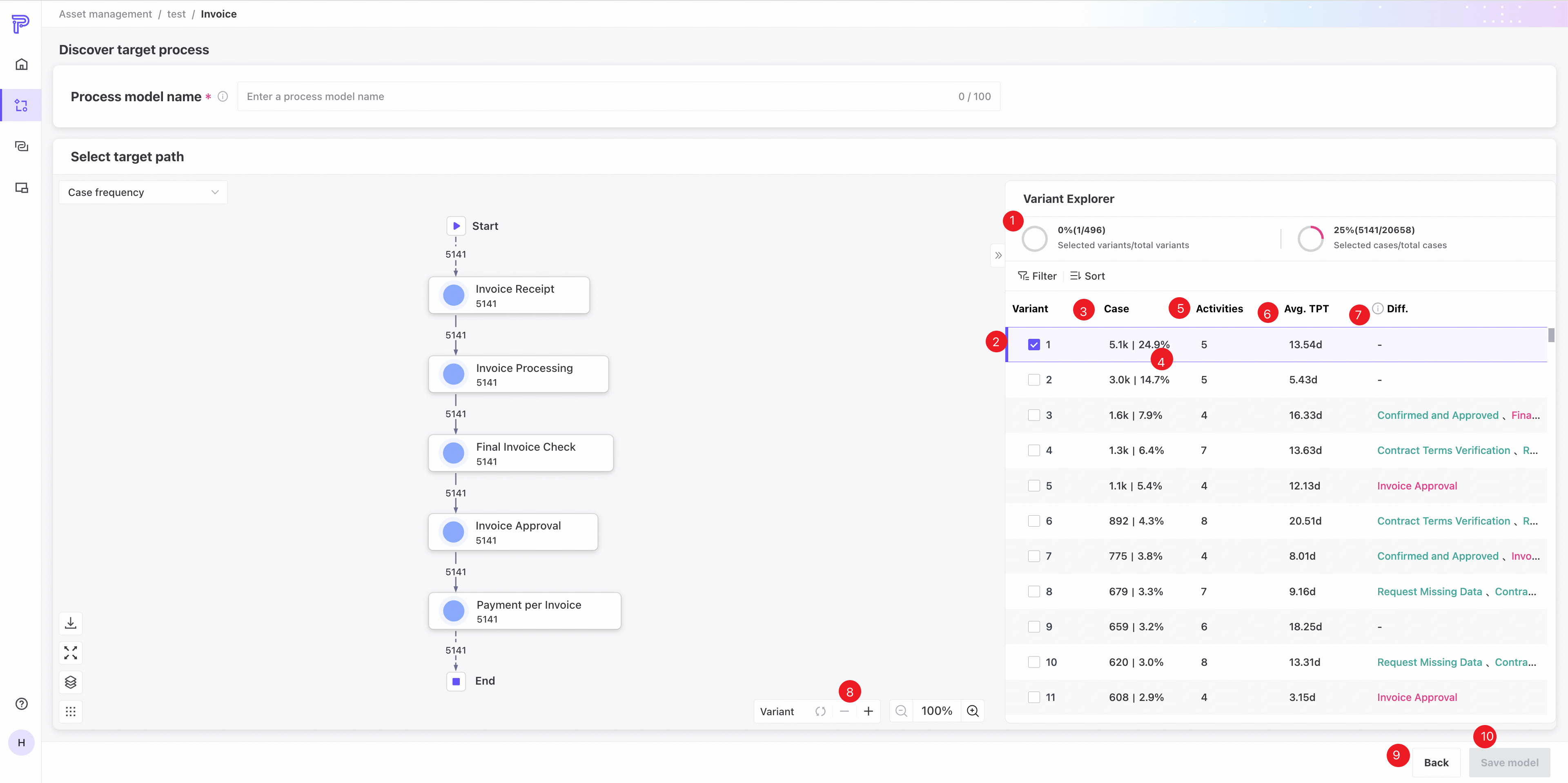
❶ Selected variant and case counts compared with their totals.
❷ Select checkboxes for the variants to include in the model.
❸ Percentage of cases following the variant.
❹ Number of cases following the variant.
❺ Number of activities in the variant.
❻ Average throughput time of the variant.
❼ Activities differing from the default variant: green indicates additional activities; red indicates missing activities.
❽ Add or remove variants, or reset to the initial selection.
❾ Return to the previous menu without saving changes.
❿ Save the model.
If the selected variants exceed the node and edge display limit, the map cannot be displayed, but you can still use those variants as a process model.
Common controls
Filters
❶ Combine filter condition groups using Match all.
❷ Filter lists using their available columns.
Sorting
❶ Sort configurations in ascending or descending order.
❷ Drag the handle up or down to reorder sorting conditions.
Variant Explorer selects the variant with the most cases by default.
Quick modeling
Quick modeling generates a BPMN process model from selected activities or uploaded structured table data. You can also edit and adjust the generated model.
Click the Quick modeling card to open the page.
Quick modeling features
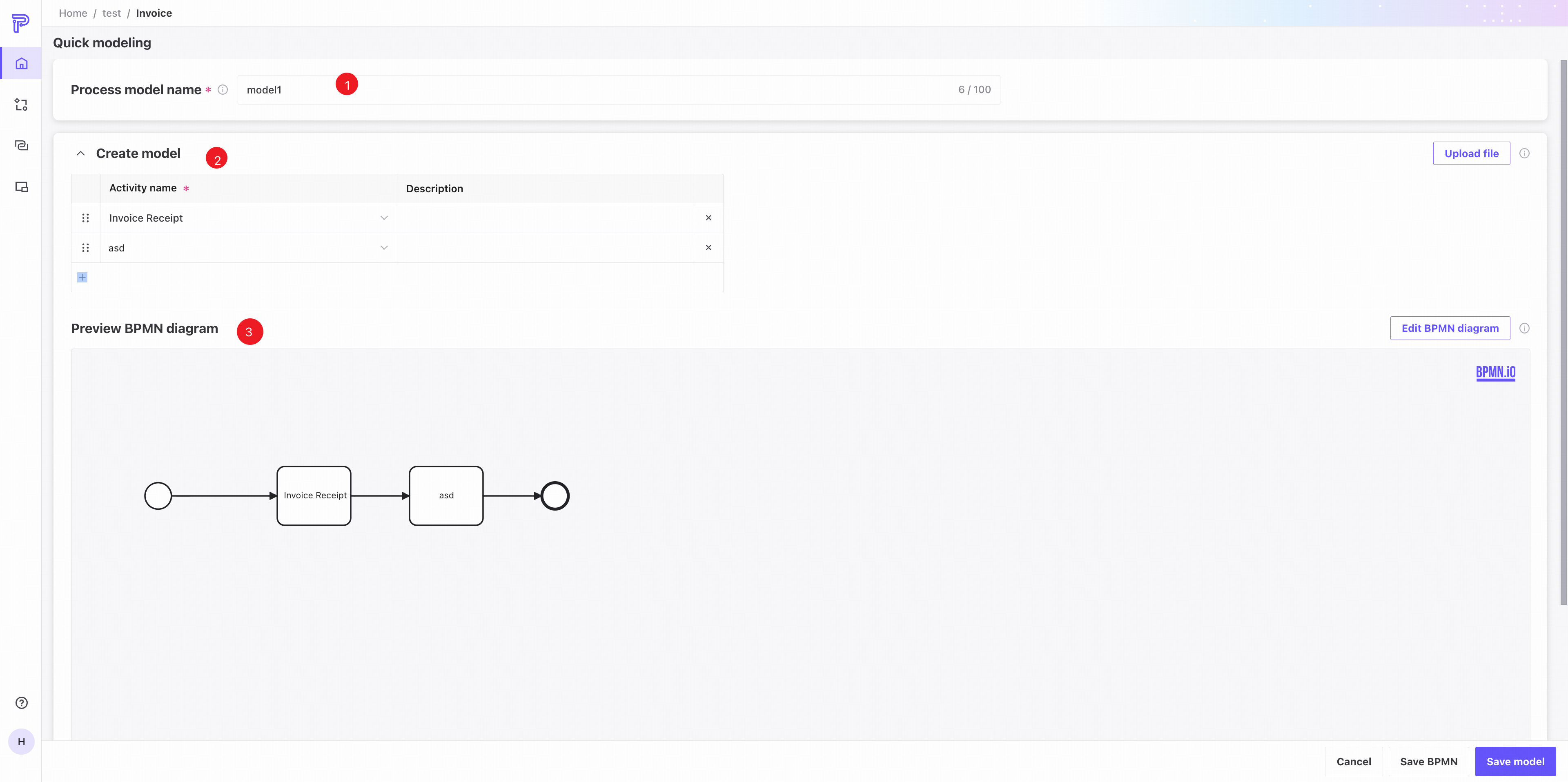
❶ Enter the process model name. It cannot be changed after it is set.
❷ Select or enter activities.
- Click the plus button to add a row.
- In the Activity column, choose an existing activity or enter a custom name. Names must be unique, nonempty, and no longer than 100 characters.
- In the Description column, enter up to 200 characters to display in the BPMN diagram.
❸ BPMN diagram area: preview the current model's diagram at any time during modeling.
File upload
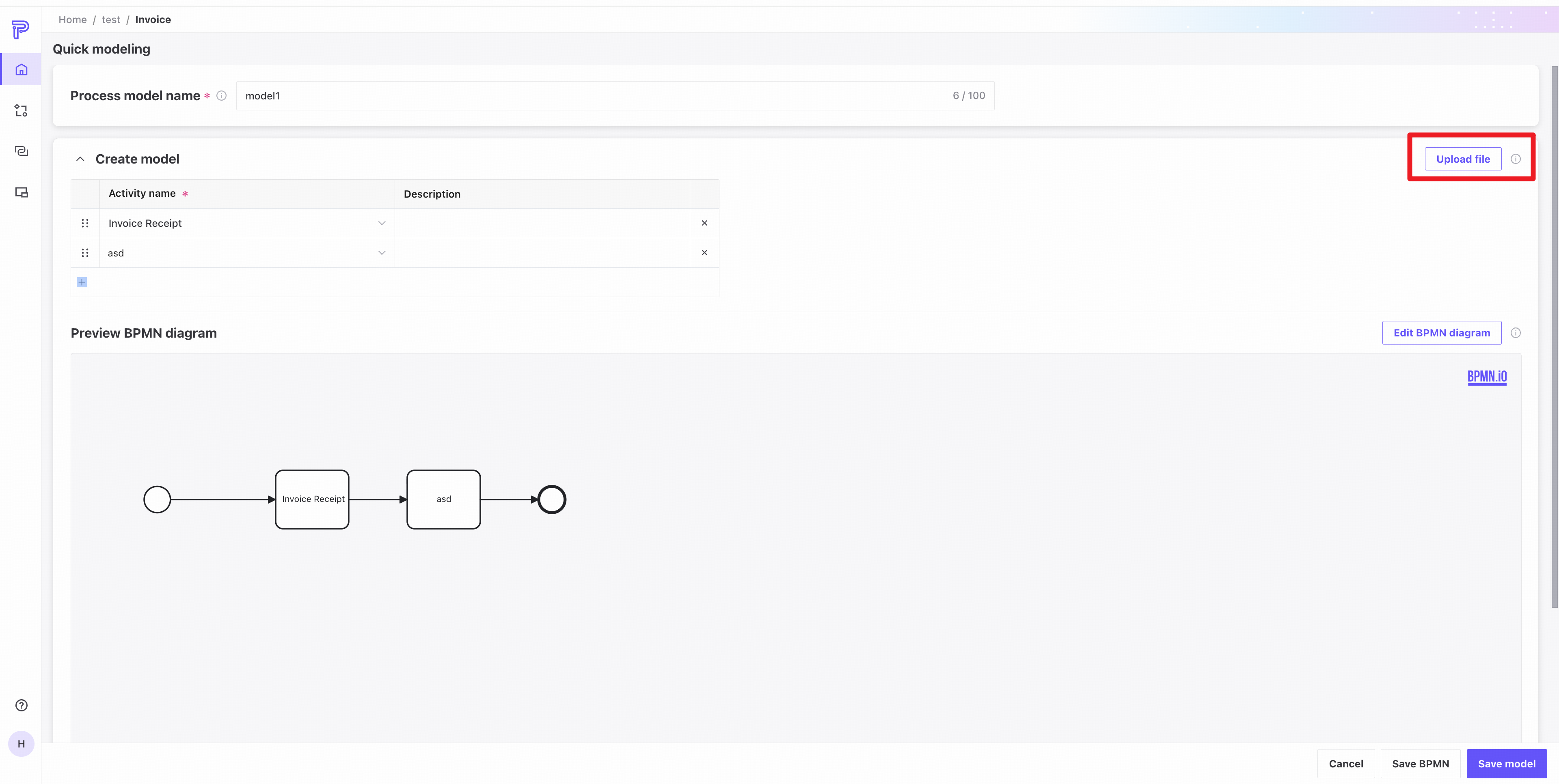
Click Upload file to create a BPMN model quickly from a structured CSV file.
- Activity names are limited to 100 characters and descriptions to 200 characters.
- Activity names cannot be empty or duplicated.
- Uploading replaces the model currently being created.
Edit BPMN
Models created with Quick modeling can be edited further. Click Edit BPMN to open the editing panel.
After editing the BPMN diagram, you cannot continue using Quick modeling for that model.
Save
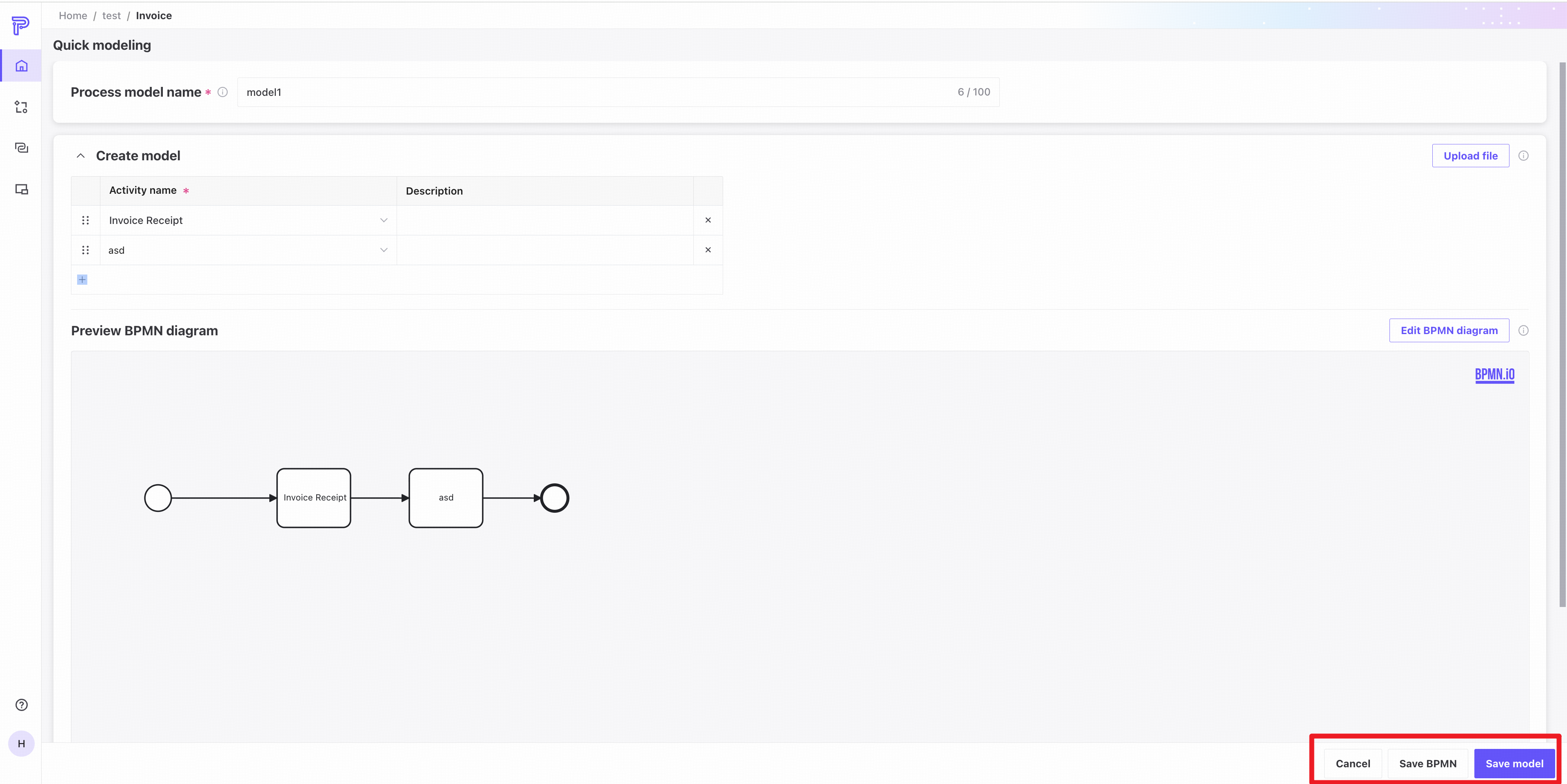
Use the lower-right controls to cancel, save the BPMN diagram temporarily, or save it as a model.
The model cannot be edited after it is saved.
Upload a process model
Click the Upload process model card, enter a name, and open the model creation page.
Model name
Enter the process model name here.
The process model name cannot be changed after it is set.
Upload BPMN
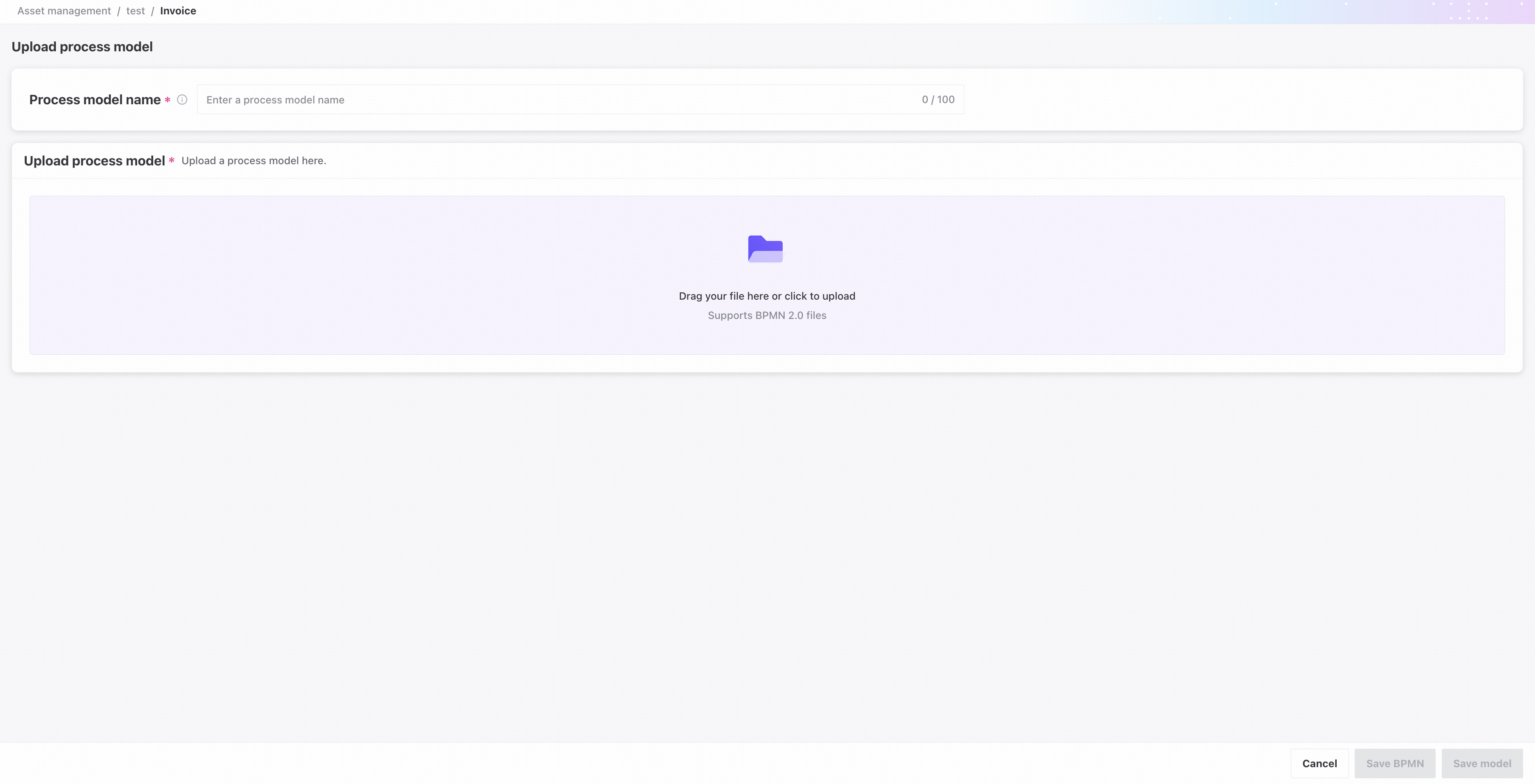
Drag and drop a BPMN file, or click to upload one.
BPMN diagram page
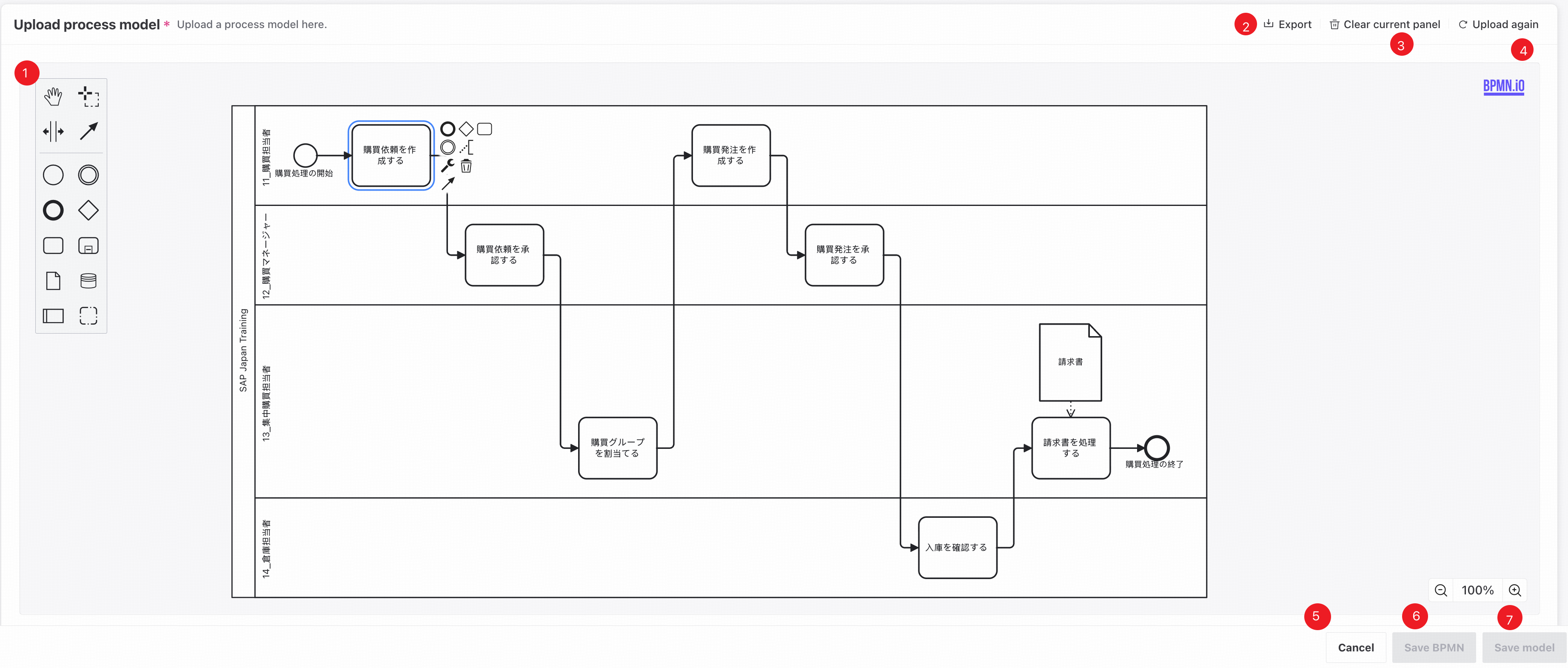
❶ Draw or edit the BPMN diagram in the editing panel.
❷ Export the diagram in the current panel as a file.
❸ Clear the current panel.
❹ Return to the upload page to upload again.
❺ Return to the previous menu without saving changes.
❻ Save the current BPMN drawing. It remains saved even if you then click Cancel to exit.
❼ Save the model as complete. The BPMN diagram must be parseable.
Create a process model
Click the Create process model card, enter a name, and open the model creation page.
Model name
Enter the process model name here.
The process model name cannot be changed after it is set.
BPMN drawing page
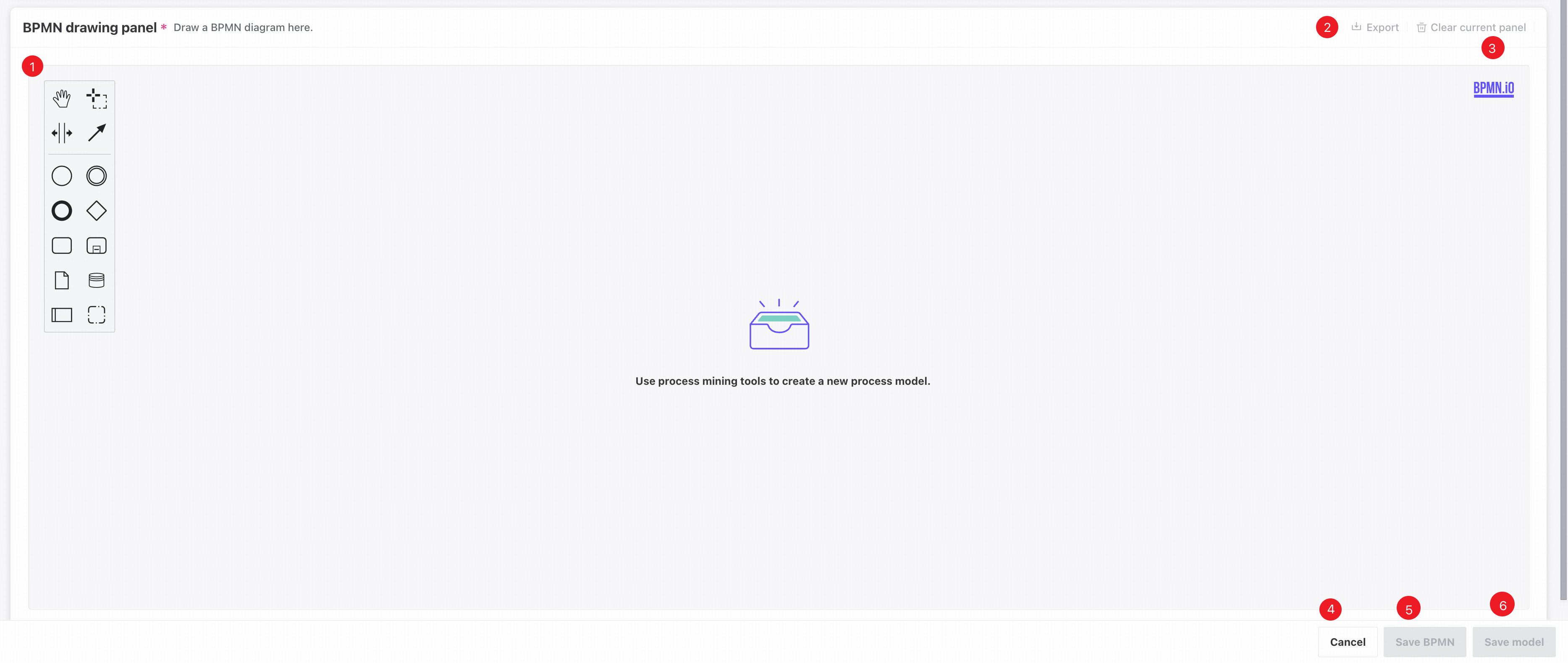
❶ Draw or edit the BPMN diagram in the editing panel.
❷ Export the diagram in the current panel as a file.
❸ Clear the current panel.
❹ Return to the previous menu without saving changes.
❺ Save the current BPMN drawing. It remains saved even if you then click Cancel to exit.
❻ Save the model as complete. The BPMN diagram must be parseable.
Process model list
View, filter, load, or delete existing process models.
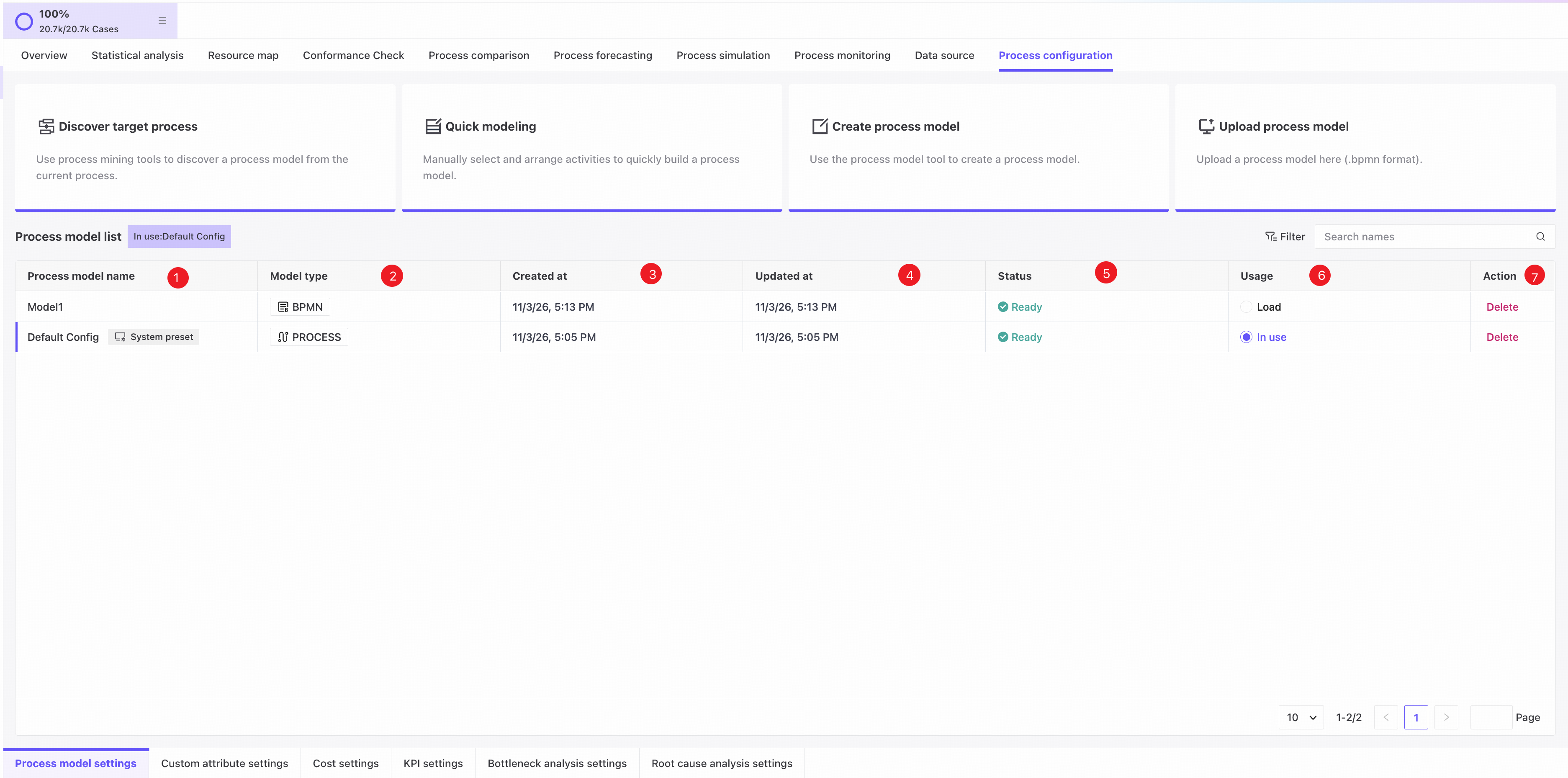
❶ Process model name.
❷ Model type: BPMN or Process.
❸ Creation time.
❹ Update time.
❺ Model status. Incomplete models cannot be loaded.
❻ Usage status. Load a model here.
❼ Delete the model.
Common controls
Filters
❶ Combine filter condition groups using Match all.
❷ Filter lists using their available columns.
Pagination
❶ Set the number of entries displayed per page.