Object-Object relationships
View, add, edit, or delete relationships between objects.
In a standard OCPM model, all objects must be connected through relationships.
If an object or group of objects has no relationship to other objects, filters will be unavailable after model generation.
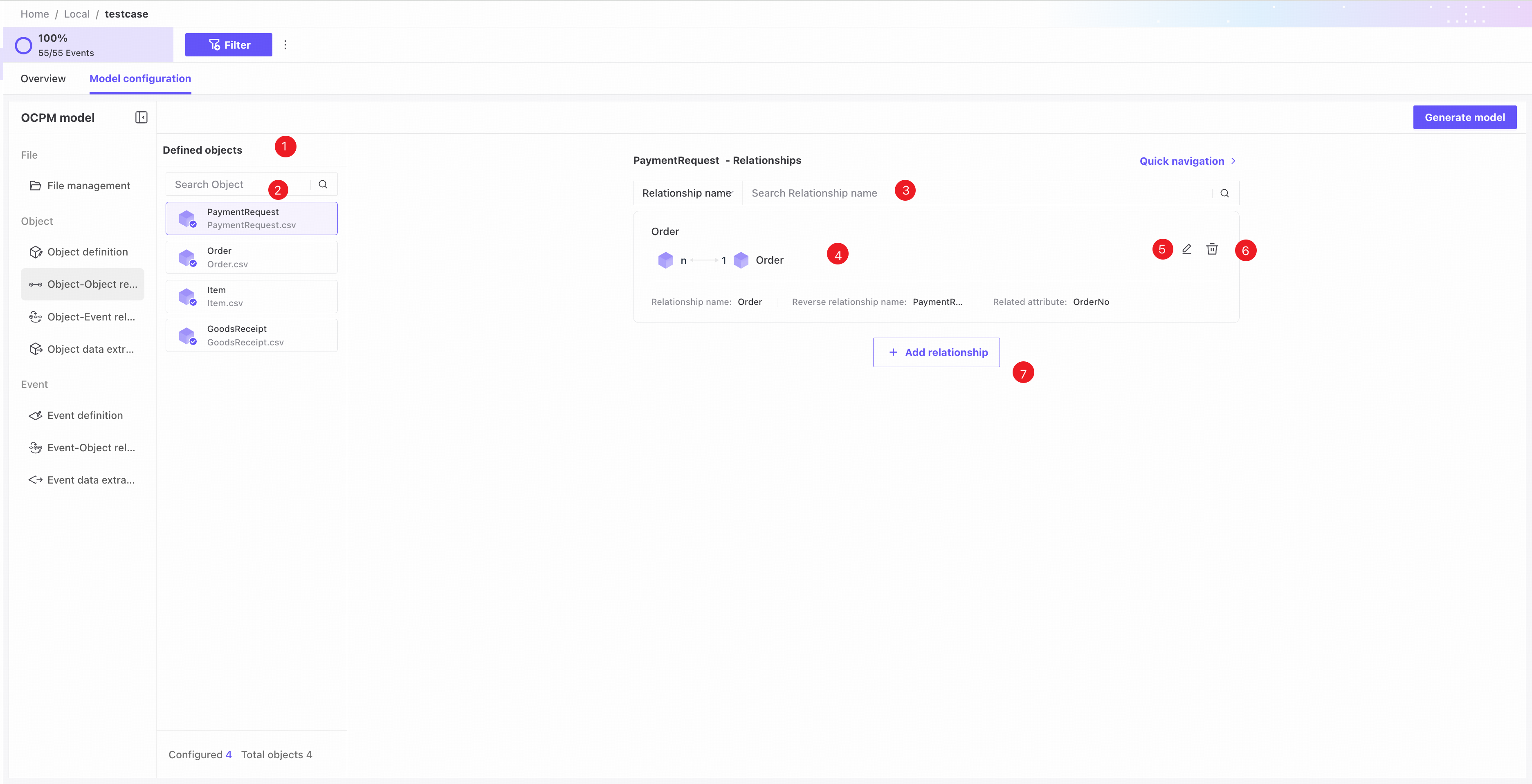
❶ Object list: shows object name, source file name, and status. An ordinary icon indicates no relationships; a blue checkmark indicates relationships with other objects; a yellow checkmark and warning indicate a relationship cycle.
Configured relationships also appear in the related object's relationship list.
Object relationships must not form cycles. For example, if A is linked to B and B to C, do not also link A directly to C. Such a cycle makes filters unavailable.
❷ Search by object name.
❸ Search relationships by relationship name, reverse relationship name, or object name.
❹ Basic relationship information.
❺ Edit the relationship.
❻ Delete the relationship.
❼ Click Add relationship to add an Object-Object relationship.
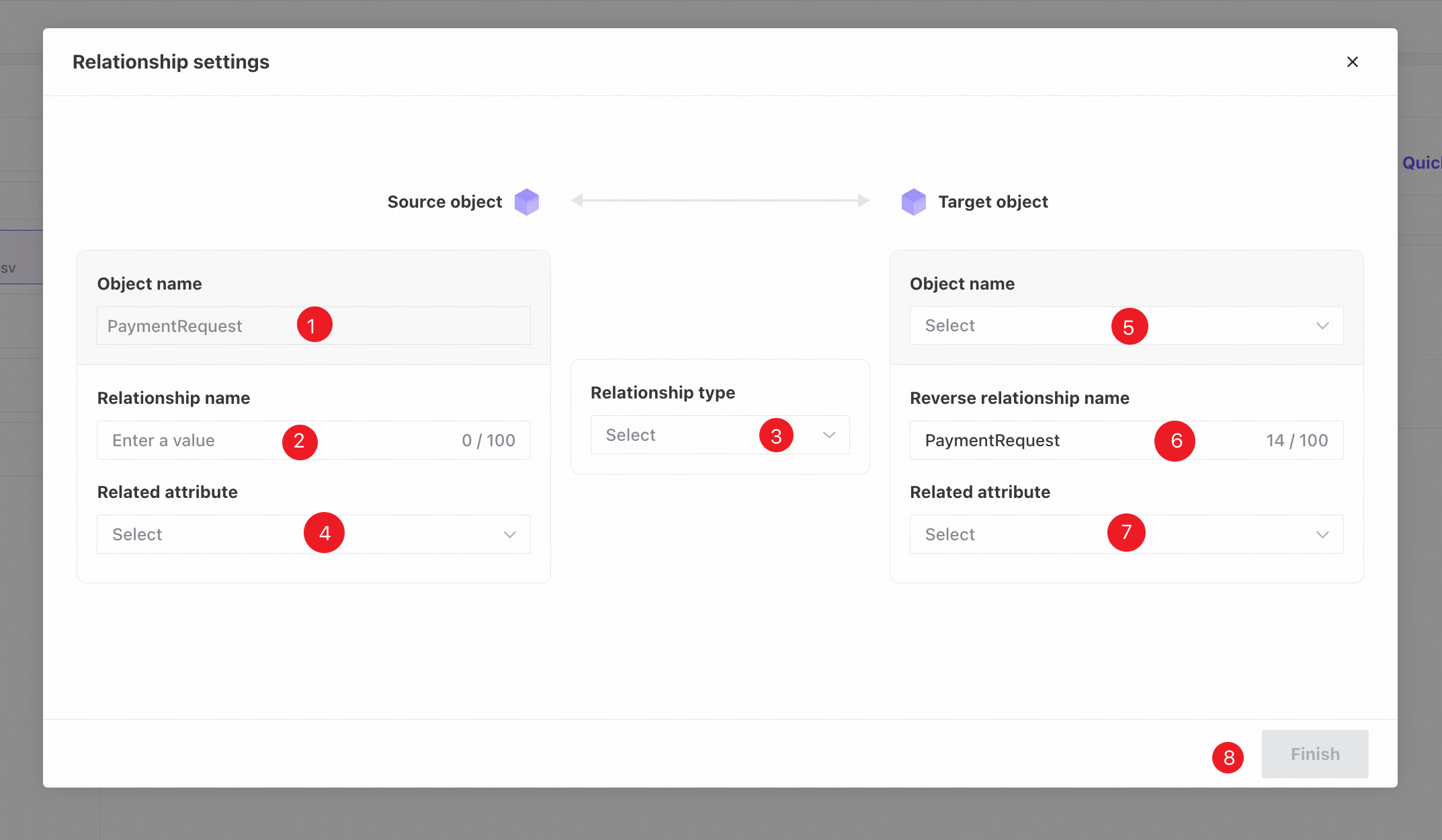
❶ Source object: fixed to the selected object and cannot be changed.
❷ Relationship name: customizable; defaults to the target object's name.
❸ Relationship type: choose 1:N or N:1 between instances of the two objects.
❹ Related attribute: depends on the relationship type. On the “1” side, it is fixed to that object's ID column. On the “N” side, select the column containing IDs of the object on the “1” side.
❺ Select the target object.
❻ Reverse relationship name: customizable; defaults to the name of the object on the left.
❼ Related attribute: follows the same logic as on the left.
❽ Complete the required fields and click Finish to add the Object-Object relationship.