Activity filtering
Overview
Select the Activity tab in the Filter conditions panel to filter cases by activities they pass through, do not pass through, start with, or end with.
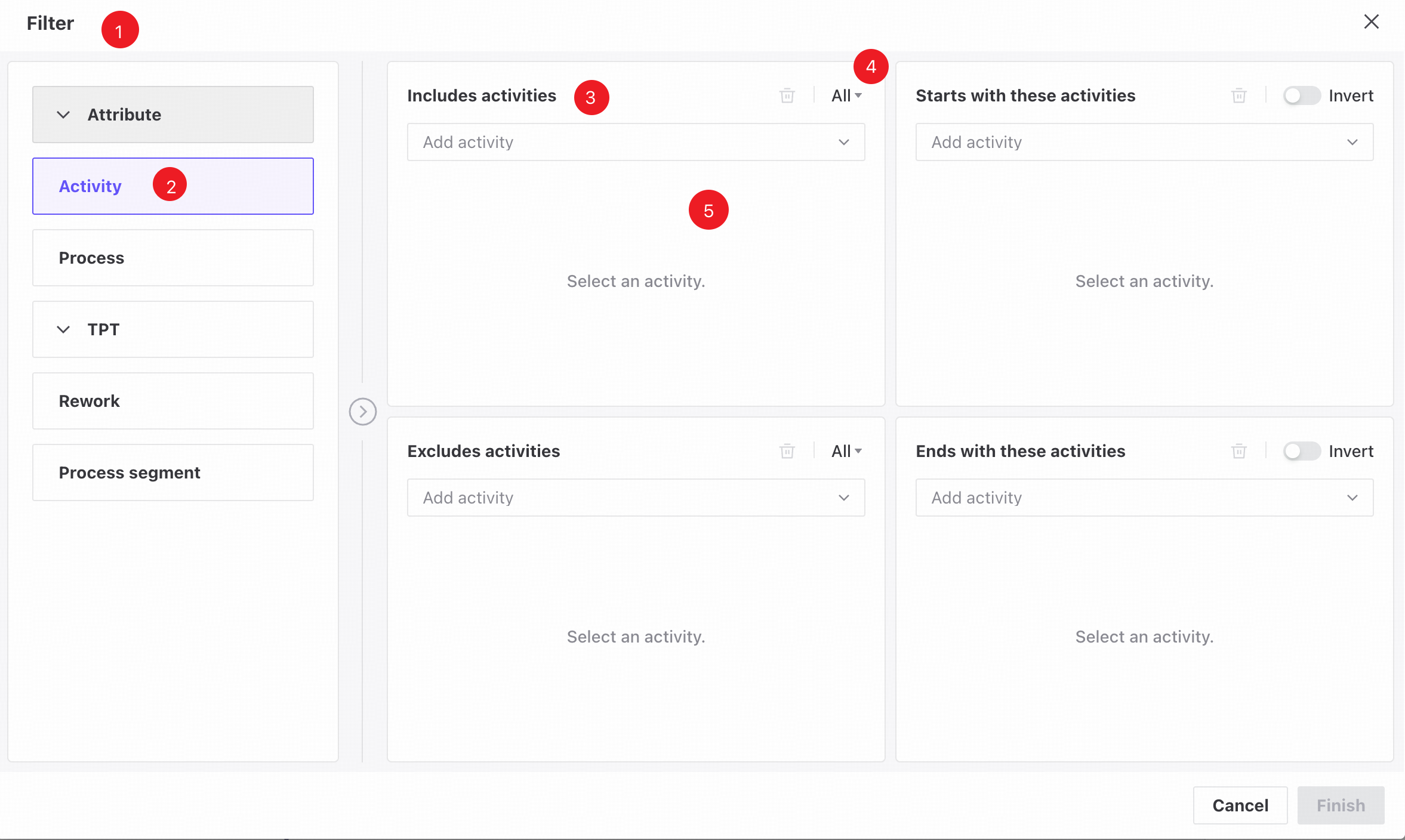
❶ Filter conditions panel.
❷ Activity tab.
❸ Choose activities that cases pass through, do not pass through, start with, or end with.
❹ Choose whether the condition applies to all selected activities or any of them. All is selected by default.
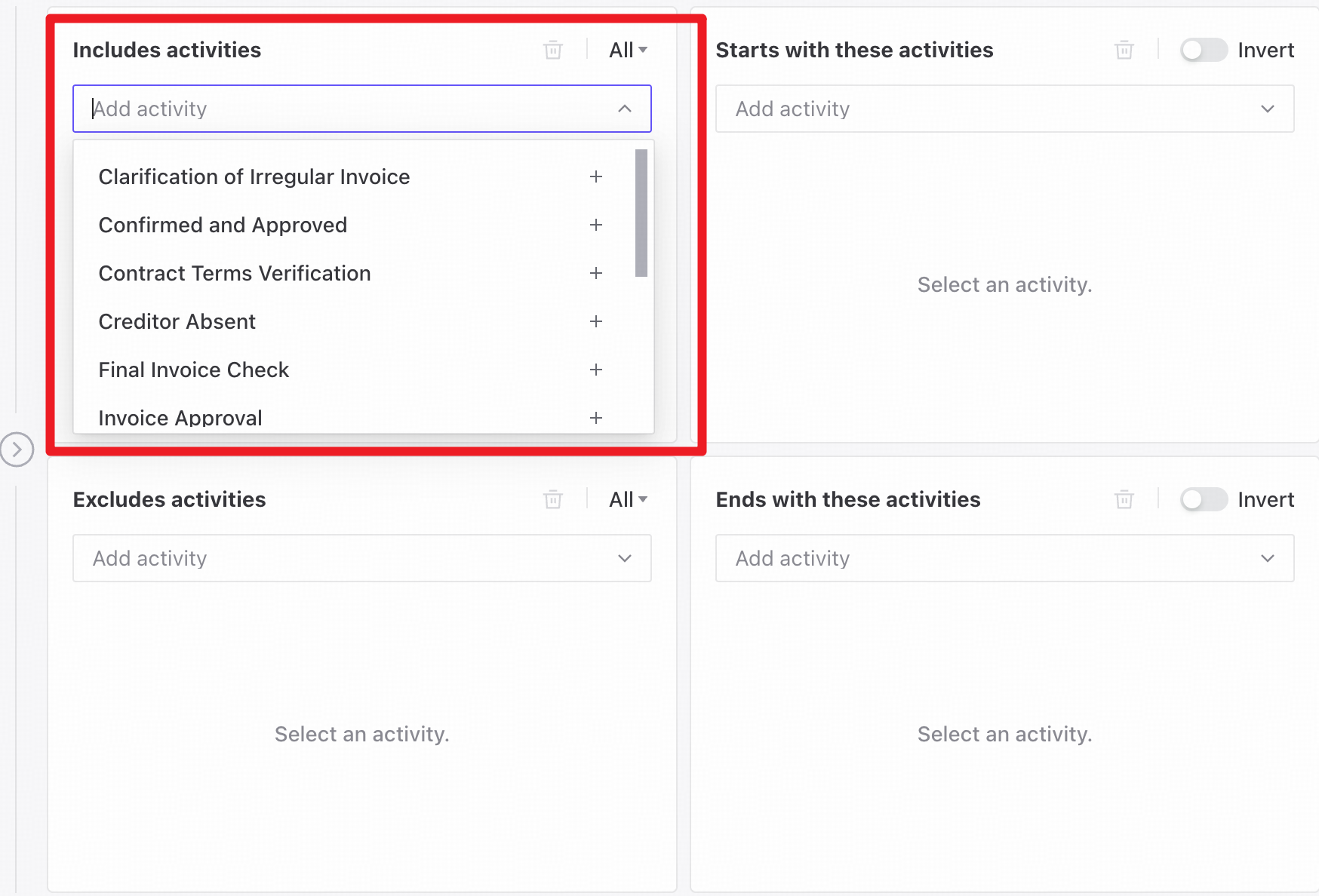
❺ Search for or select activities, as shown below.
Features
Add filter conditions
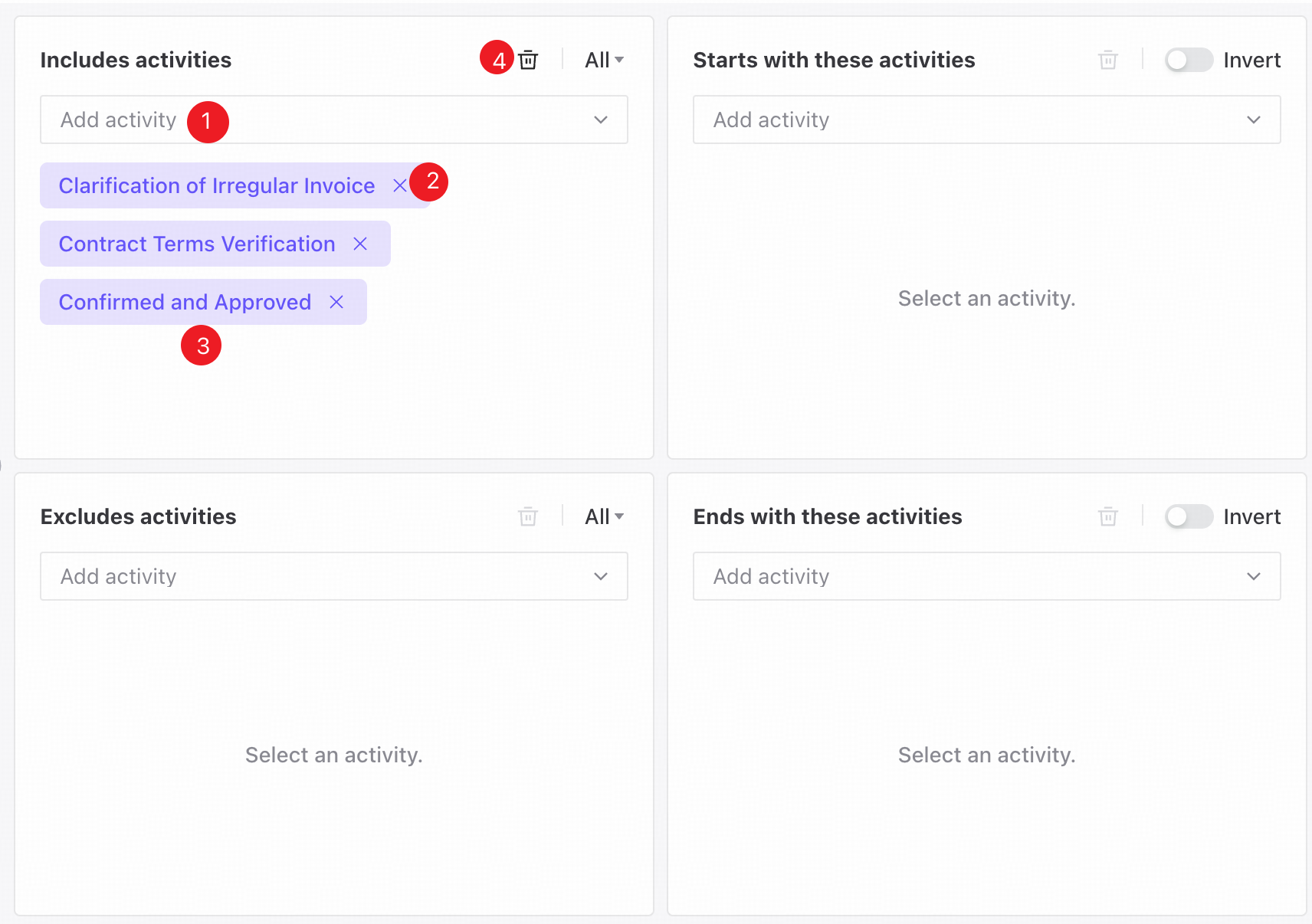
❶ Select one or more activities from the dropdown list.
❷ Selected activity names appear as tags in the corresponding area.
❸ Click the close icon on an activity tag to remove it. The activity is also deselected in the dropdown list.
❹ The Clear all icon appears when an area contains selected activity tags. Click it to remove all tags in that area and deselect the corresponding activities in the dropdown.
Follow these steps to create an activity filter.
- Open the Filter conditions panel.
- Open the Activity tab.
- Click Add activity in the required area to open the activity dropdown.
- Select activities from the dropdown.
- Click Finish to add the activity filter.
View or edit filter conditions
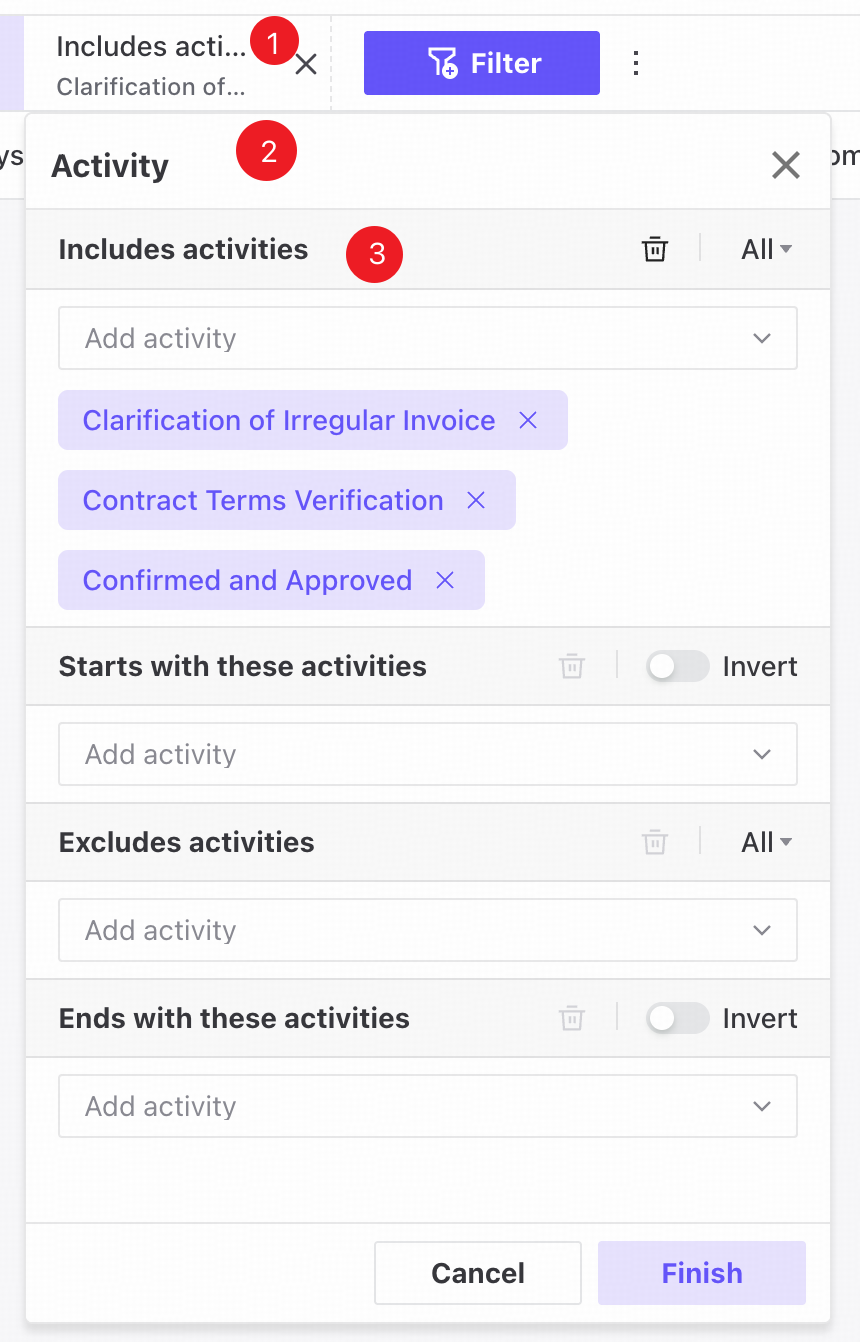
❶ Saved filters appear as tags in a horizontally scrollable row at the top of the page.
❷ Click a tag to open a popover showing the filter conditions.
❸ Edit the activity conditions in the same way as in the Filter conditions panel.
Finish is disabled until you change the filter conditions.