Process segment filtering
Overview
Select the Process segment tab in the Filter conditions panel. This filter crops the current process map to the segment you want to analyze, helping you focus on specific steps and identify issues efficiently.
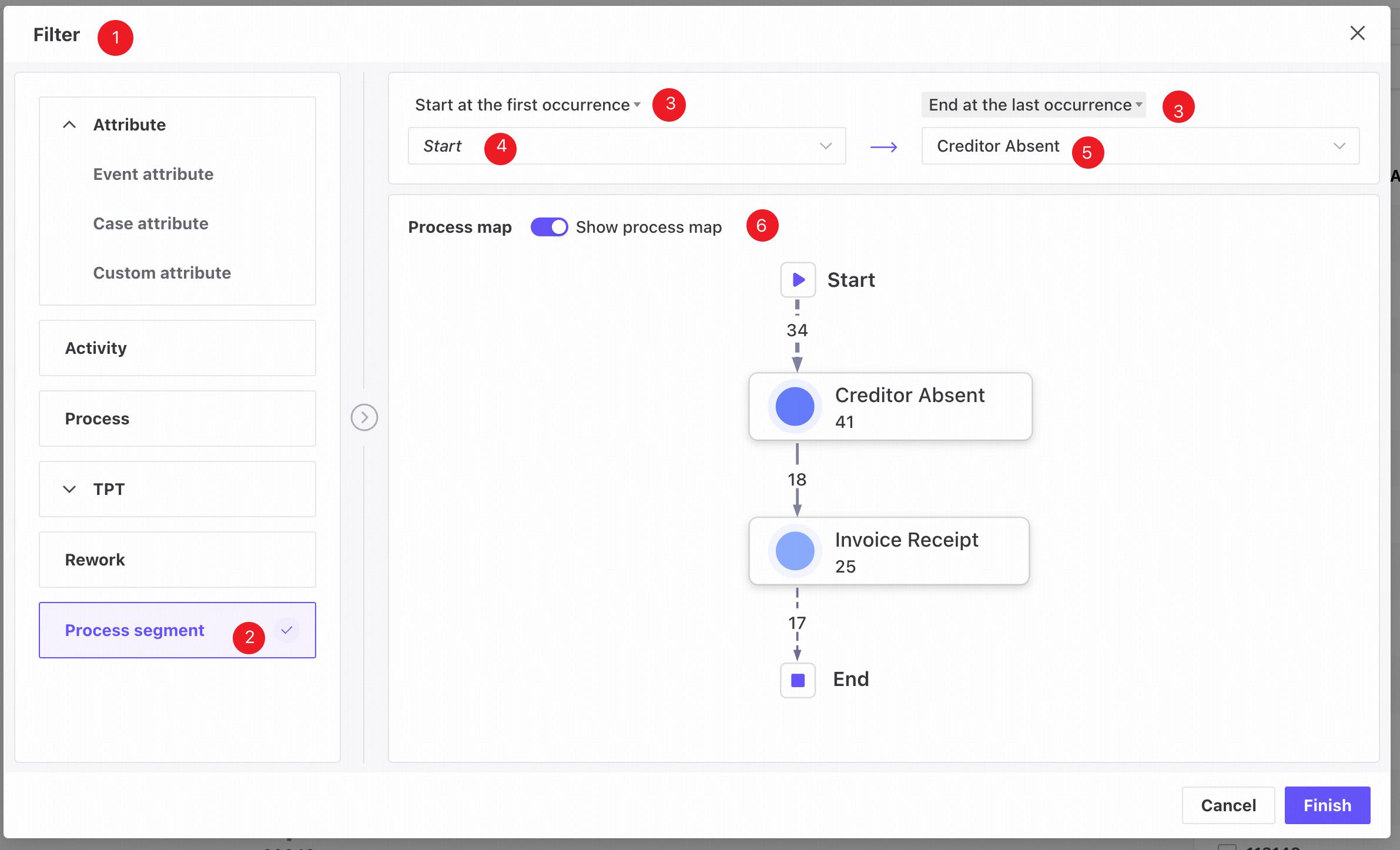
❶ Filter conditions panel.
❷ Process segment tab.
❸ Choose the first or last occurrence of an activity for the process segment.
❹ Select the start activity for the segment.
❺ Select the end activity for the segment.
❻ The process map is hidden by default. Switch to Show process map to display it.
Features
Add filter conditions
Follow these steps to create a process segment filter.
- Open the Filter conditions panel.
- Open the Process segment tab.
- Select the required activities and first/last occurrence settings.
- Click Finish to add the process segment filter.
Only one process segment filter can be active. Adding a new one replaces any existing process segment filter with the latest condition.
View or edit filter conditions
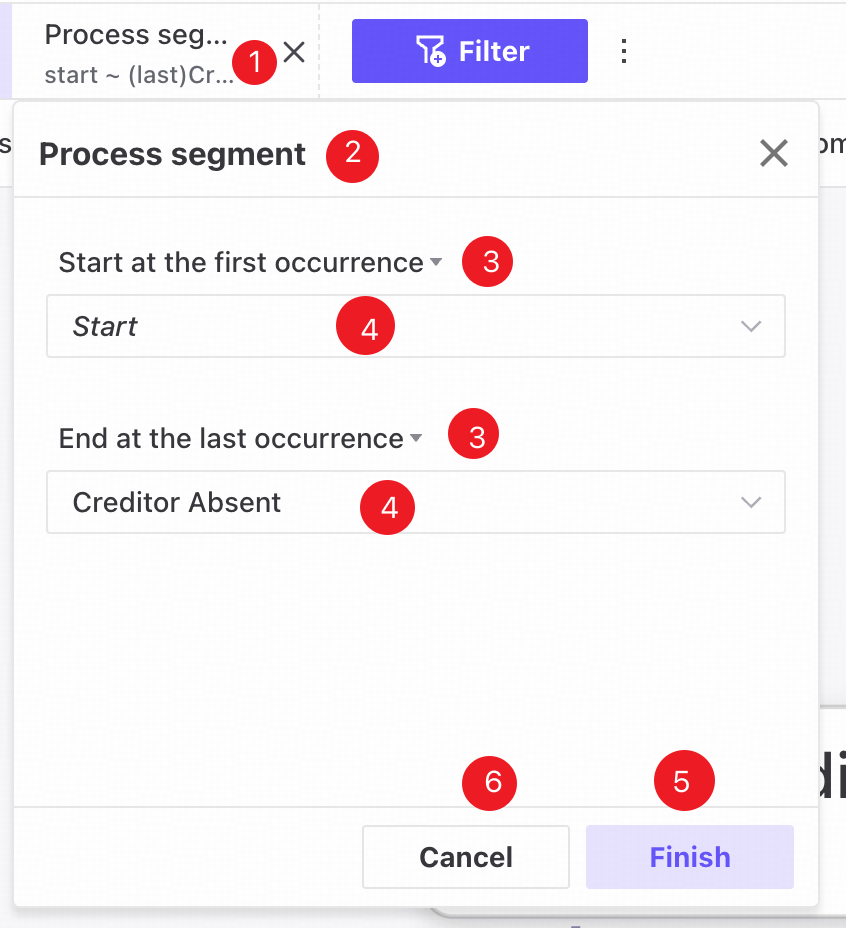
❶ Saved filters appear as tags in a horizontally scrollable row at the top of the page.
❷ Click a tag to open a popover showing its saved filter values.
❸ The first/last occurrence setting shows the last saved value by default.
❹ Click the activity selector to open the activity dropdown. The last saved selection is shown by default.
❺ Choose new conditions and click Finish to update the filter.
❻ Click Cancel to close the popover and restore the last saved values.