Rework filtering
Overview
Select the Rework tab in the Filter conditions panel. Filter cases by activity occurrences to identify rework, where one or more activities are performed multiple times in a process.
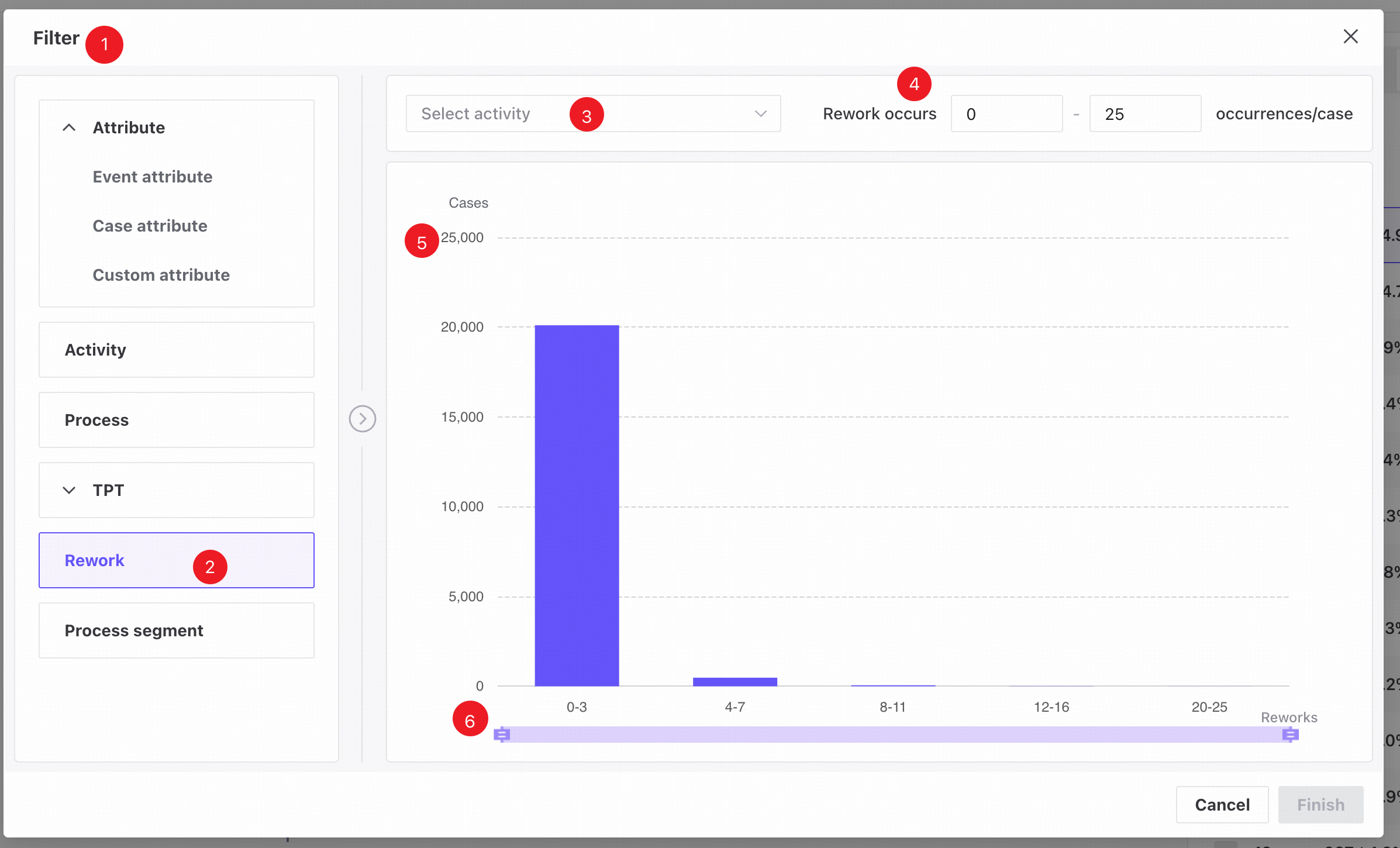
❶ Filter conditions panel.
❷ Rework tab.
❸ Click the activity selector to open the activity dropdown.
❹ Enter start and end values for the rework count range. Use the up/down arrows to adjust values in increments of 1. The start and end values default to the minimum and maximum in the data.
❺ The histogram shows rework counts on the X-axis and case counts on the Y-axis. When no activity is selected, it shows the case–rework distribution for all activities.
❻ Drag the rework count slider to set the range and view detailed data.
Features
Add filter conditions
Follow these steps to create a rework filter.
- Open the Filter conditions panel.
- Open the Rework tab.
- Select the required activity.
- Click Finish to add the rework filter.
View or edit filter conditions
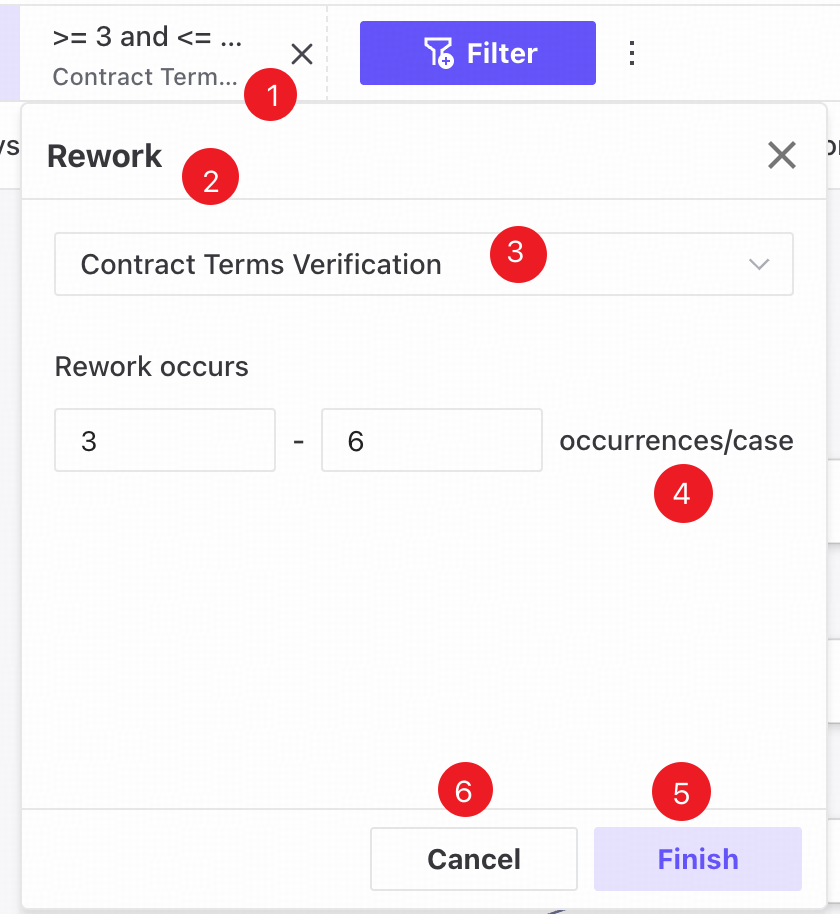
❶ Saved filters appear as tags in a horizontally scrollable row at the top of the page.
❷ Click a tag to open a popover showing its saved filter values.
❸ Click the activity selector to open the activity dropdown. The last saved activity is selected by default.
❹ The rework count range shows the last saved values by default.
❺ Choose new conditions and click Finish to update the filter.
❻ Click Cancel to close the popover and restore the last saved values.