Attribute filtering
Overview
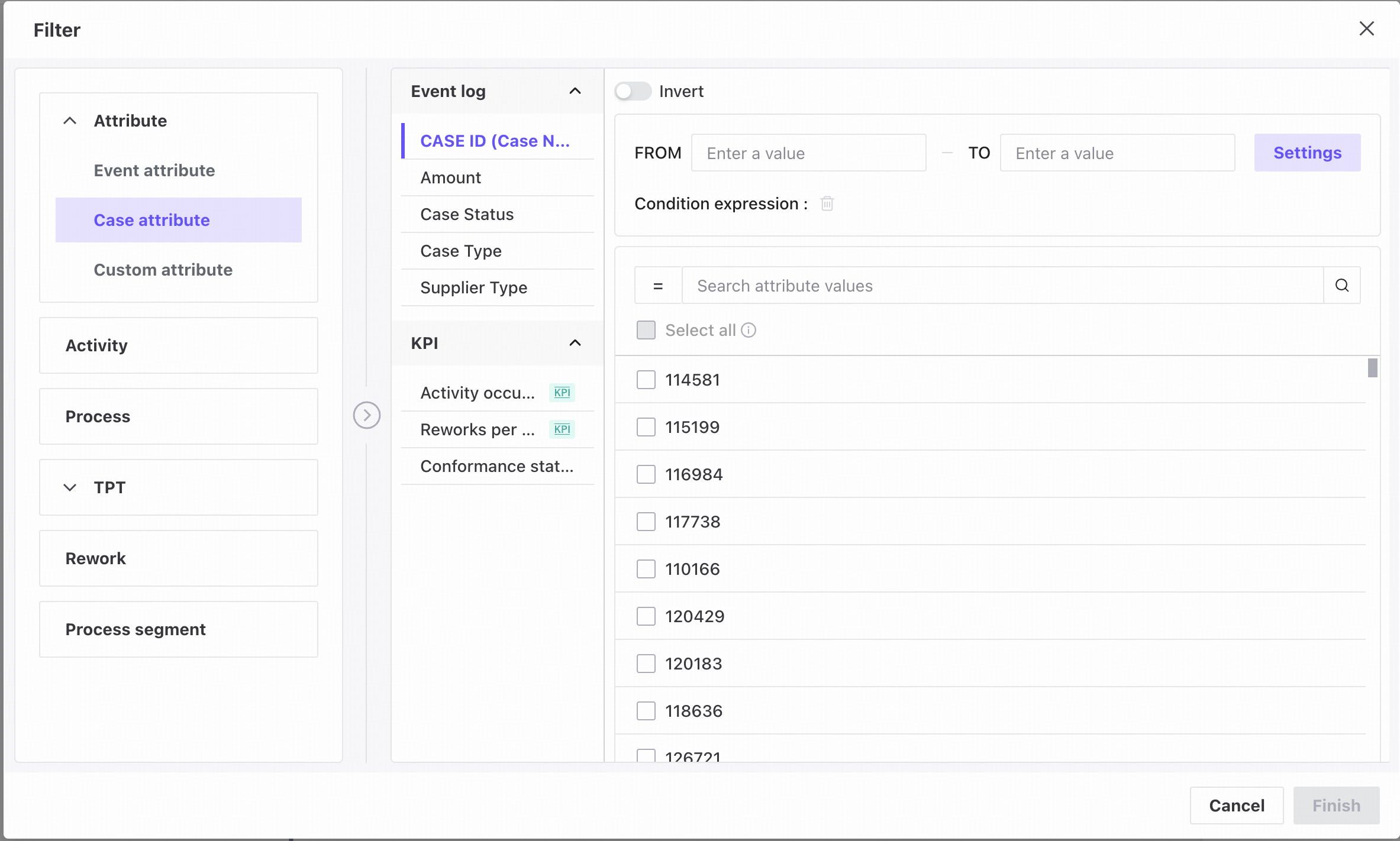
Select the Attribute tab in the Filter conditions panel.
There are three attribute categories:
- Case attributes: columns whose values are the same for every event within a case. This tab also supports derived attributes such as activity count, rework count, throughput time, and conformance status per case.
- Event attributes: event log attributes that are not case attributes.
- Custom attributes: attributes created using Custom attributes. They are used in the same way as case attributes.
Features
Filter types
Attribute filters support three data types:
- Numeric
- String
- Date
Numeric
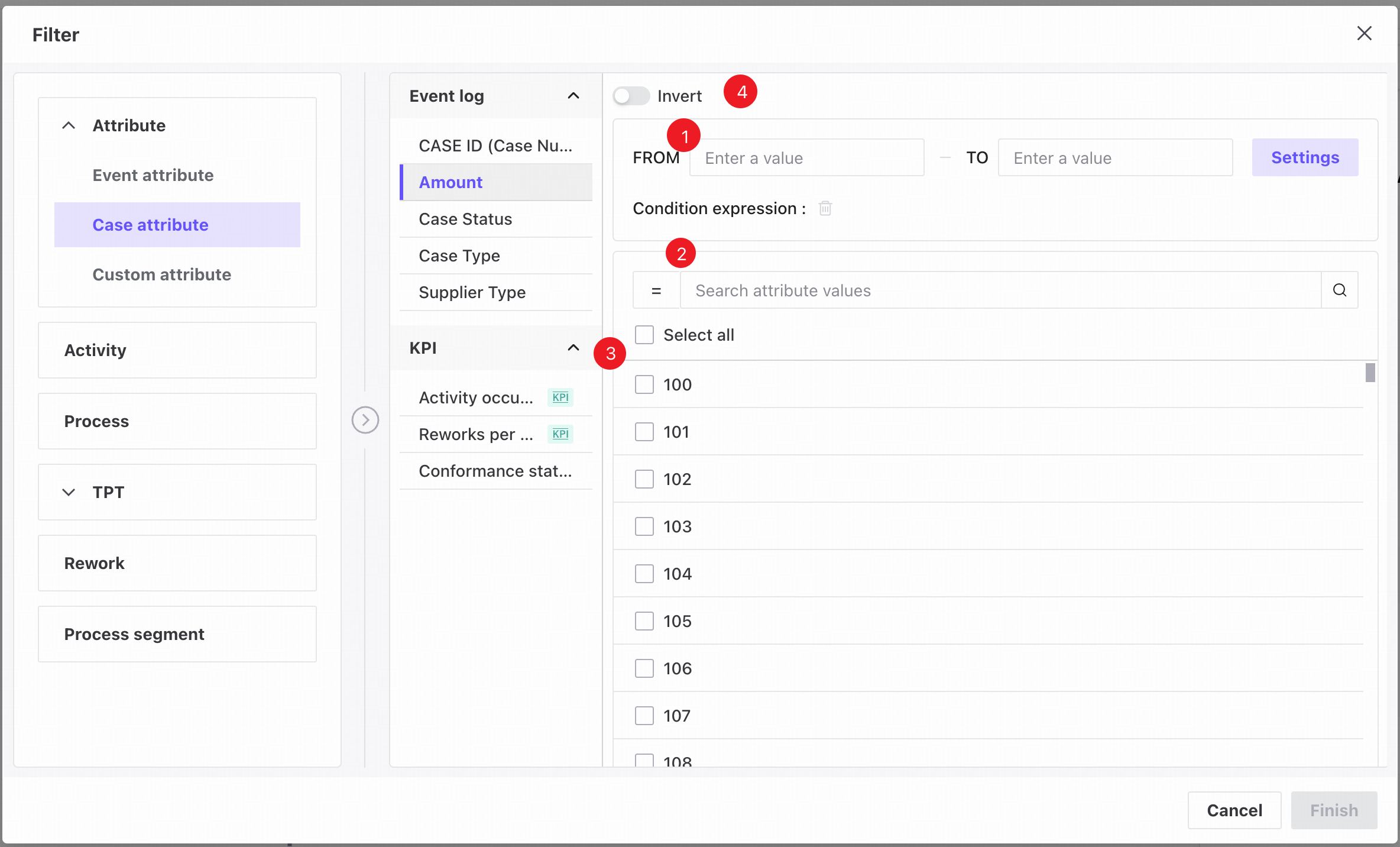
❶ Set a numeric range and click Set to apply it.
❷ Select a numeric comparison operator, shown as equals by default, then enter a value to filter the results.
❸ Select one or more attribute values using the checkboxes. Select all selects every currently displayed value.
❹ Invert the selection to return results outside the specified range and selected values.
Comparison operators and range filters are available only for numeric attributes.
Results include both values within the selected range and individually selected attribute values.
String
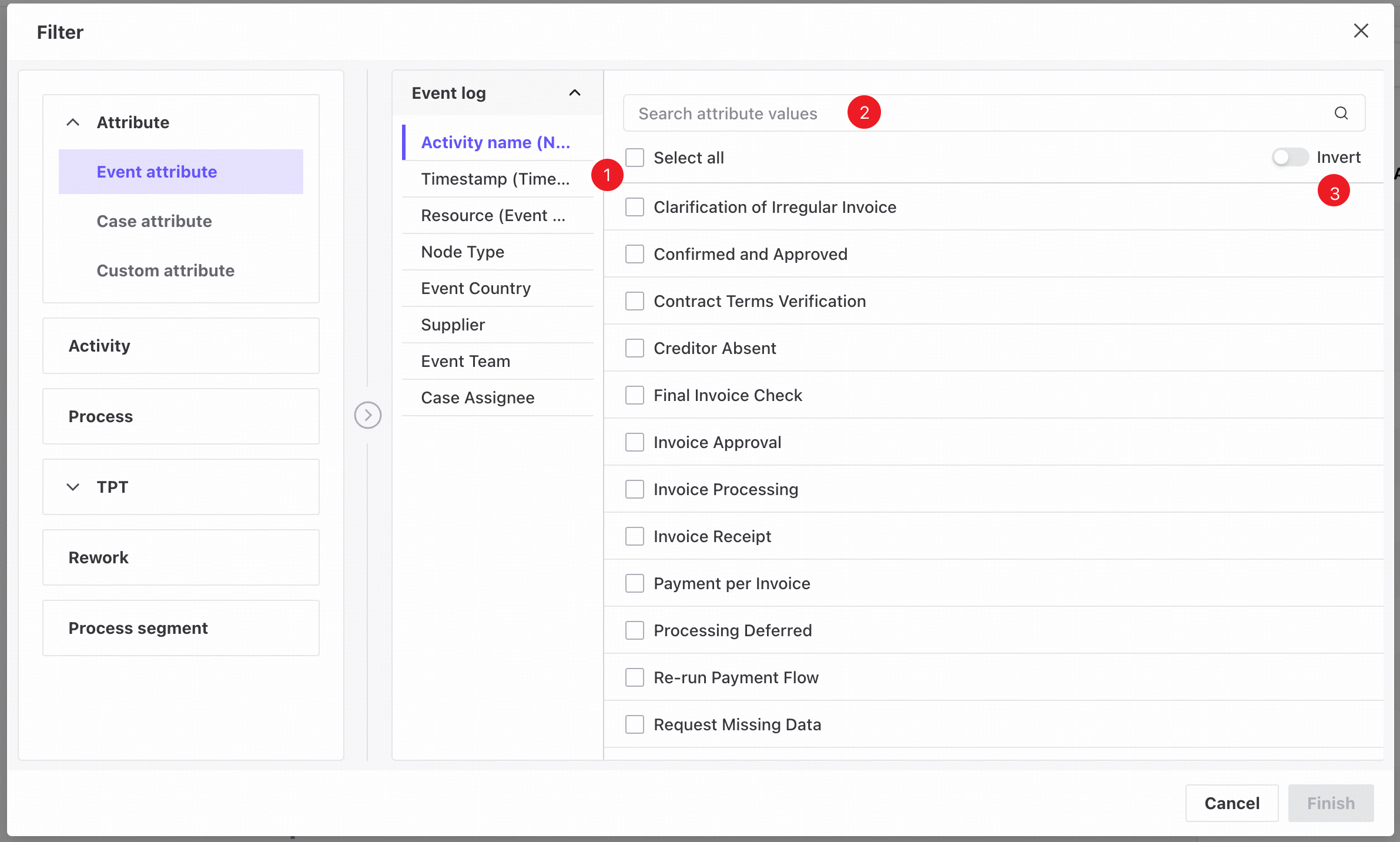
❶ Select one or more entries in the checkbox list.
❷ Enter a column value in the search box and press Enter to display values containing the search text.
❸ Enable Invert selection to filter by all unselected values.
Date
Date filters support range selection and attribute selection. Range selection is selected by default.
- Range selection: select a date range.
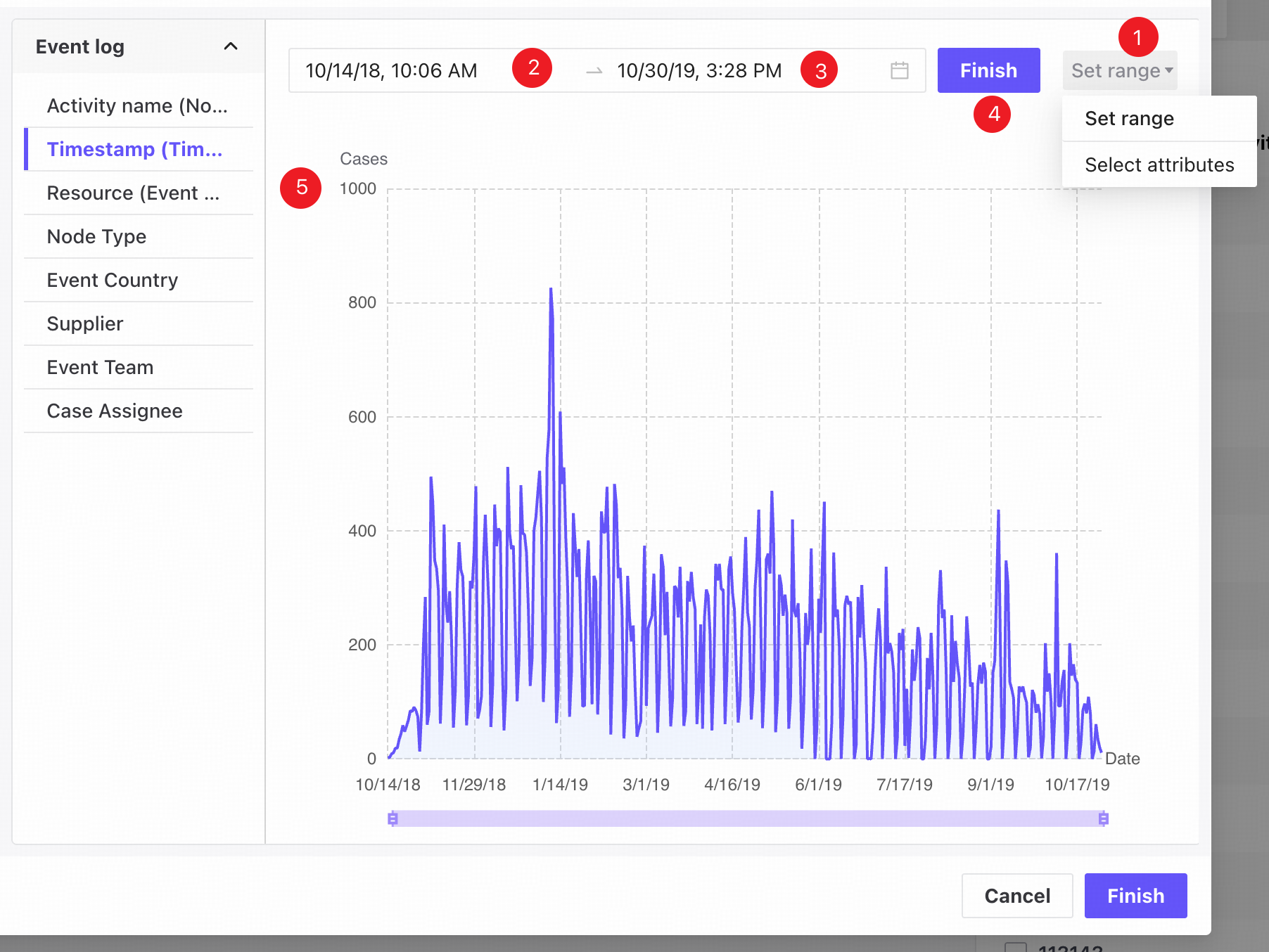
❶ Switch to range selection.
❷ Select the start date.
❸ Select the end date.
❹ After selecting a valid date range, click Finish to view the chart.
- Finish is disabled until both the start and end dates are selected.
- Choose a valid date range. The start date must not be later than the end date. Otherwise, an error appears and Finish remains disabled.
❺ The date–case distribution chart shows time ranges on the X-axis and case counts on the Y-axis. Drag the slider to change the range and view detailed data.
Attribute selection
Select individual dates.
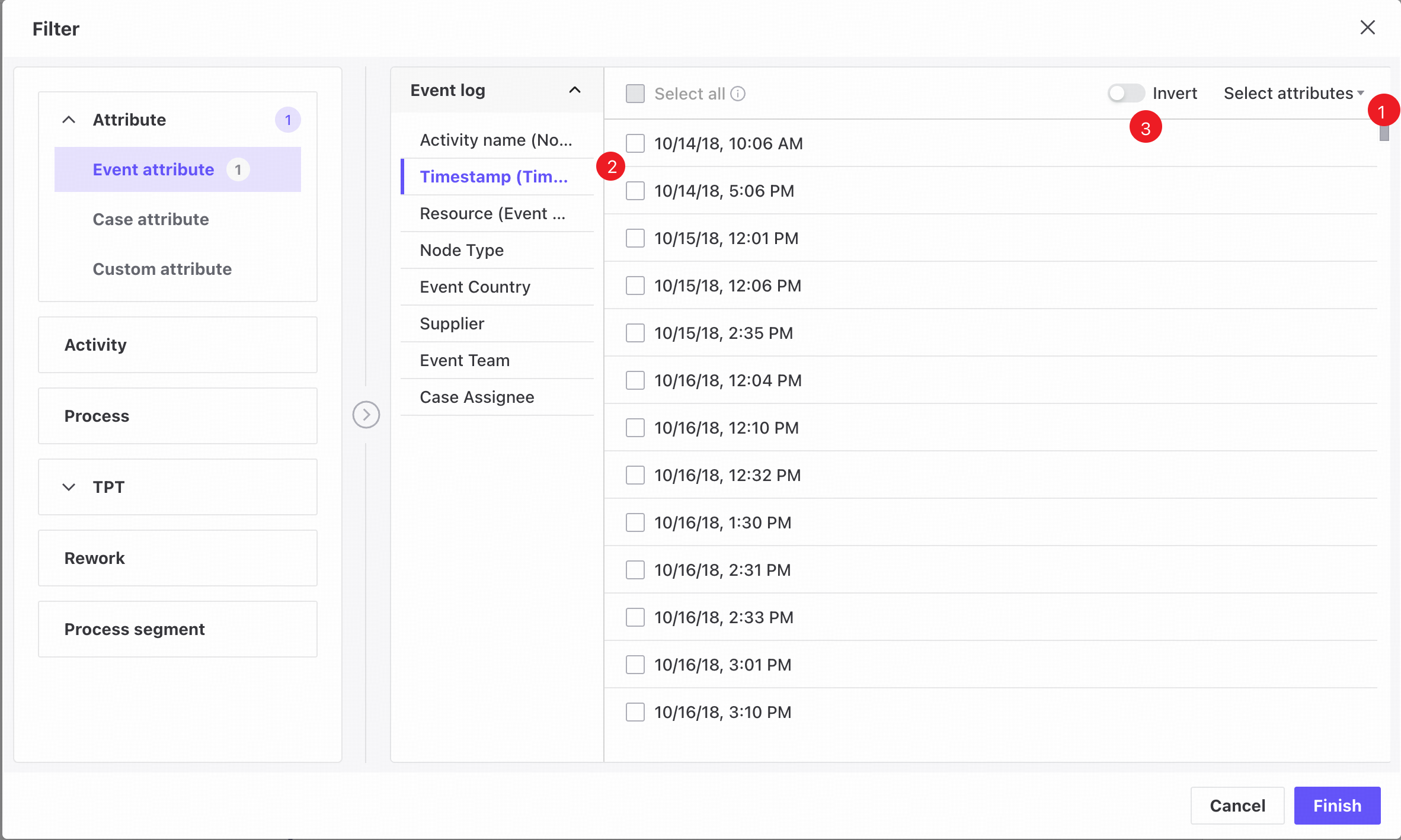
❶ Switch to attribute selection.
❷ Select one or more entries in the checkbox list.
❸ Enable Invert selection to filter by all unselected values.
Add filter conditions
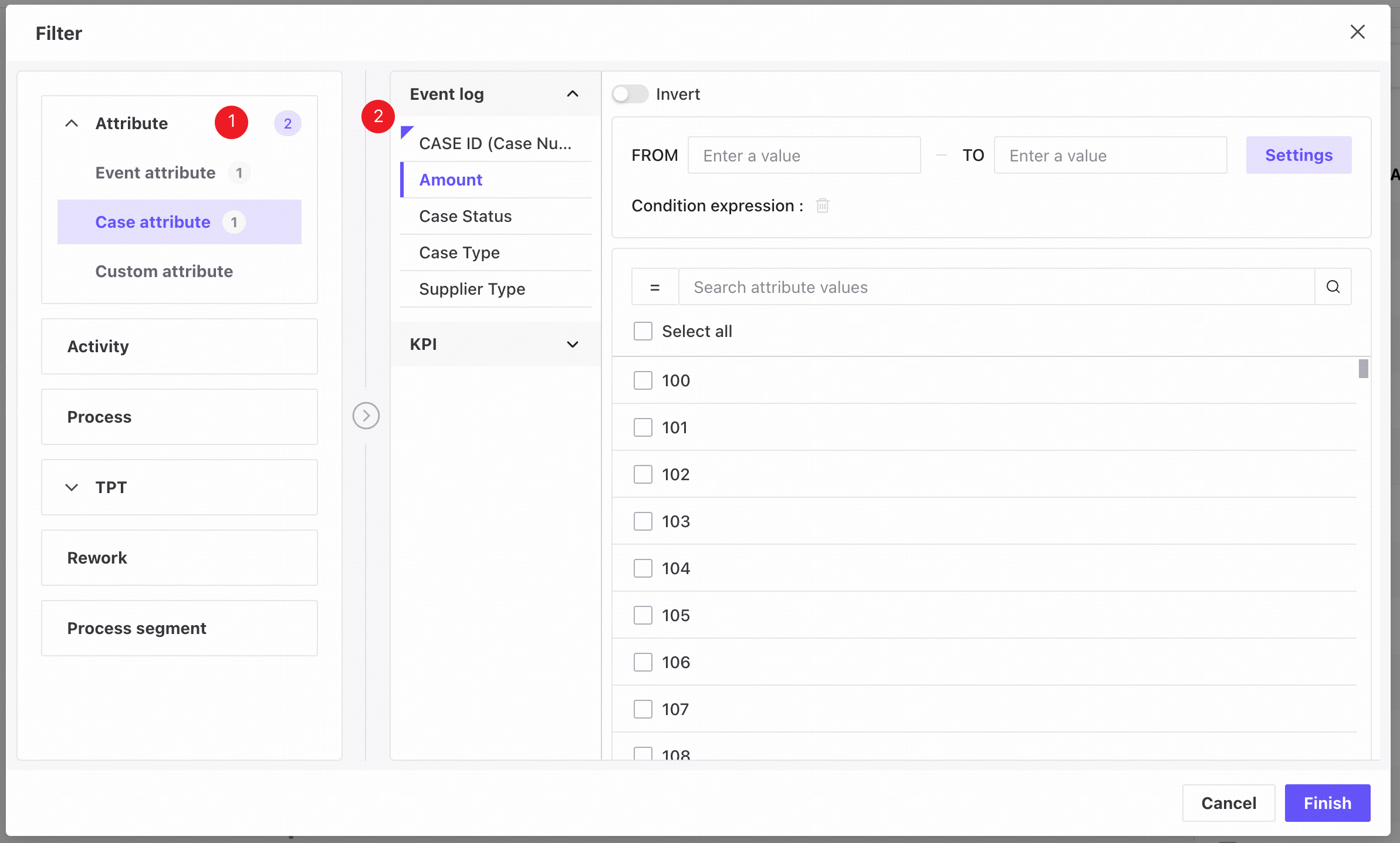
❶ The number icon shows the number of attribute filter conditions.
❷ A blue badge marks column names with an attribute filter.
Follow these steps to create attribute filters.
- Open the Filter conditions panel.
- Open the Attribute tab.
- Select the column to filter in the list on the left.
- Select the required values or a date range.
- Click Finish to add the attribute filters.
View or edit filter conditions
- Numeric
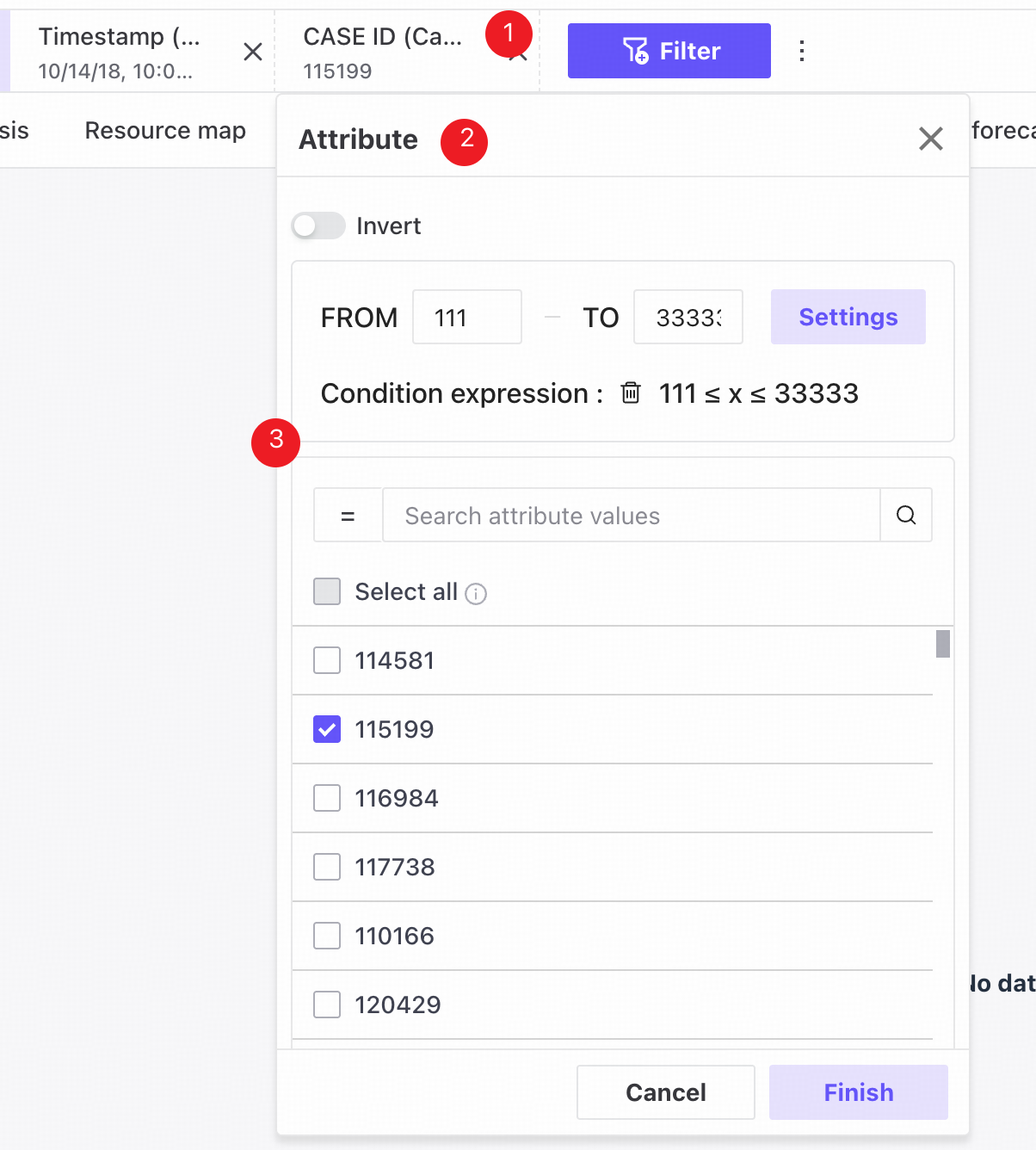
❶ Saved filters appear as tags in a horizontally scrollable row at the top of the page.
❷ Click a tag to open a popover showing its saved filter values.
❸ The filtering logic is the same as for numeric attribute filters.
- String
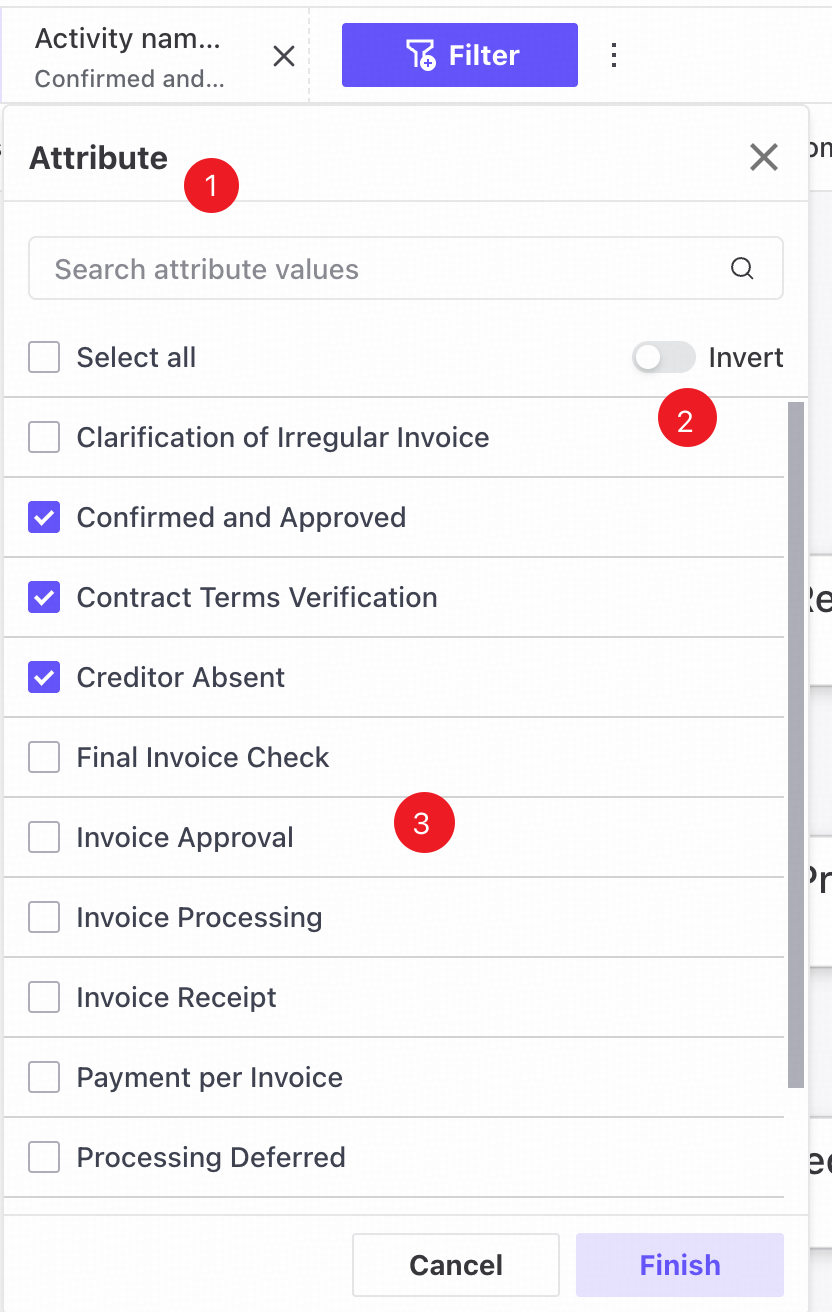
❶ Search column values.
❷ The Invert selection toggle shows the last saved setting by default.
❸ The checkbox list selects the last saved values by default.
- Date
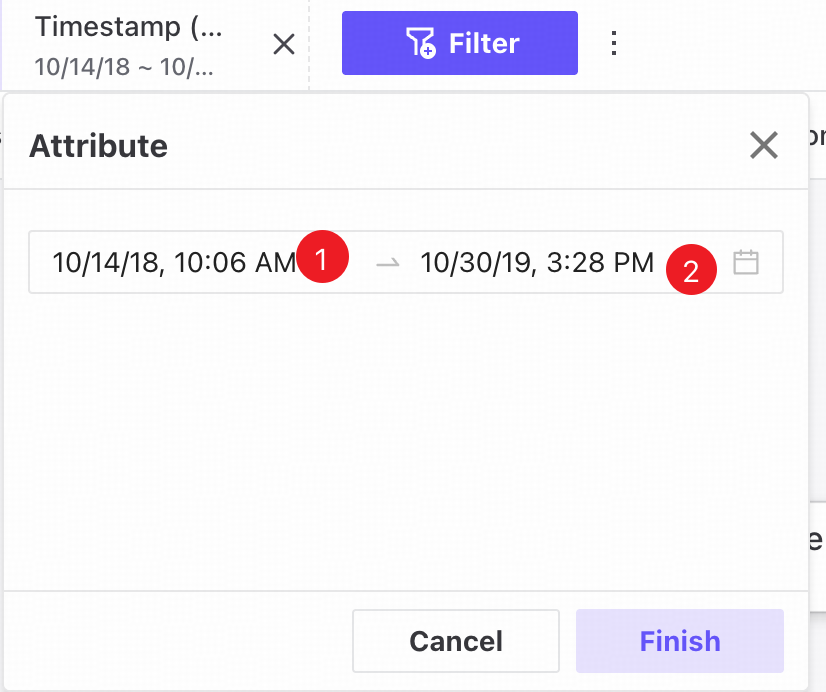
❶ The start date picker shows the last saved value by default.
❷ The end date picker shows the last saved value by default.